Teams
Teams are your clients. A team consists of one animal, one handler, and optionally a second, alternate handler.
The main screen of the Teams tab is a list of teams. This list includes all of the teams you've worked with (not just those in a particular class).
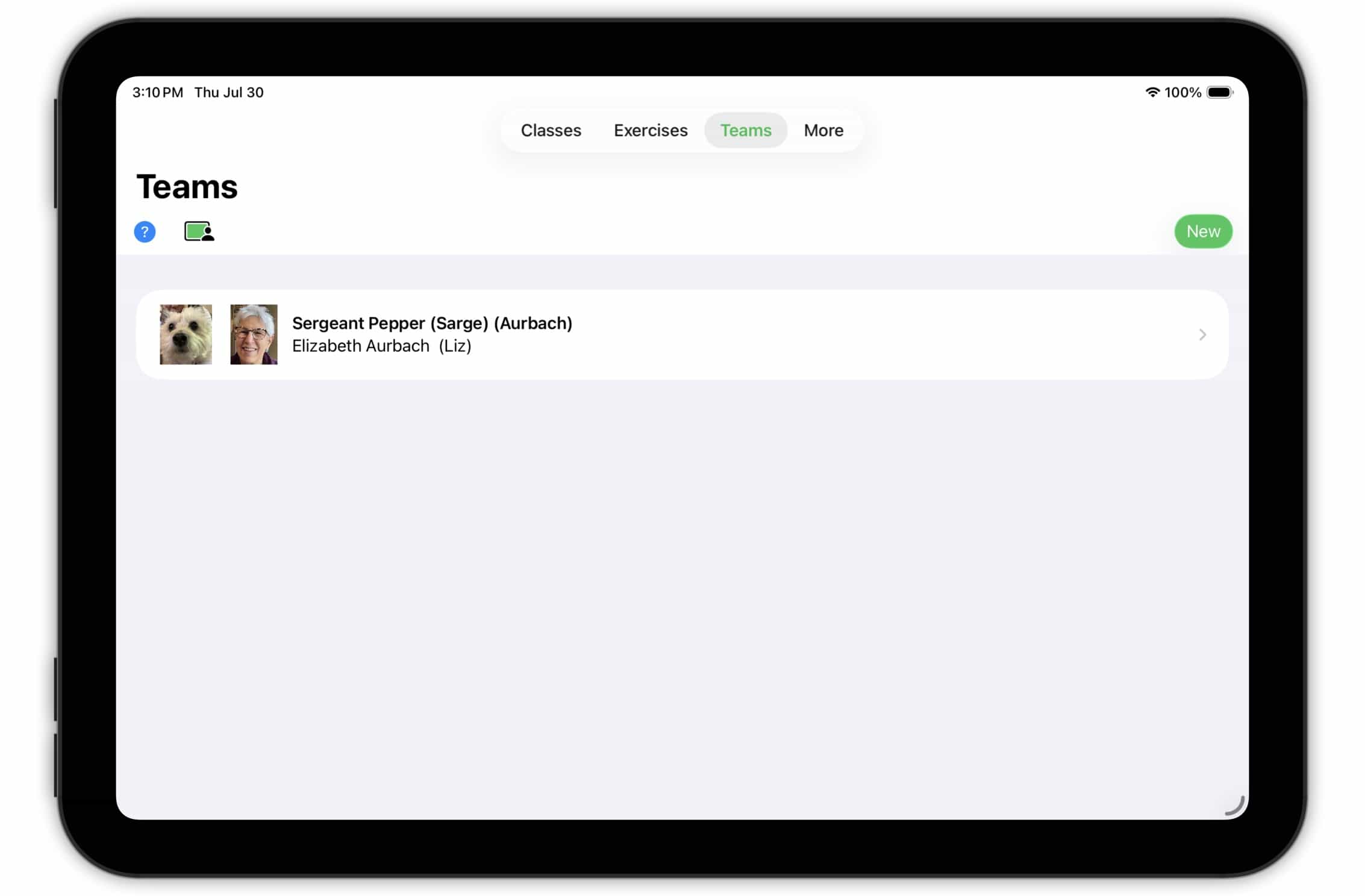
We'll start by examining the information Training Corner collects and stores about teams. Then we'll go through the process of creating a new team.
TopTeam Detail
To access information about a team, tap the team in the Team List.
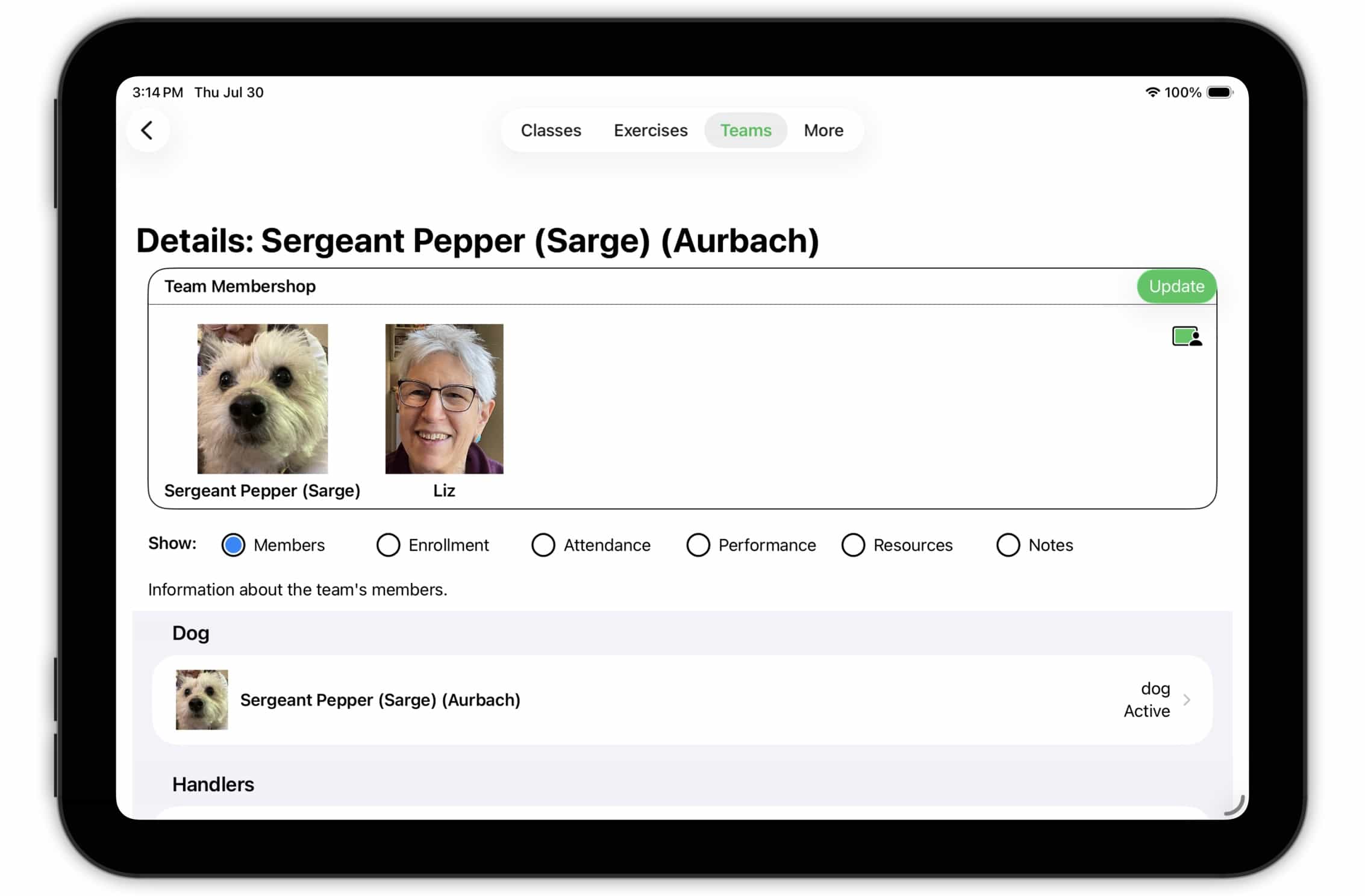
The Team Detail screen consists of three sections — an information section, a row of subsection selectors, and the selected subsection. Here, the information section displays the members of the team and the selectors allow you to choose between six subsections.
The Information Section. This section displays the members of the team. To change who is part of the team, tap the Update button. Note that this button is only visible when you've selected the Members subsection.
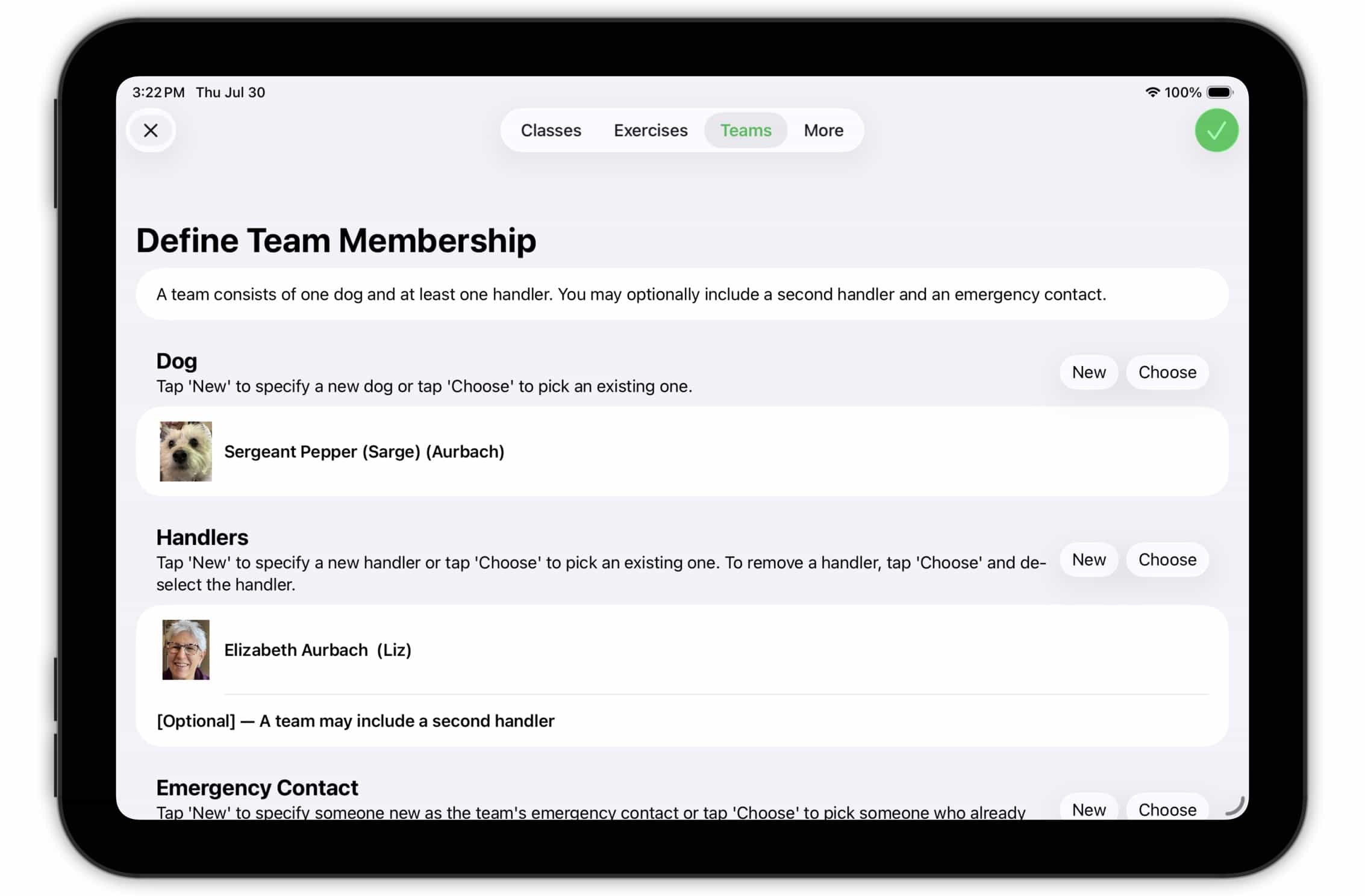
Use this screen to change team members, to add or remove a second (alternate) handler, and/or to add an emergency contact. In each case, use the New button to add an animal or person who is new to you or use the Change button to choose an animal or person who is already known to Training Corner. We'll discuss adding new animals and people later when we discuss creating a new team.
You must tap the green button in the upper right-hand corner to save any changes you make here. (Prior to iOS/macOS 26, this button was labeled Save; starting with iOS/macOS 26, it became a checkmark.)
Also, please note that the photos are optional, but recommended.
TopTeam Detail: Members
The Members subsection provides access to detailed information about each of the members of the team (including the emergency contact, if specified).
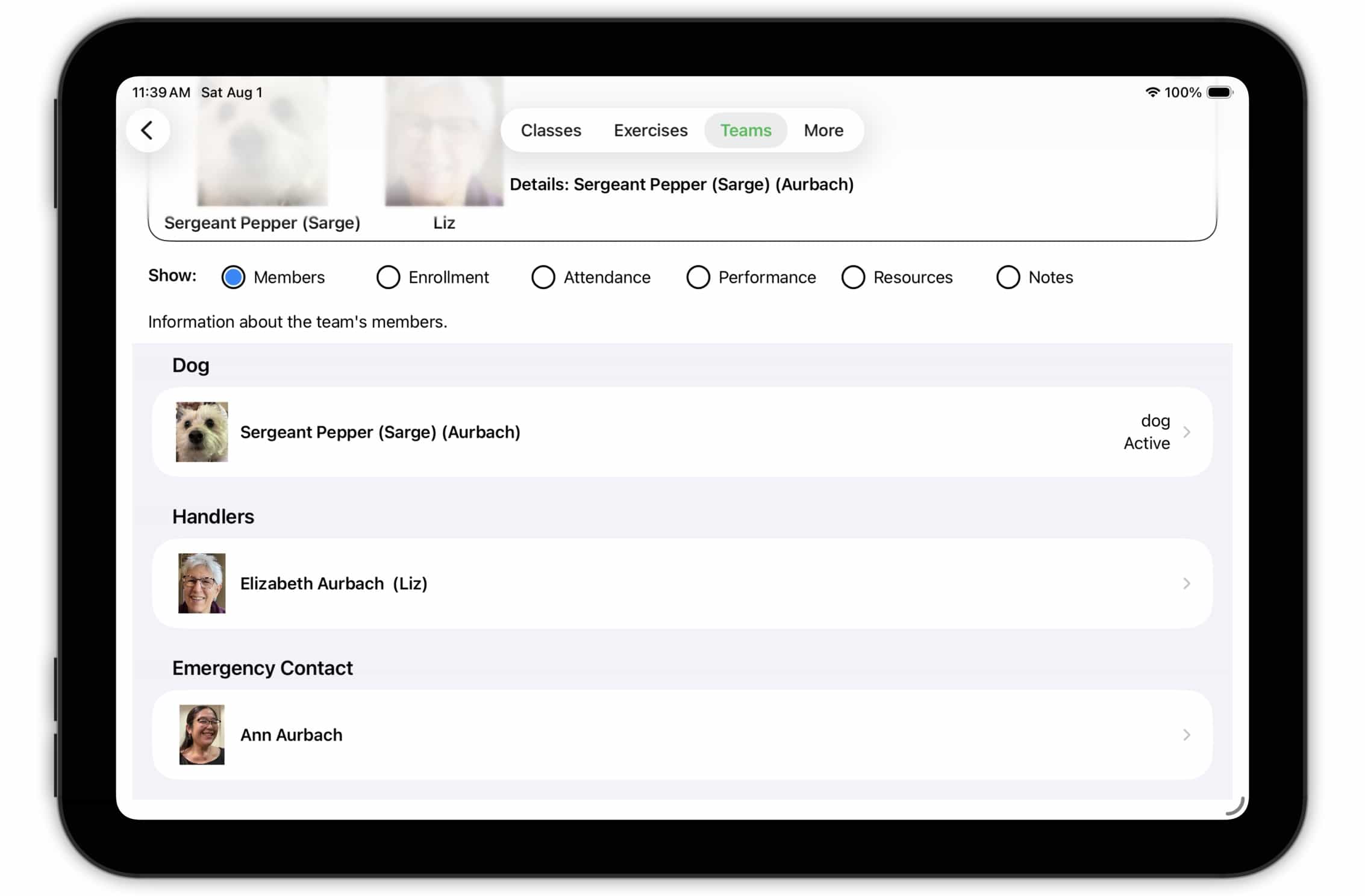
Tap on a member to access their information. See below for a detailed discussion of the Animal Detail and Handler Detail sections of Training Corner.
TopTeam Detail: Enrollment
The Enrollment subsection lists all of the classes this team has enrolled in.
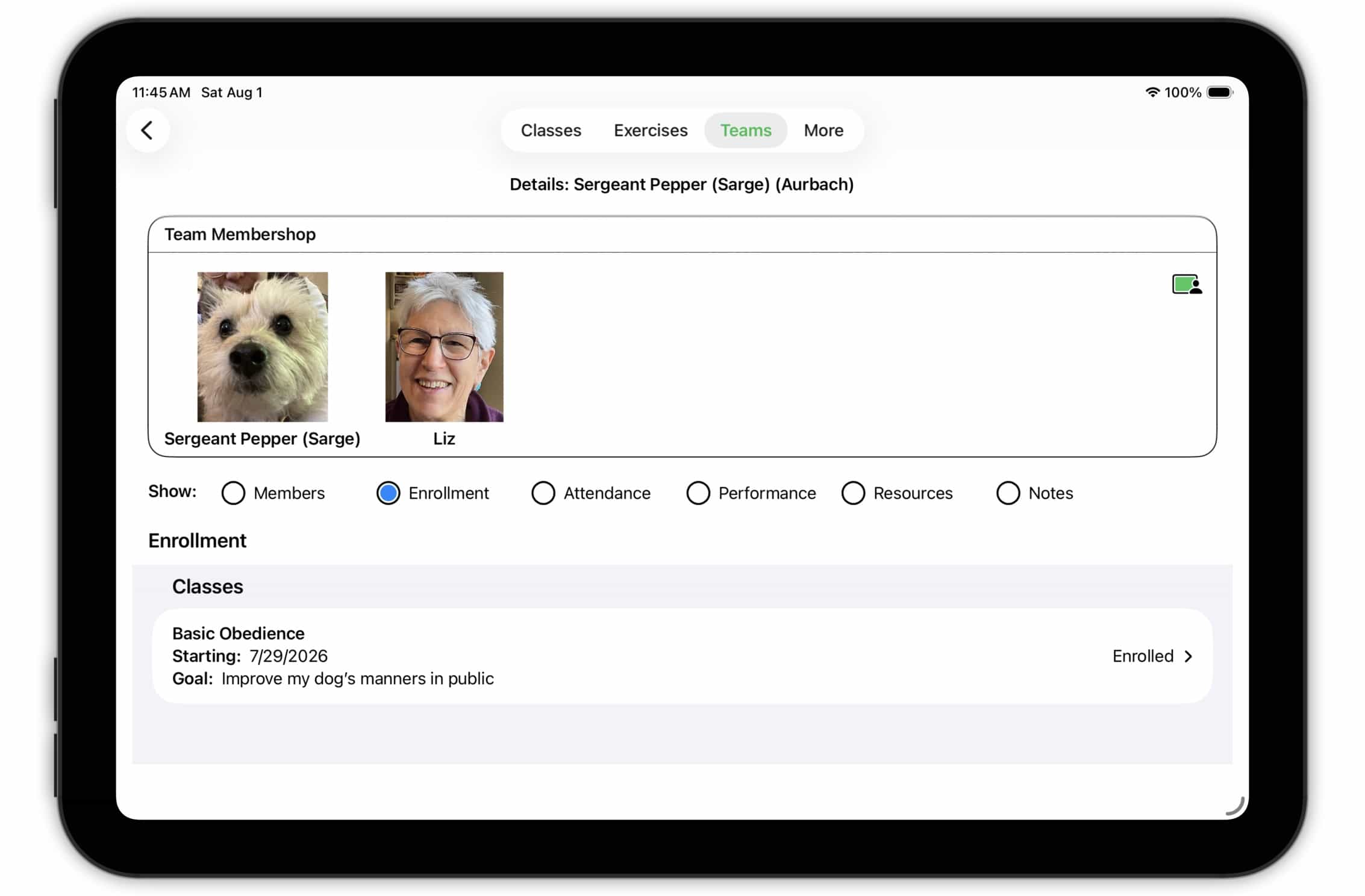
Tapping on a row expands the display to show detail of the enrollment process.
TopTeam Detail: Attendance
The Attendance subsection lists all of the classes this team has enrolled in and shows their attendance records for each.
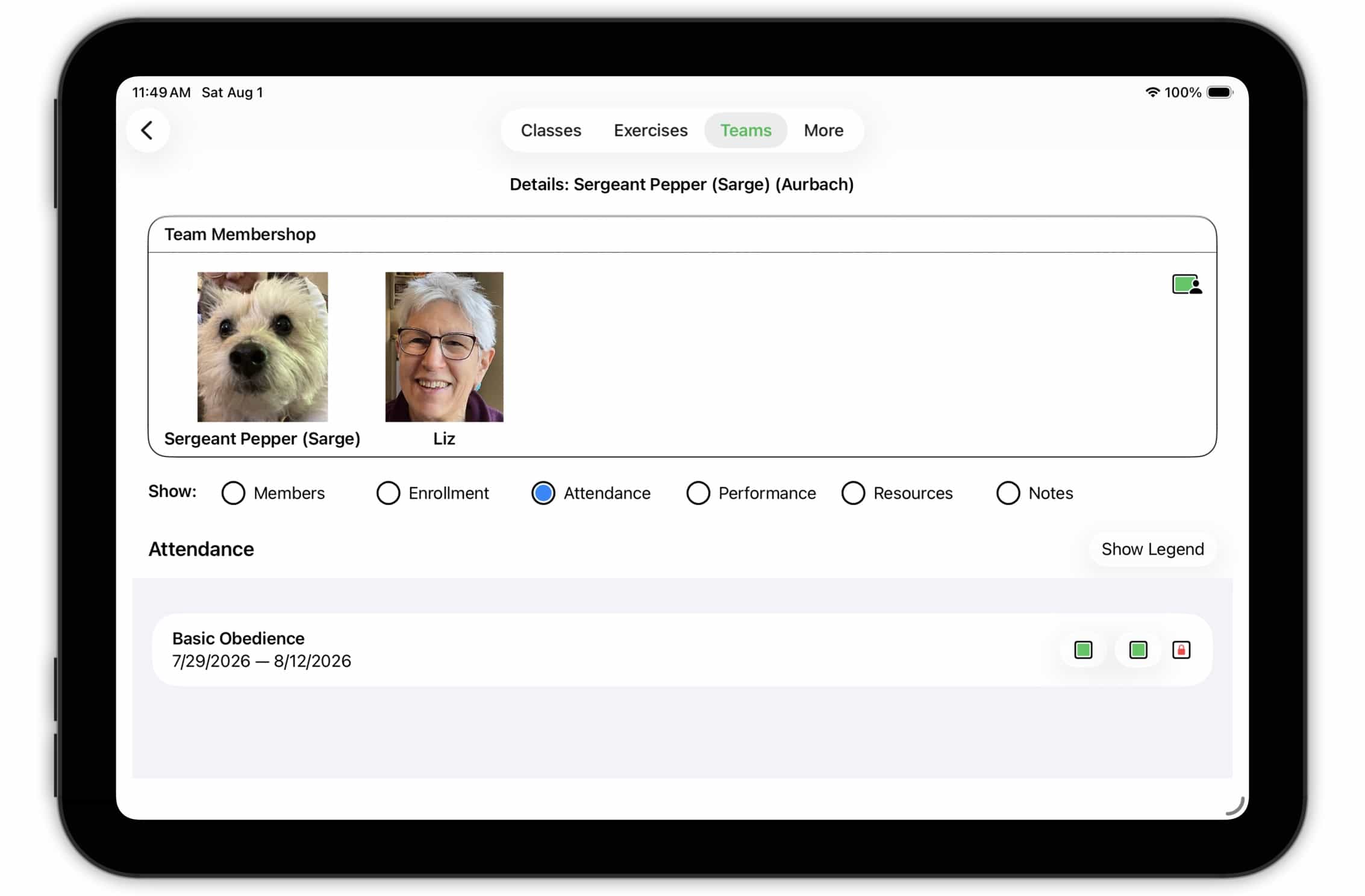
Each session of the class is represented by a symbol. Tap the Show Legend button to reveal a legend describing what each symbol means.
TopTeam Detail: Performance
The Performance subsection lists all of the classes this team has enrolled in and displays their performance in each.
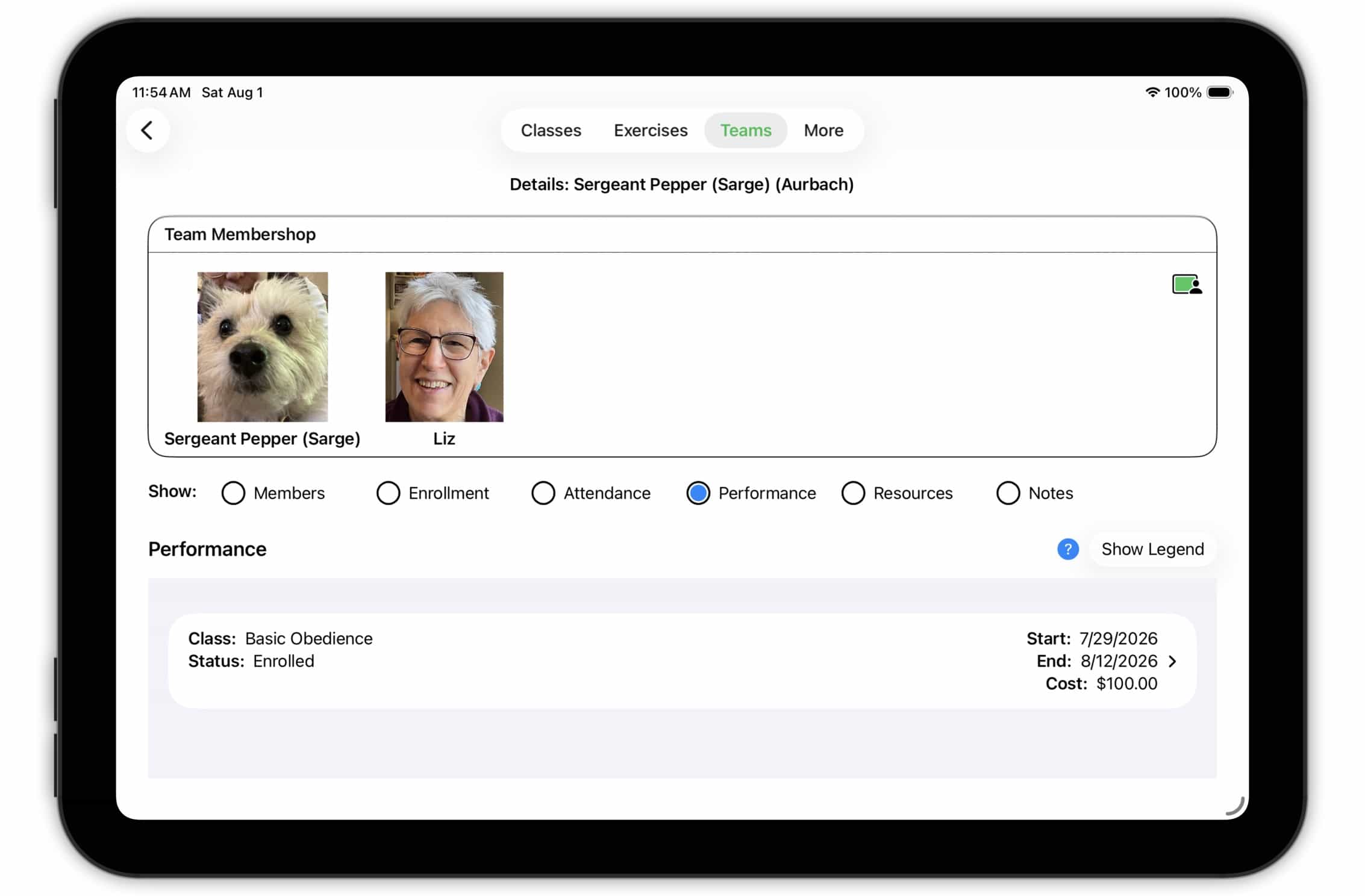
Tap on a class to display the team's performance record in that class.
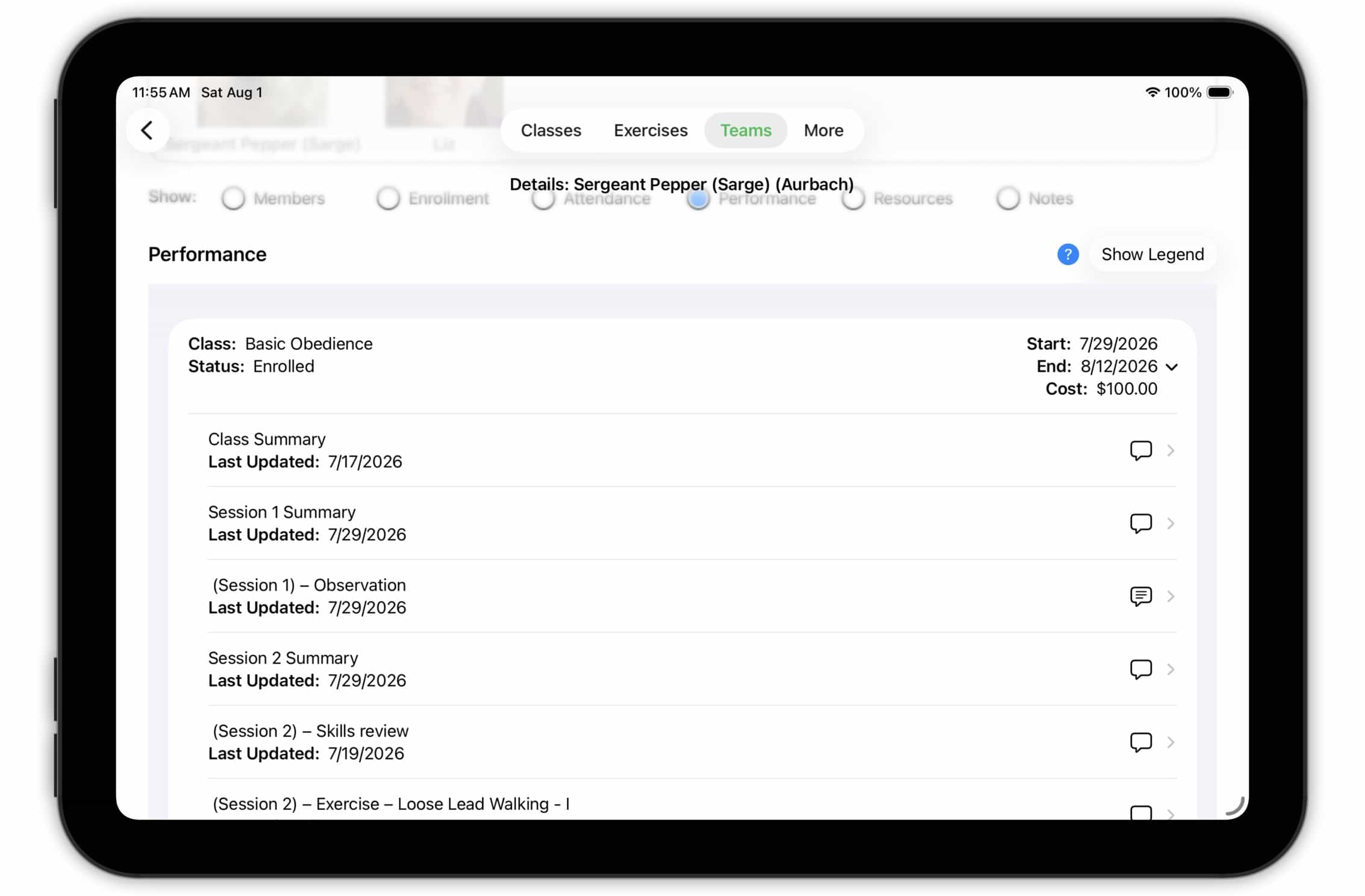
A complete list of performance records is displayed. (Note the Show Legend button.) Tapping on an entry opens a detailed performance record (as discussed in the Performance page).
TopTeam Detail: Resources
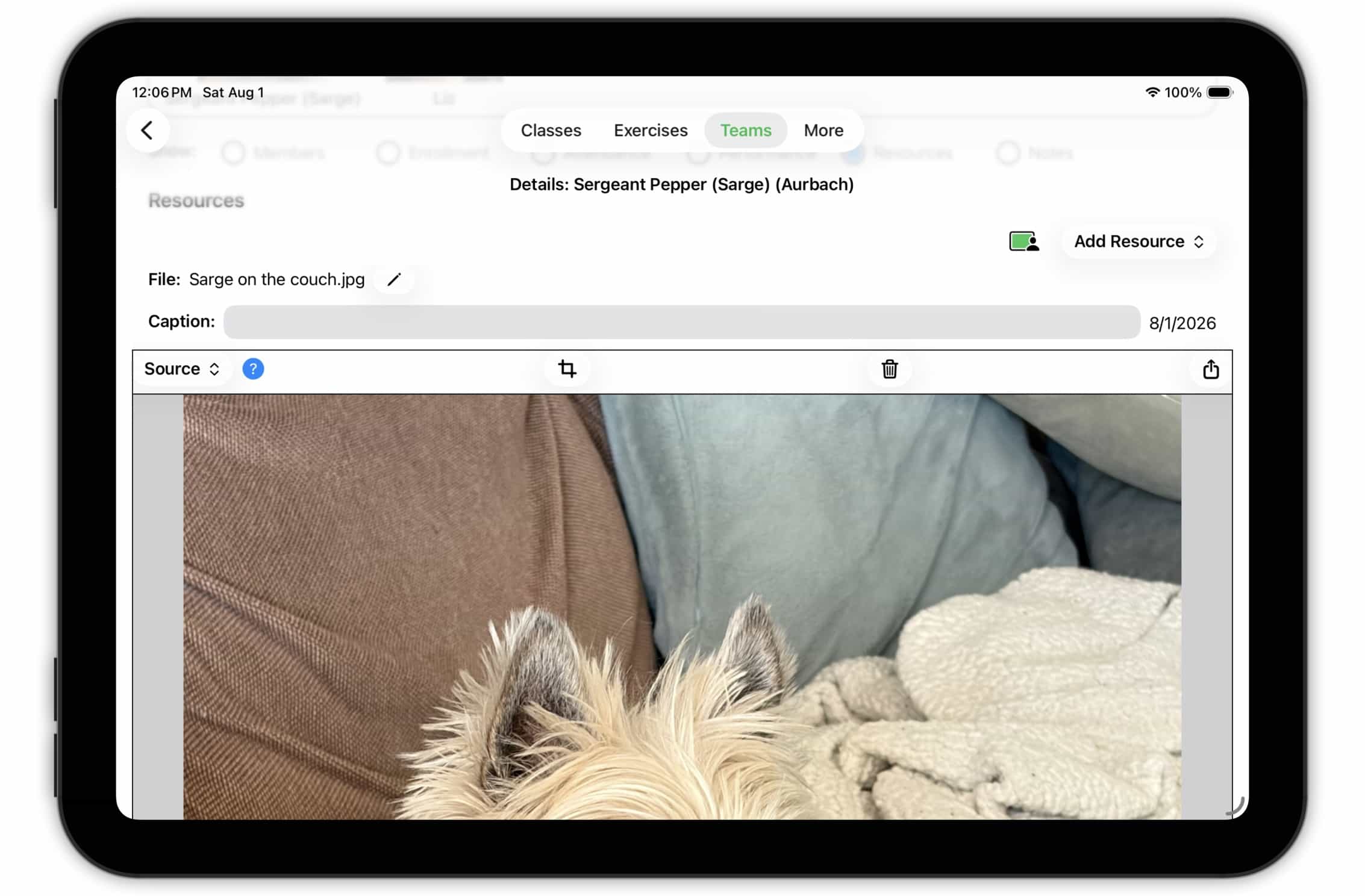
The Resources subsection is a place to collect photos, videos or other illustrative items related to the team or its members.
 Top
Top
Team Detail: Notes
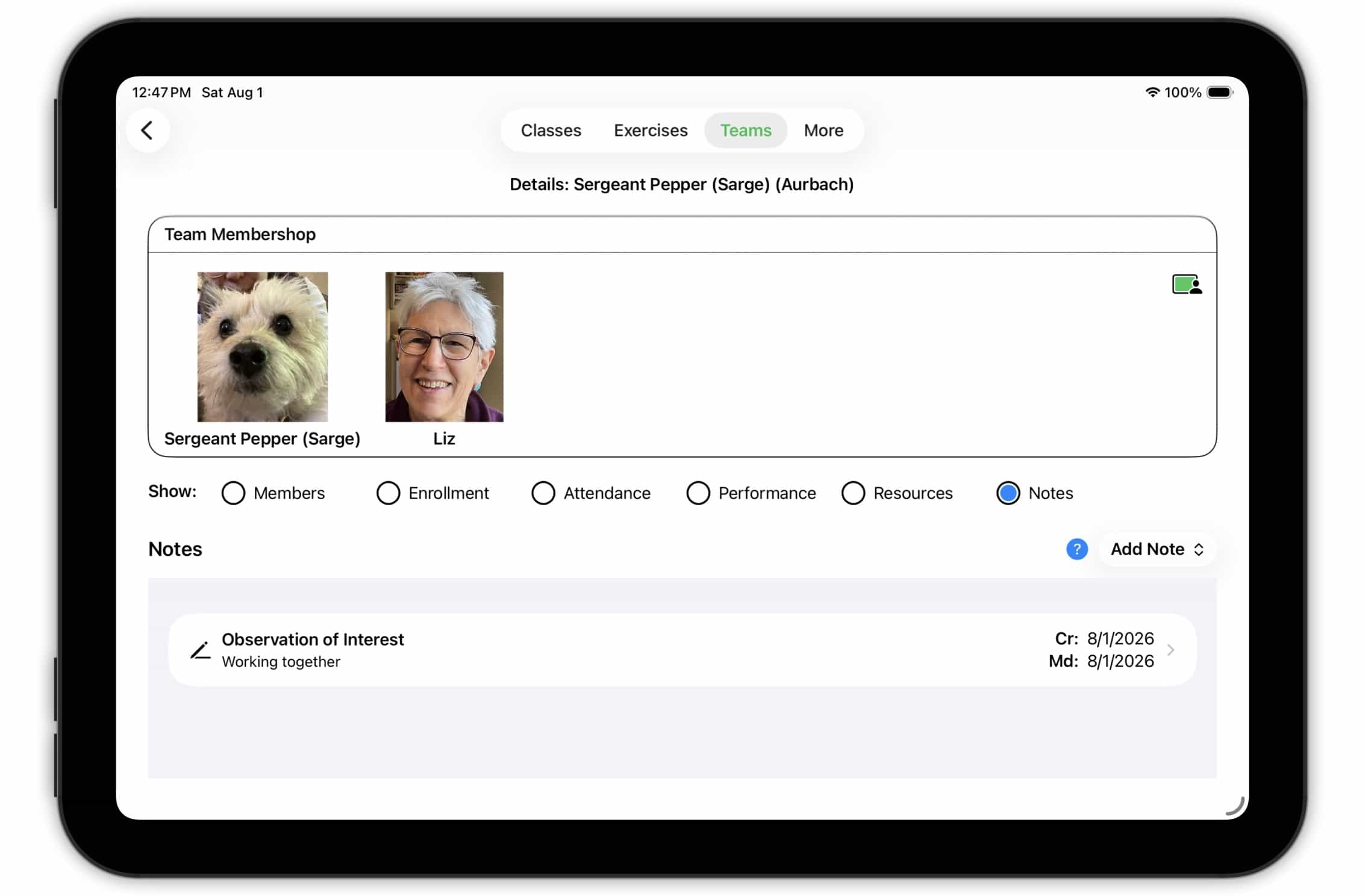
Finally, the Notes subsection is a place to record notes about the team. (The notes subsections of the Animal Detail and Handler Detail sections to record notes that are specific to the animal or handler specifically).
 Top
Top
Animal Detail
The Animal Detail screen should have (what is by now) a familiar structure.
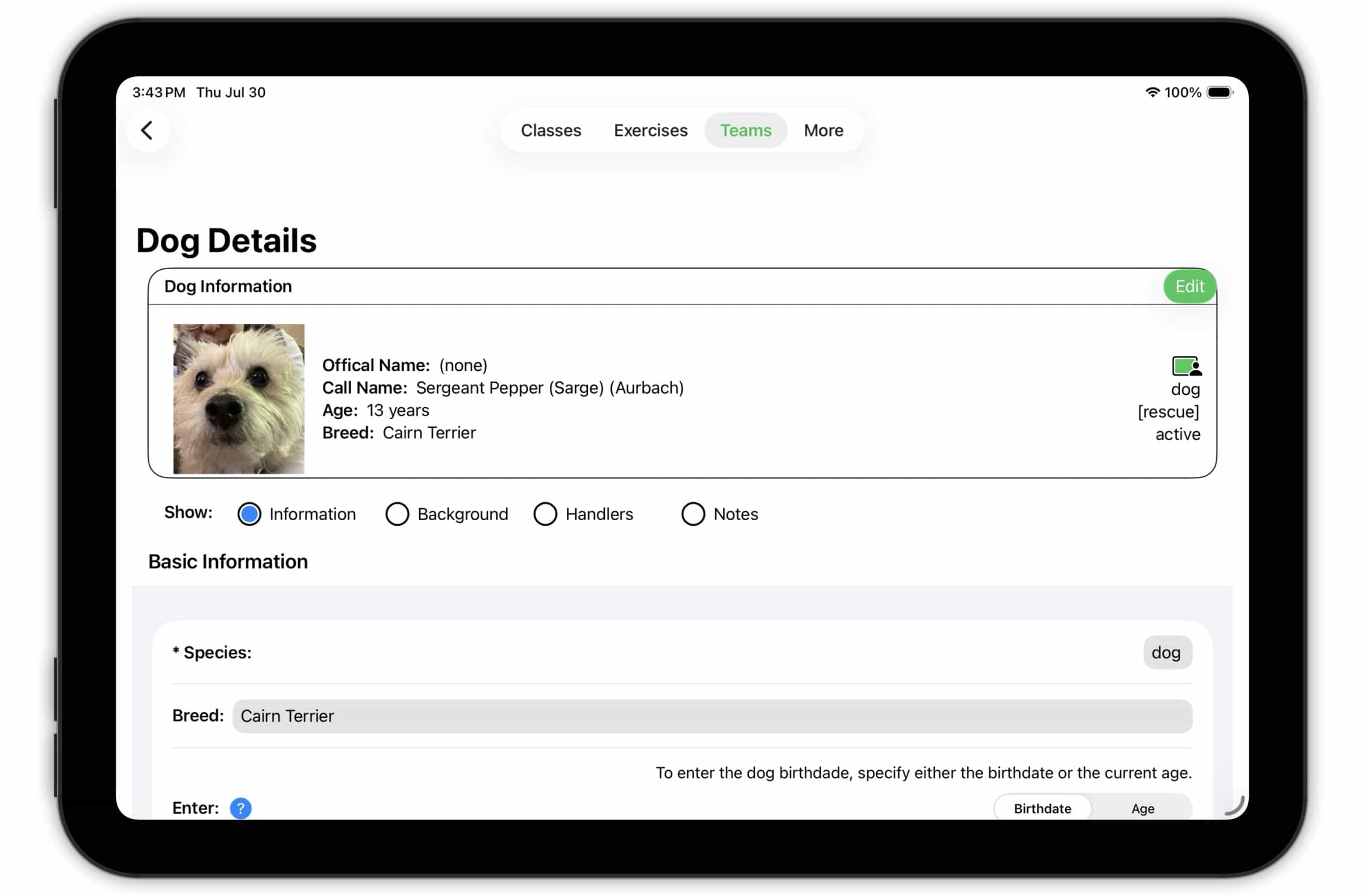
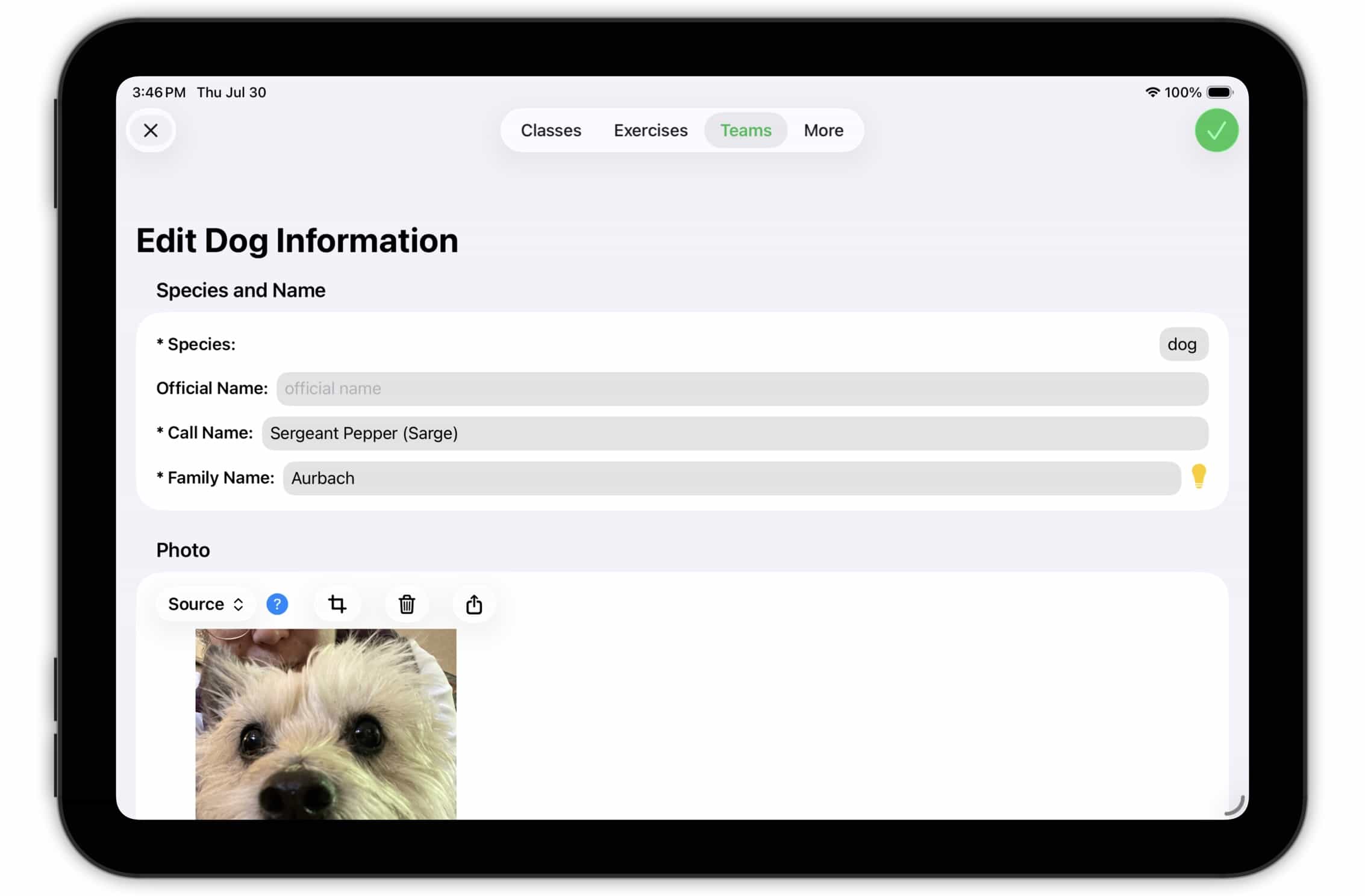
The Information Box at the top shows the animal's picture (if any) and basic information about the animal. Tap the Edit button to make changes to animal's name or photo.
 Top
Top
Animal Detail: Information
The Information subsection displays basic information about the animal — breed, age, etc.
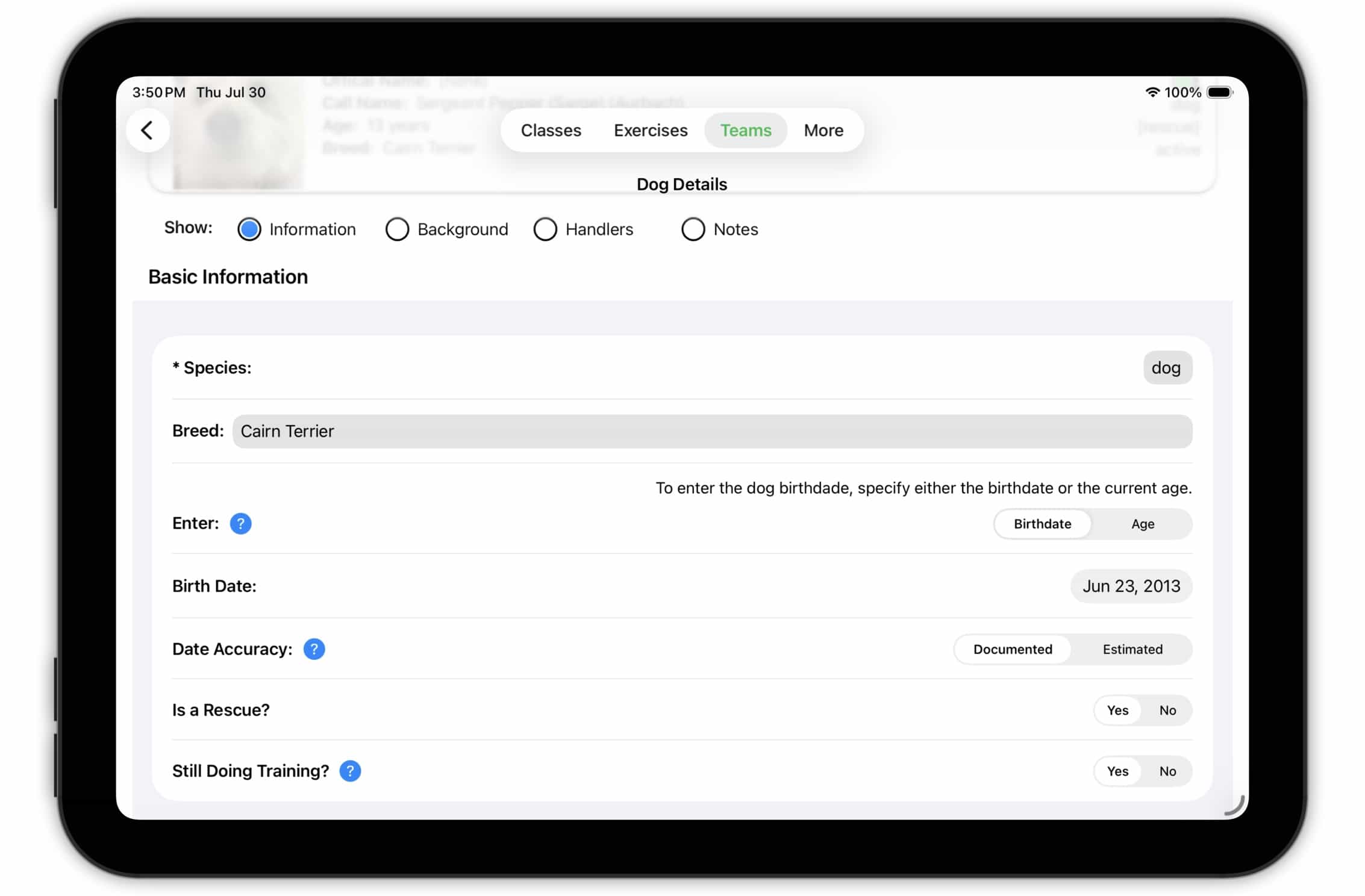
On this screen, the fields used to capture and display age are worth some mention.
In some cases, at exact date of birth for the animal may be available (particularly for pure-bred animals). In other cases (particularly for rescues), the most that may be known is a veterinarian's best guess at the animal's age. So we allow you to enter either the animal's birth date or age and to indicate whether that information is known to be accurate or is a best guess. In any case, we calculate an (exact or estimated) birth date for the animal, store it, and calculate the animal's age "on-the-fly". Once you've entered this information, you don't need to update it.
TopAnimal Detail: Background
The Background subsection provides more information and context about the animal.
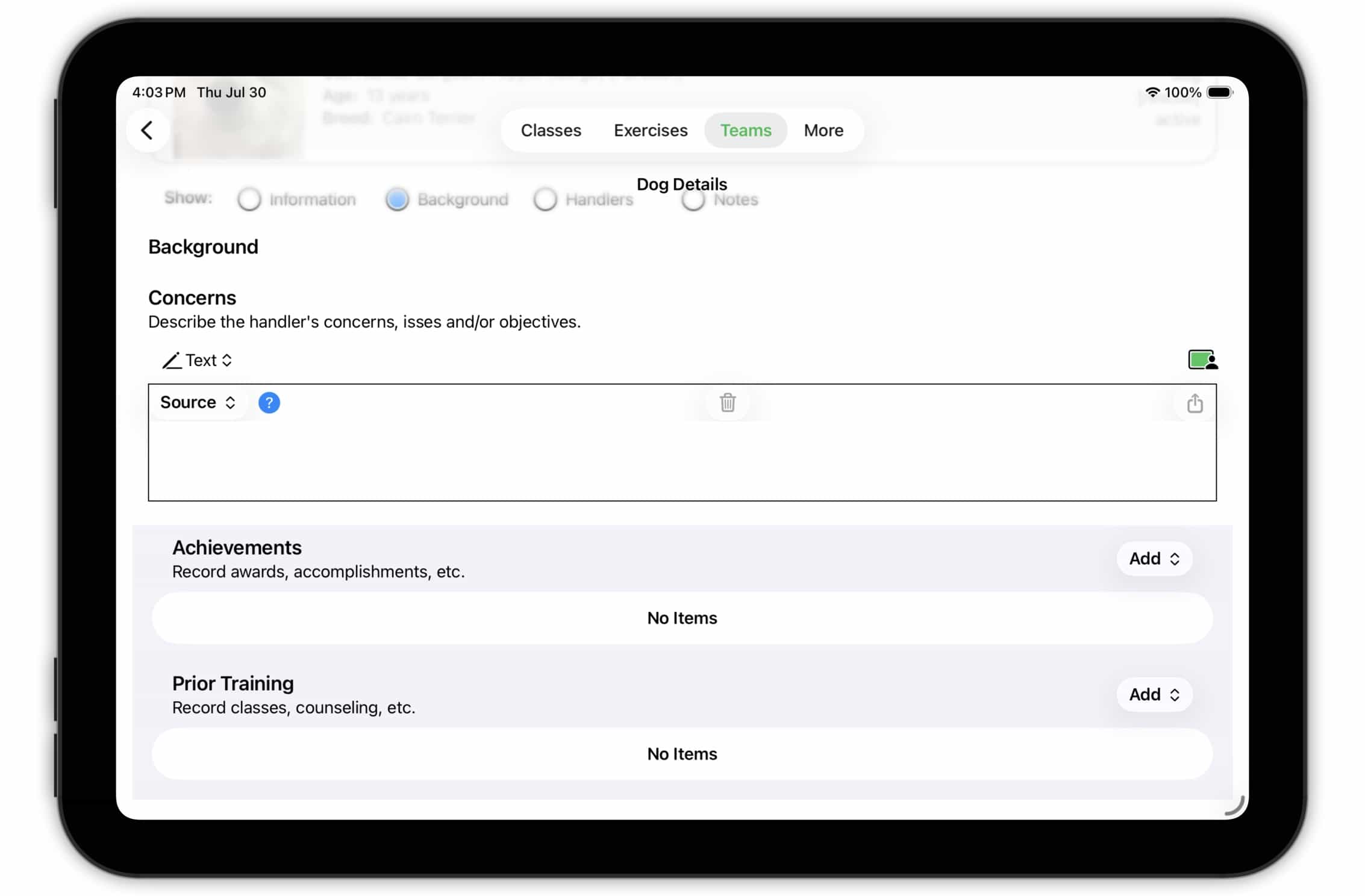
- Concerns: Use the Concerns field to record the reasons the client has enrolled in a class; what issues are top of mind; what problems the client is looking to address; etc.
- Achievements: If the animal has earned awards, ribbons, certifications, etc., list them here.
- Prior Training: List any classes (yours or someone else's) that the animal has completed.
Animal Detail: Handlers
Many animals will only have been handled by only one handler (or two, including the alternate). Others will have had multiple handlers. Any you may have had this animal in previous classes with other handlers.
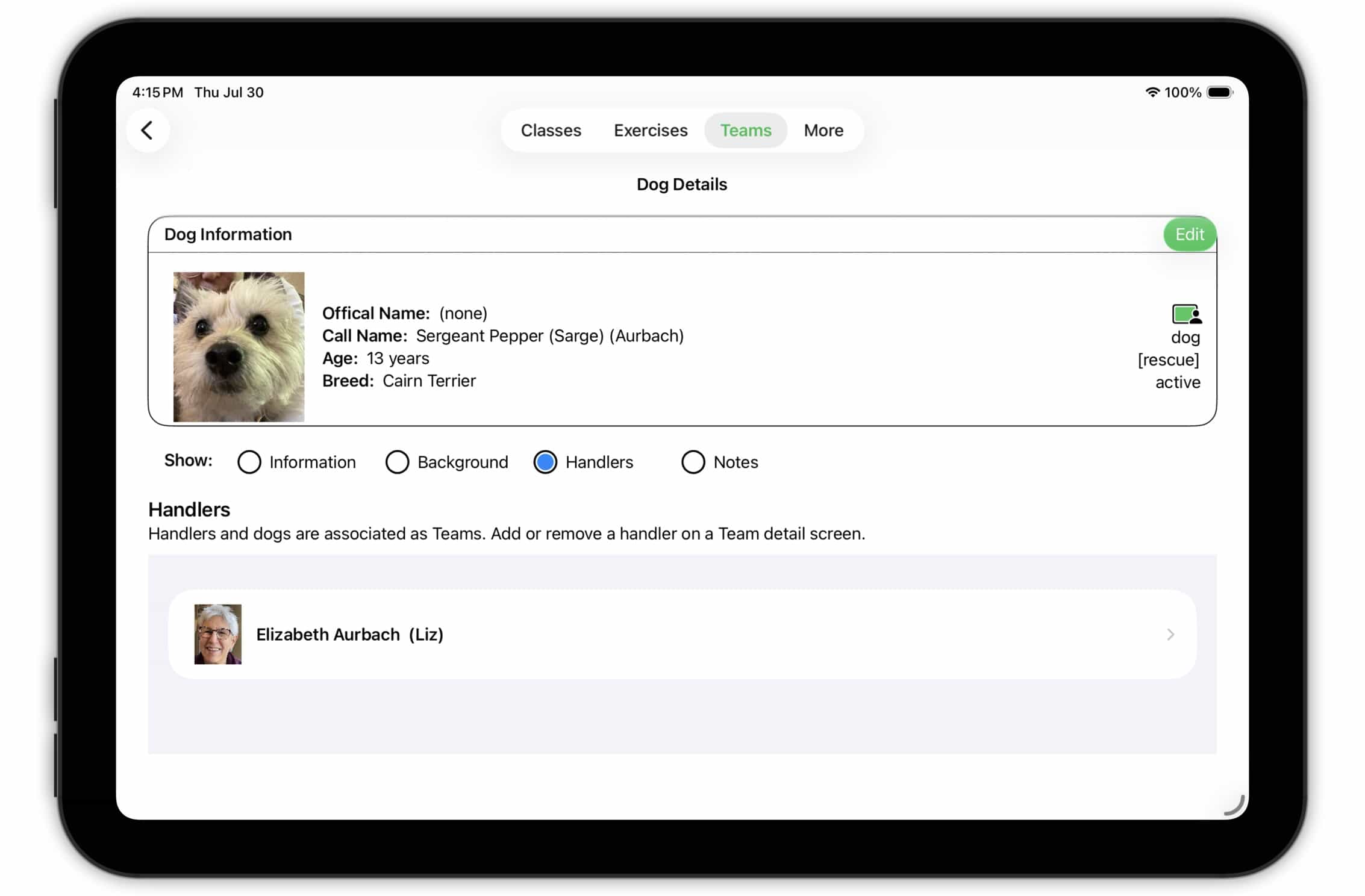
This subsection lists all of the handlers of this animal that you know of. You can access their detail by tapping on them. (See below)
TopAnimal Detail: Notes
Lastly, there is a notes section for this animal.
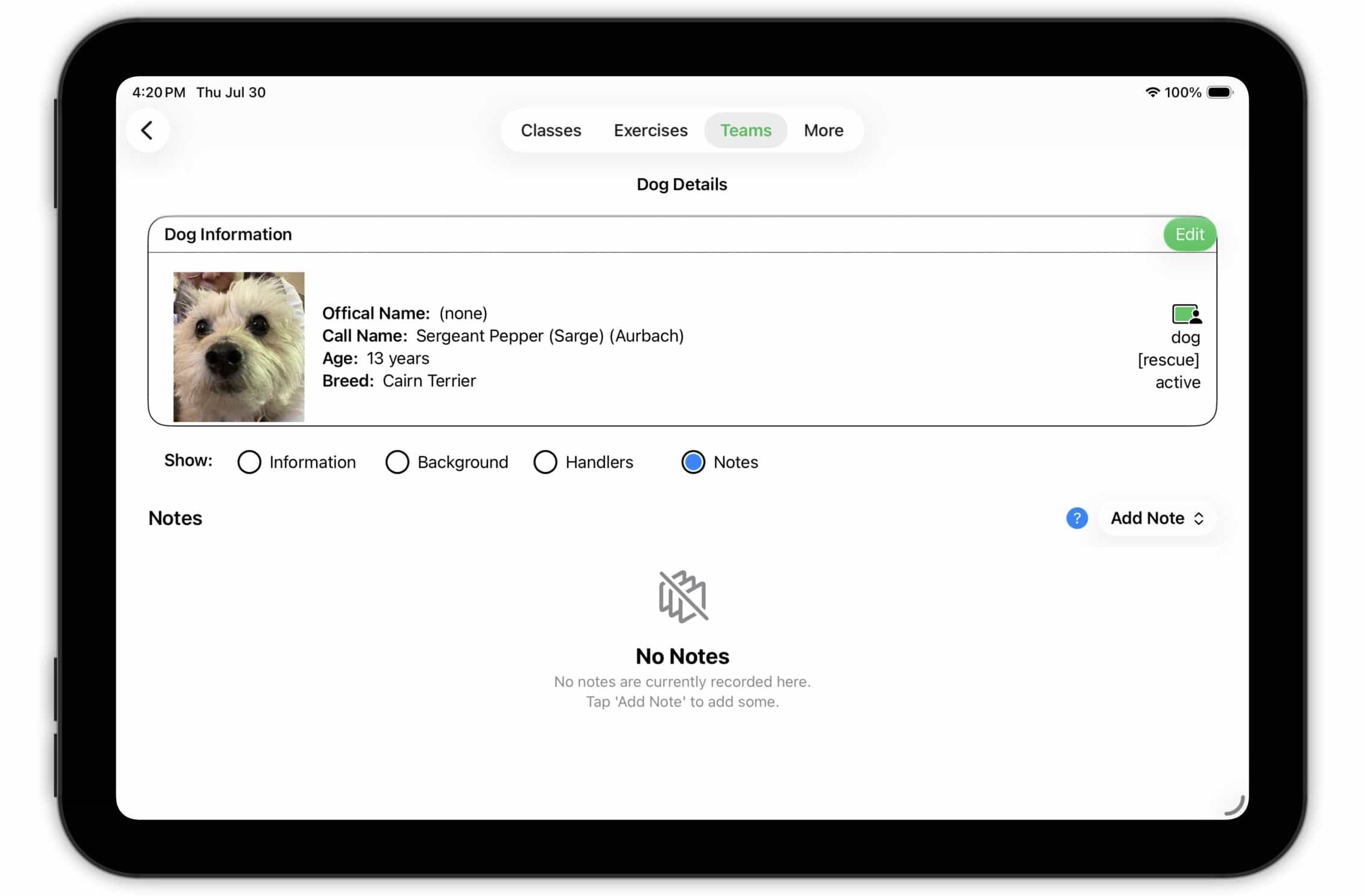
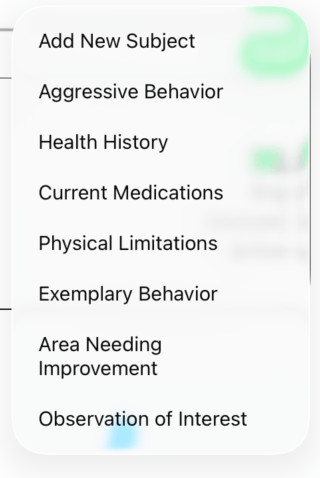
Use this section to record information, observations, photos or videos of the animal in action, etc. Tapping the Add menu button displays a set of possible note topics (and should give you some ideas of how you can use this section).
 Top
Top
Handler Detail
Switching over to the handler side of a team, from the Team Detail screen
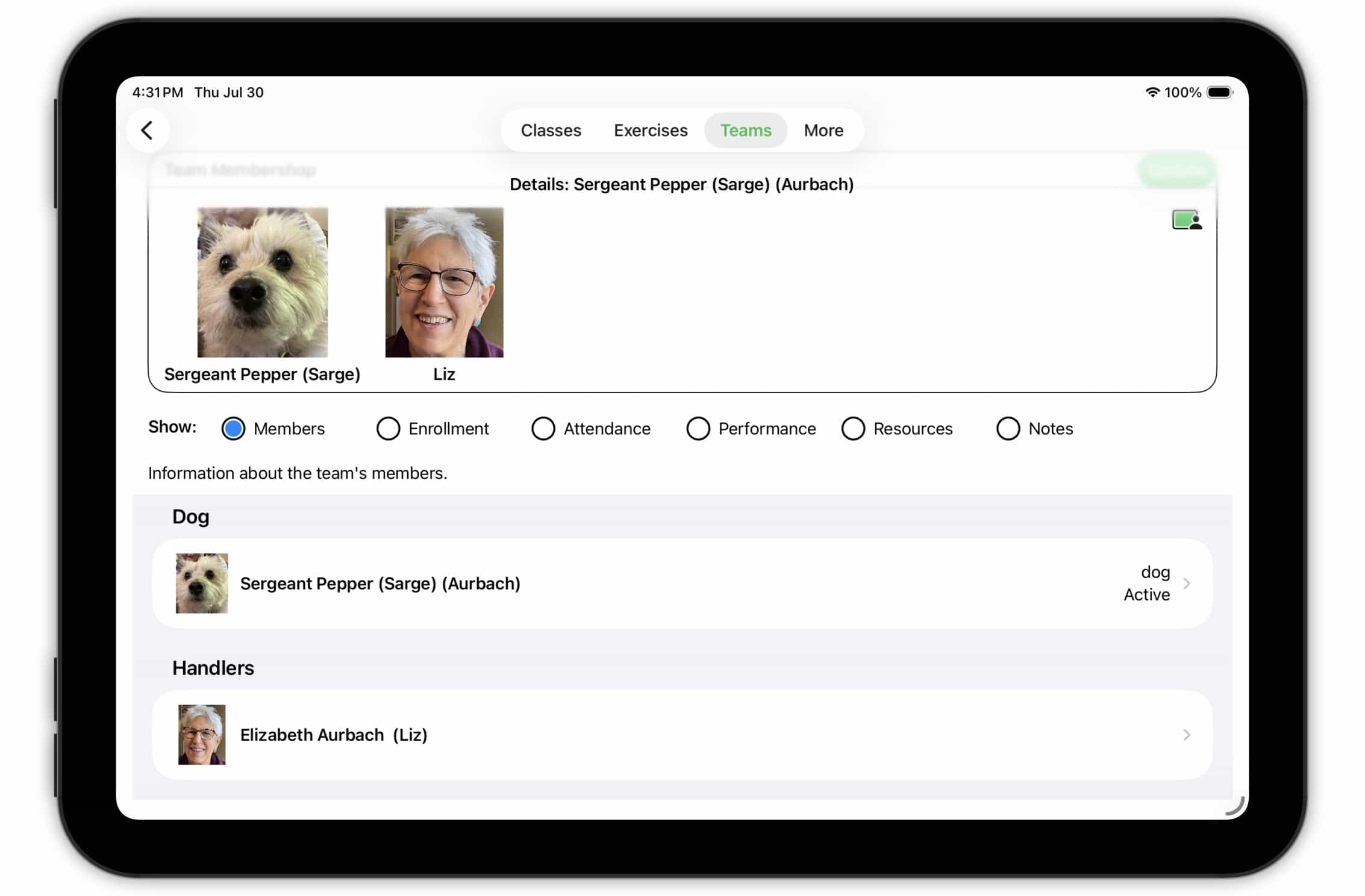
tap on a handler (or an emergency contact) to access their detail.
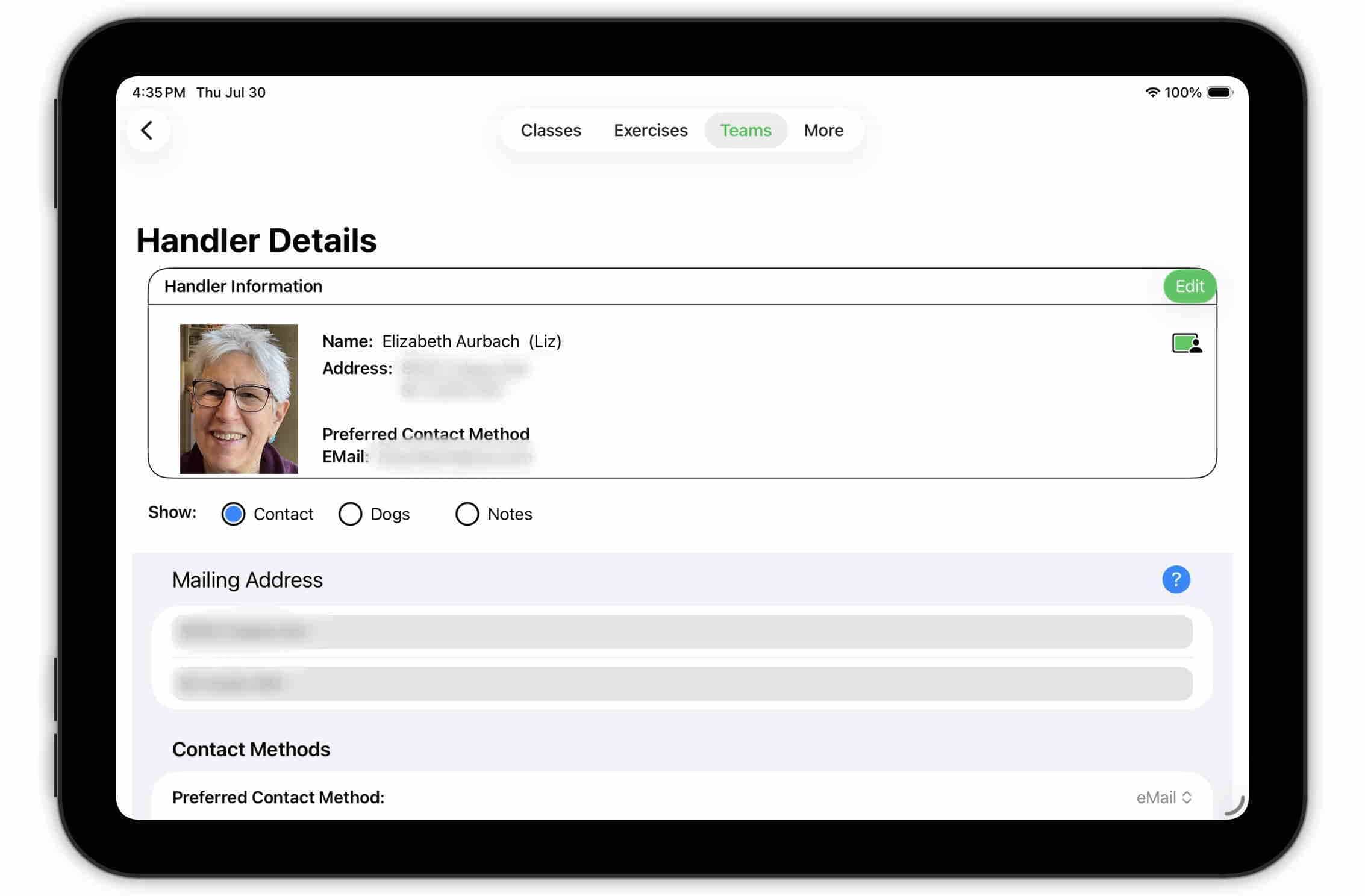
As usual, the top section displays basic information about the person. Use the Edit button to edit their name or (optional) photo.
TopHandler Detail: Contact
The Contact subsection includes contact information for the handler.
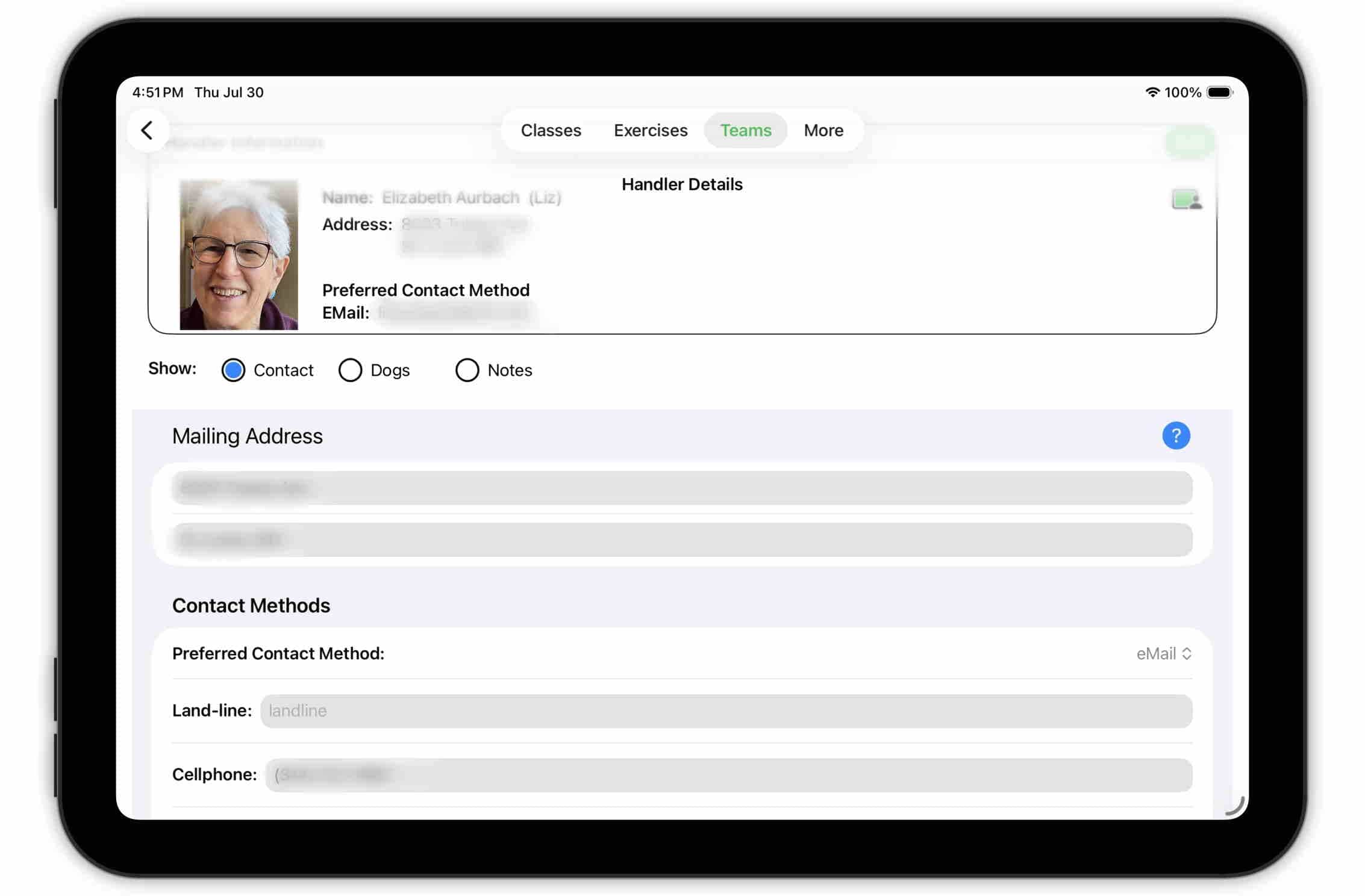
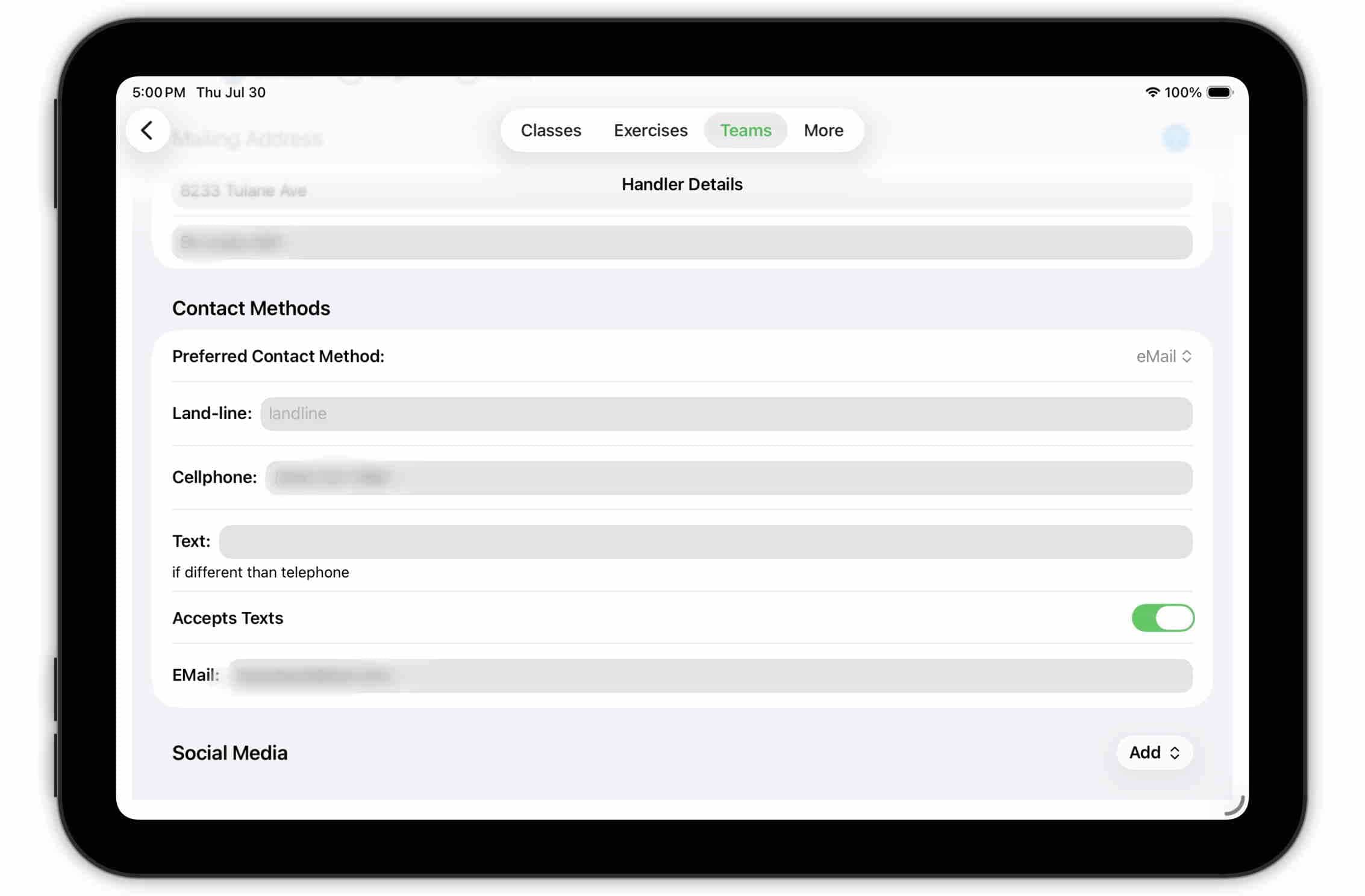
Fill in all pertinent information (that the person is willing to share). Since there are so many social media sites (and the list changes all the time), for social media you need to specify both the site and the user's handle.
Be sure to specify the person's preferred contact method.
TopHandler Detail: Animals
Many handlers will only work with their own animals. Others (particularly professional handlers) will have worked with many.
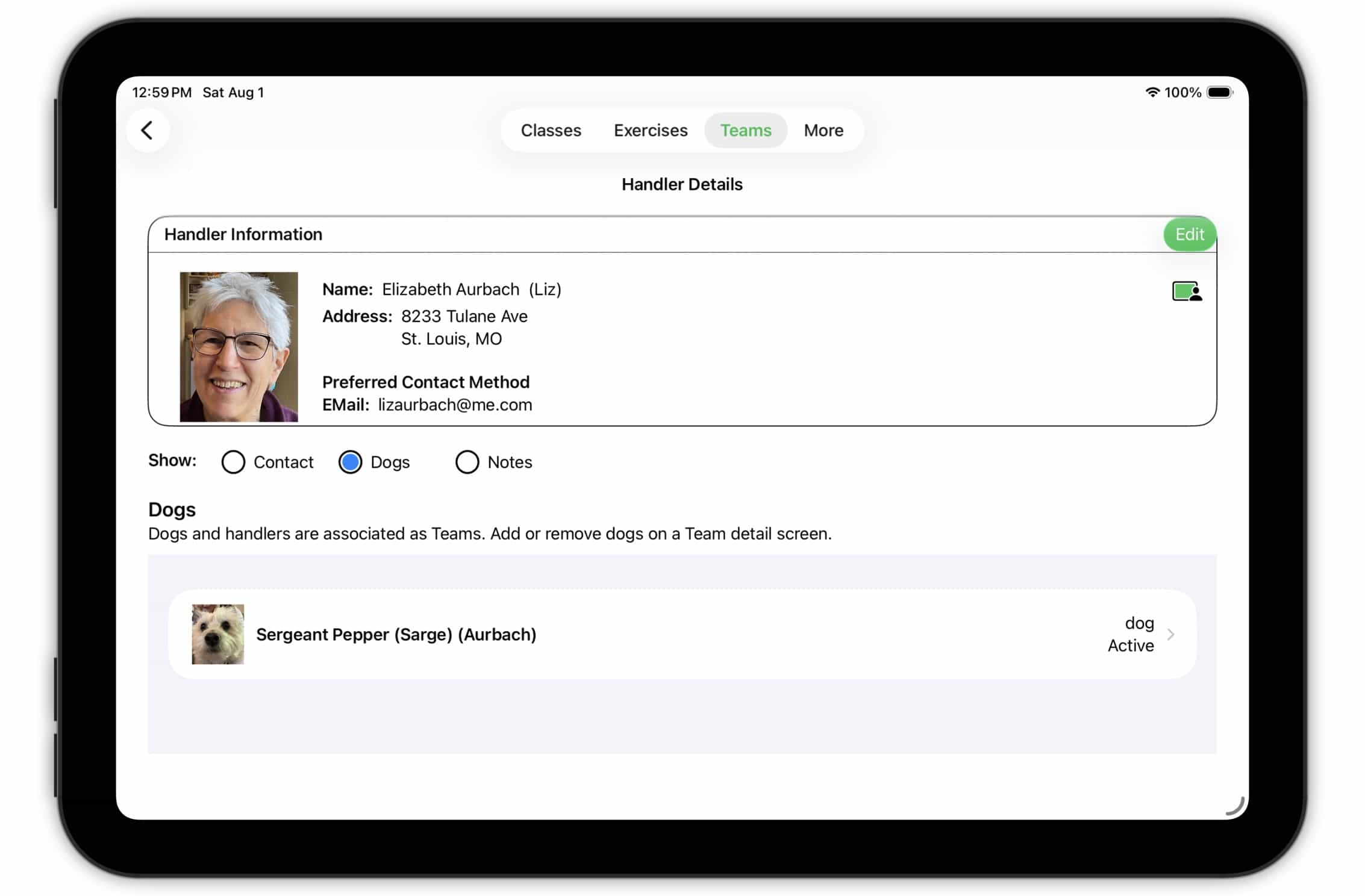
This subsection lists all of the animals this person has worked with in one of your classes. You can access their detail by tapping on them. (See above)
TopHandler Detail: Notes
Lastly, there is a notes section for this handler.
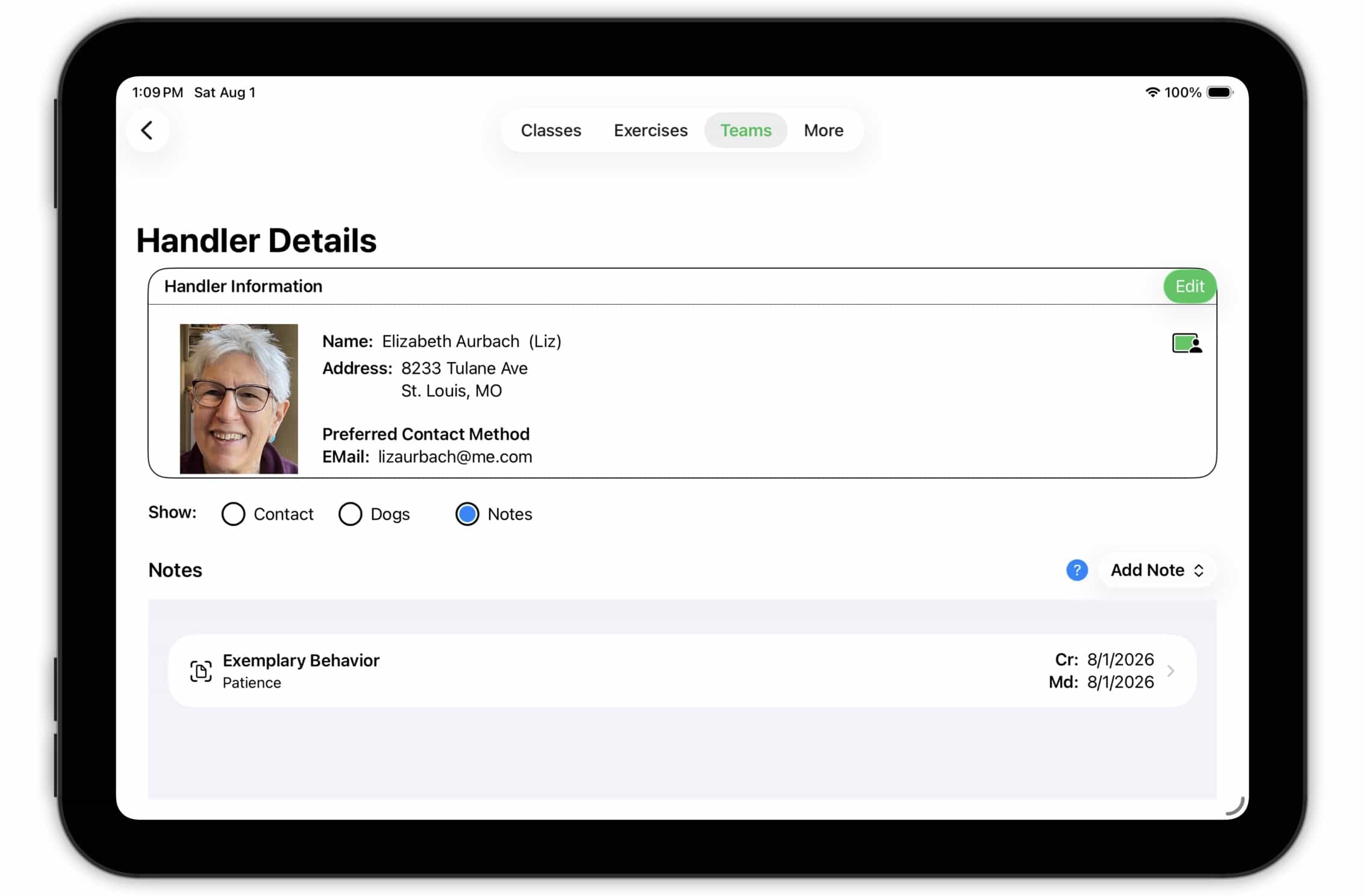
Use this section to record information, observations, photos or videos of the handler in action, etc. Tapping the Add menu button displays a set of possible note topics (and should give you some ideas of how you can use this section).
Top