More
The More tab is a place where you can learn more about Training Corner and customize it to your needs.
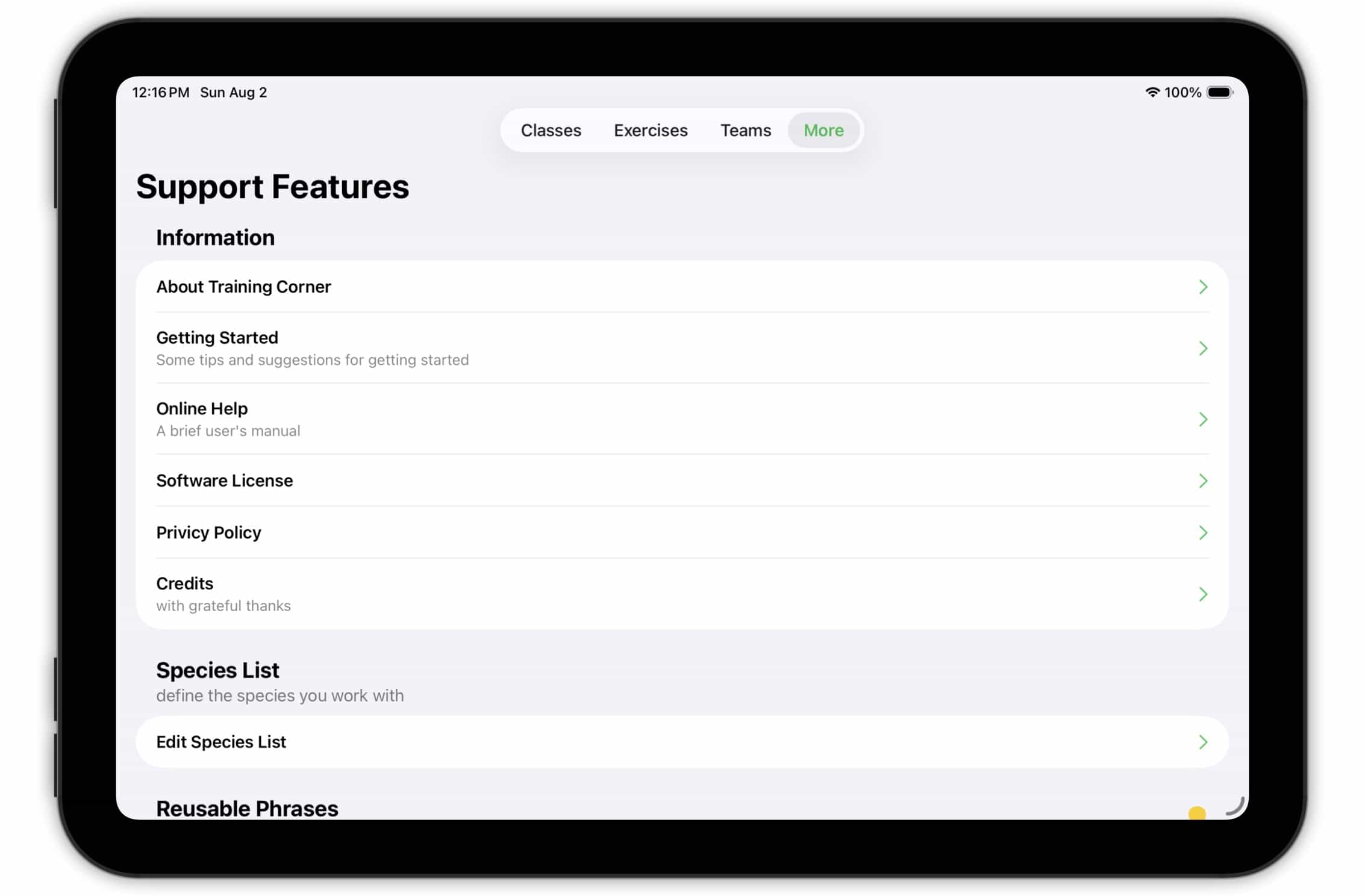
It consists of four sections — Information, Species List, Reusable Phrases, and Message Templates.
Information
The Information section provides you with more information about Training Corner.
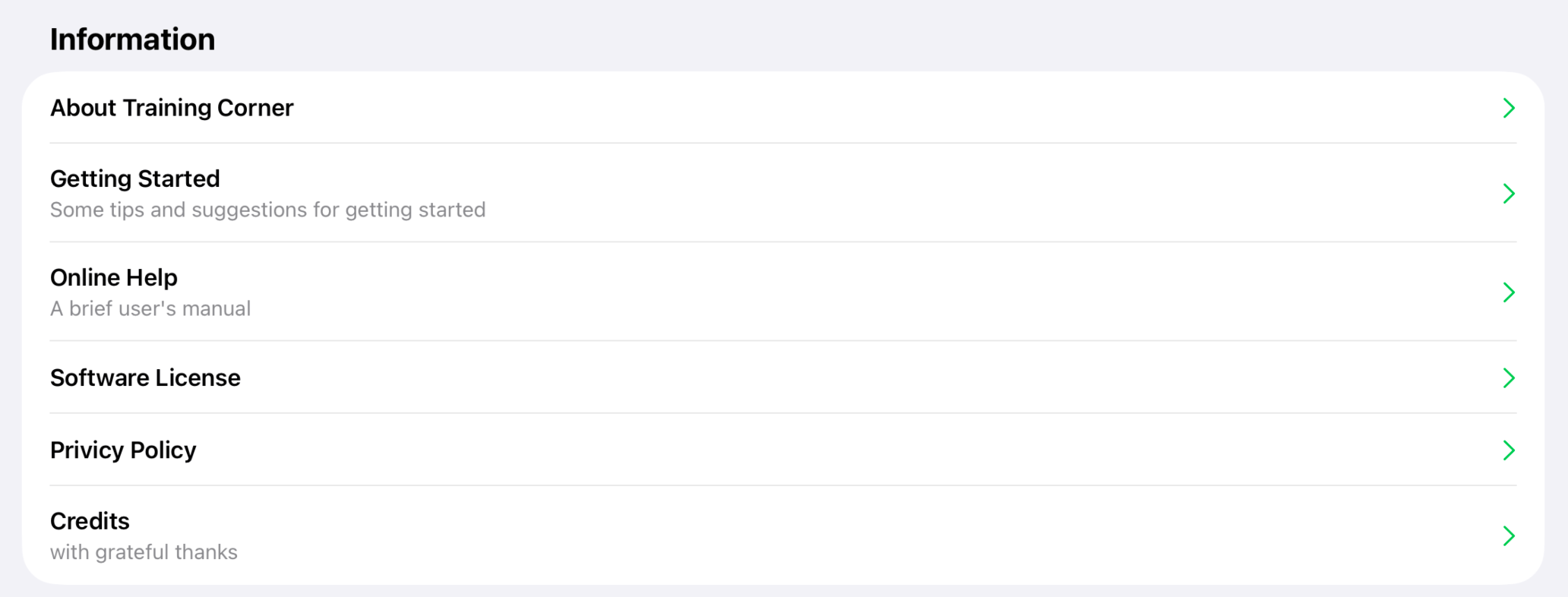
- About Training Corner: Tap to see the application's "About Box". It displays the current application version and has links to this website and to sending email to the developer.
- Getting Started: Tap to show the on-boarding panels that appear the first time you run Training Corner.
- Online Help: Tap to display a brief online User's Guide to Training Corner.
- Software License: Tap to display the Training Corner software license.
- Privacy Policy: Tap to display our privacy policy. (Short version — we respect your privacy.)
- Credits: No software project is developed in isolation. Training Corner would not have been possible without contributions or time, expertise, and open-source software. Tap to see our acknowledgement and thanks to those who contributed.
Species List
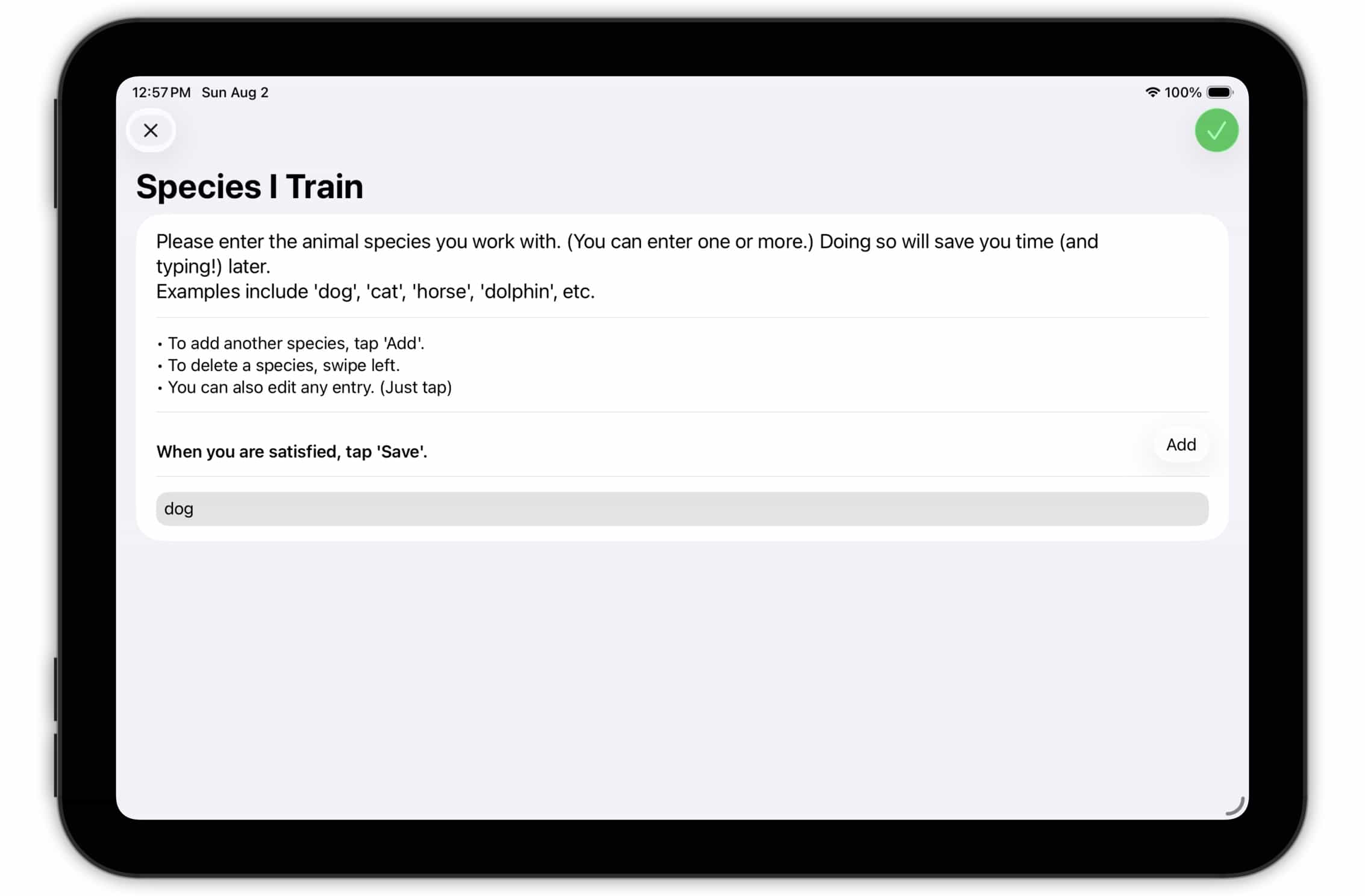
Regardless of whether you specialize in one animal species or train several different species, you probably don't want to keep entering the species name all over the Training Corner app.
So, Training Corner keeps a list of the species you train. If you specialize in a single species, Training Corner will fill it in for you everywhere it is needed. If you train several species, Training Corner can offer you a menu selection in lieu of typing in a species name.
This section allows you to edit your list of species.
 Top
Top
Reusable Phrases
Training Corner extends this idea of substituting a menu selection for typing throughout the application. In many situations where a short answer is appropriate (and in which the answer is likely to be something you'll enter again later), Training Corner saves your response the first time you enter it. The next time you need to supply that short answer, instead of typing it, you can select it from a menu of answers you've already given.
The Reusable Phrases section provides you with a way to manage (i.e., add, edit or delete) these short answers.
Every place a saved short answer is used keeps its own set of saved responses. That way, its menu only includes relevant responses. But that means that there are quite a few of these lists. The Reusable Phrases section organizes them into broad categories.
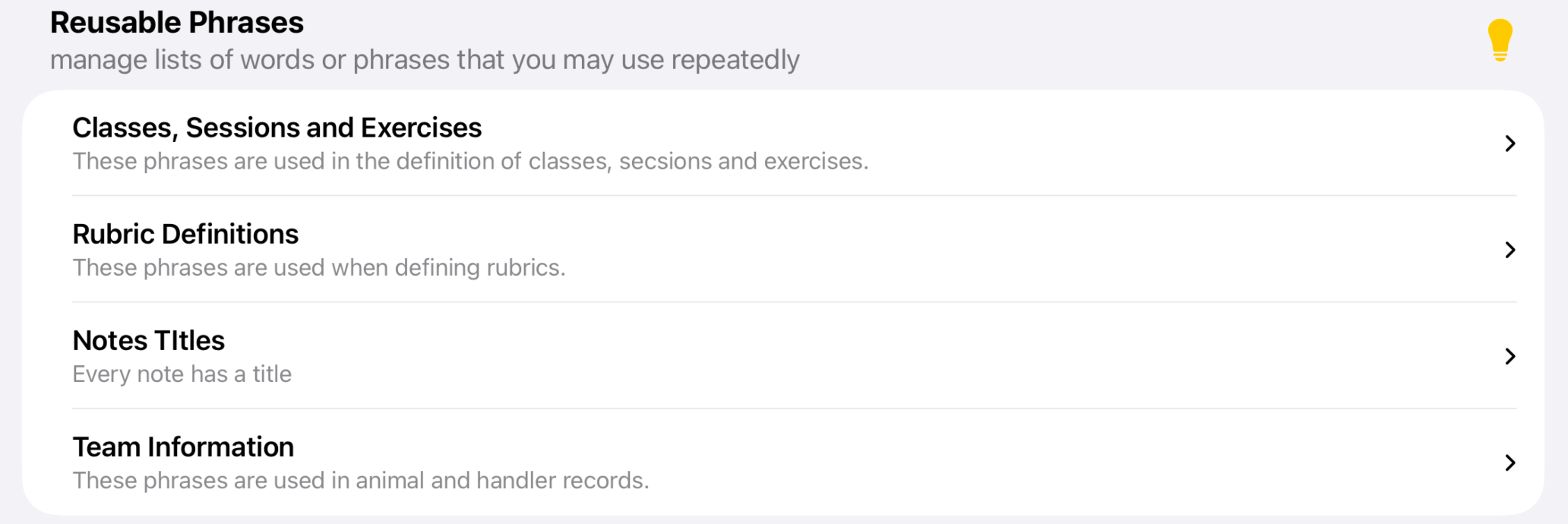
Tap on a category to reveal its subcategories.
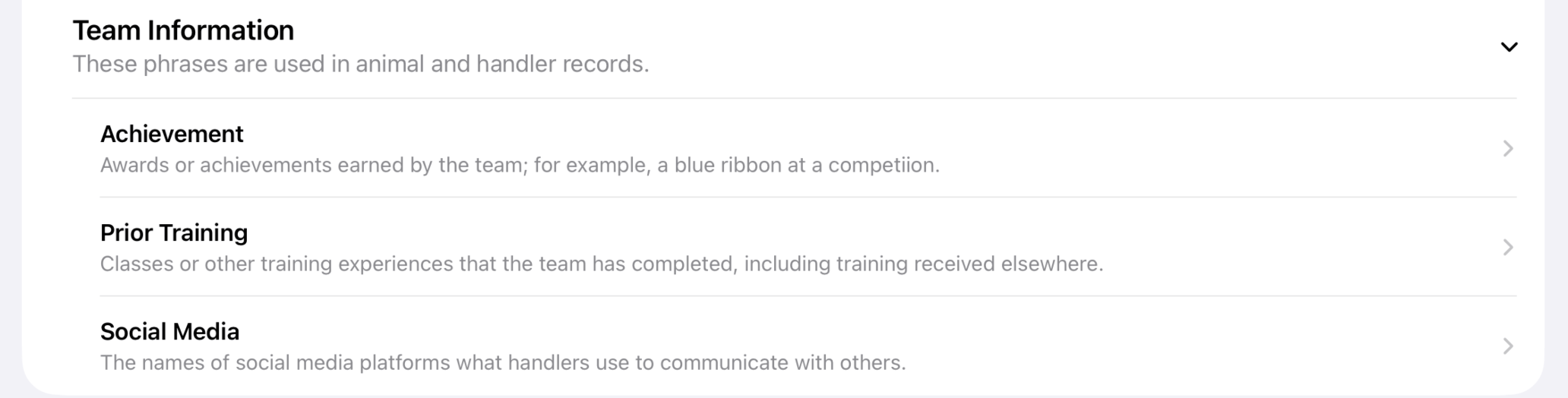
and tap on a subcategory to edit its list of phrases.
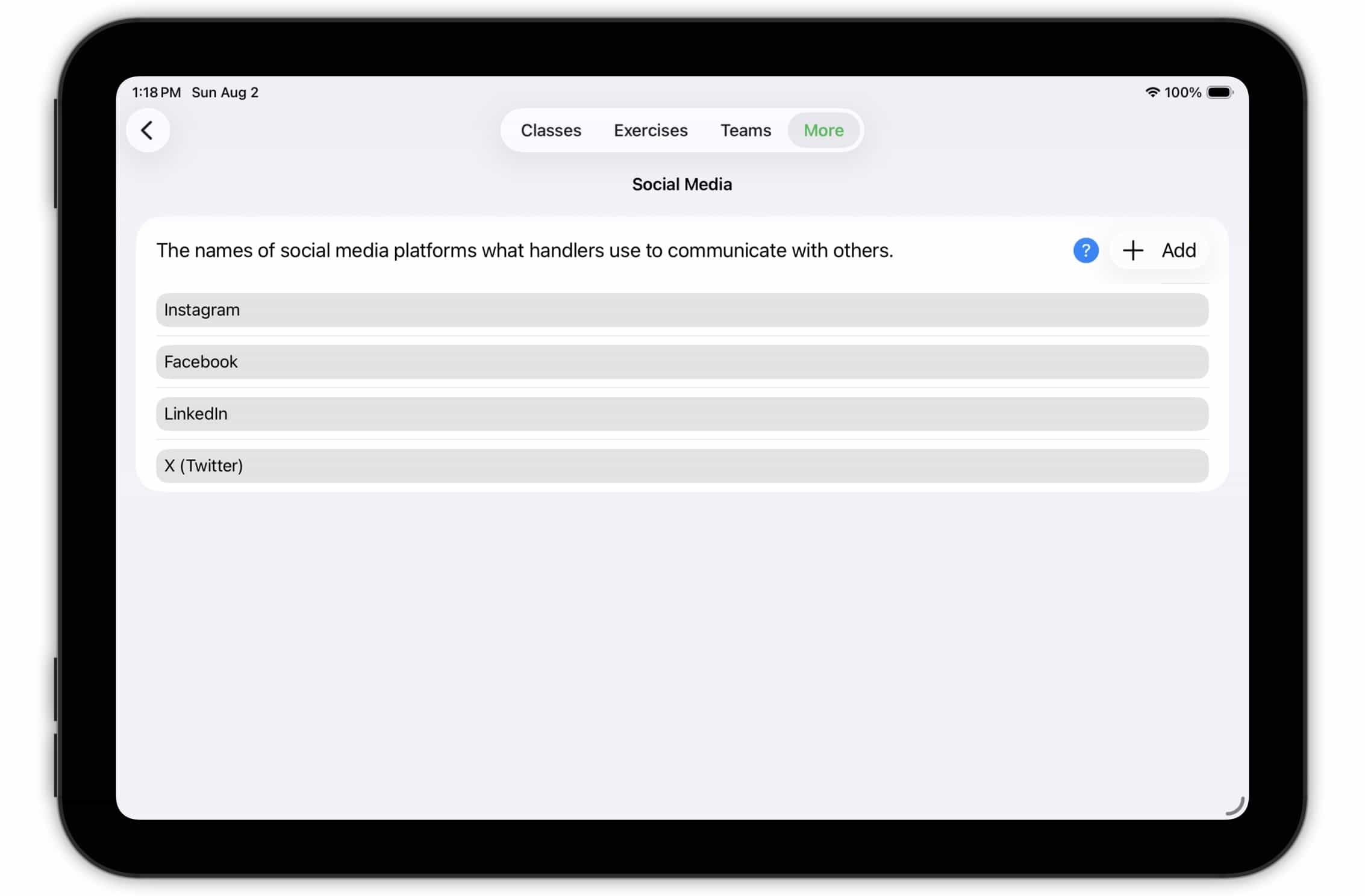 Top
Top
Message Templates
Training Corner has the ability to send emails and text messages to the handlers in your classes. And, since you may send a similar message more than once, it can save "standard" messages that you can use as templates when composing a particular message you want to send.
The Message Templates section displays the list of message templates and lets you add, edit and delete templates so that the resulting templates meet you needs.

Use the Add button to add a new message template; swipe left to delete a message template, and tap on a template to view and edit its content.
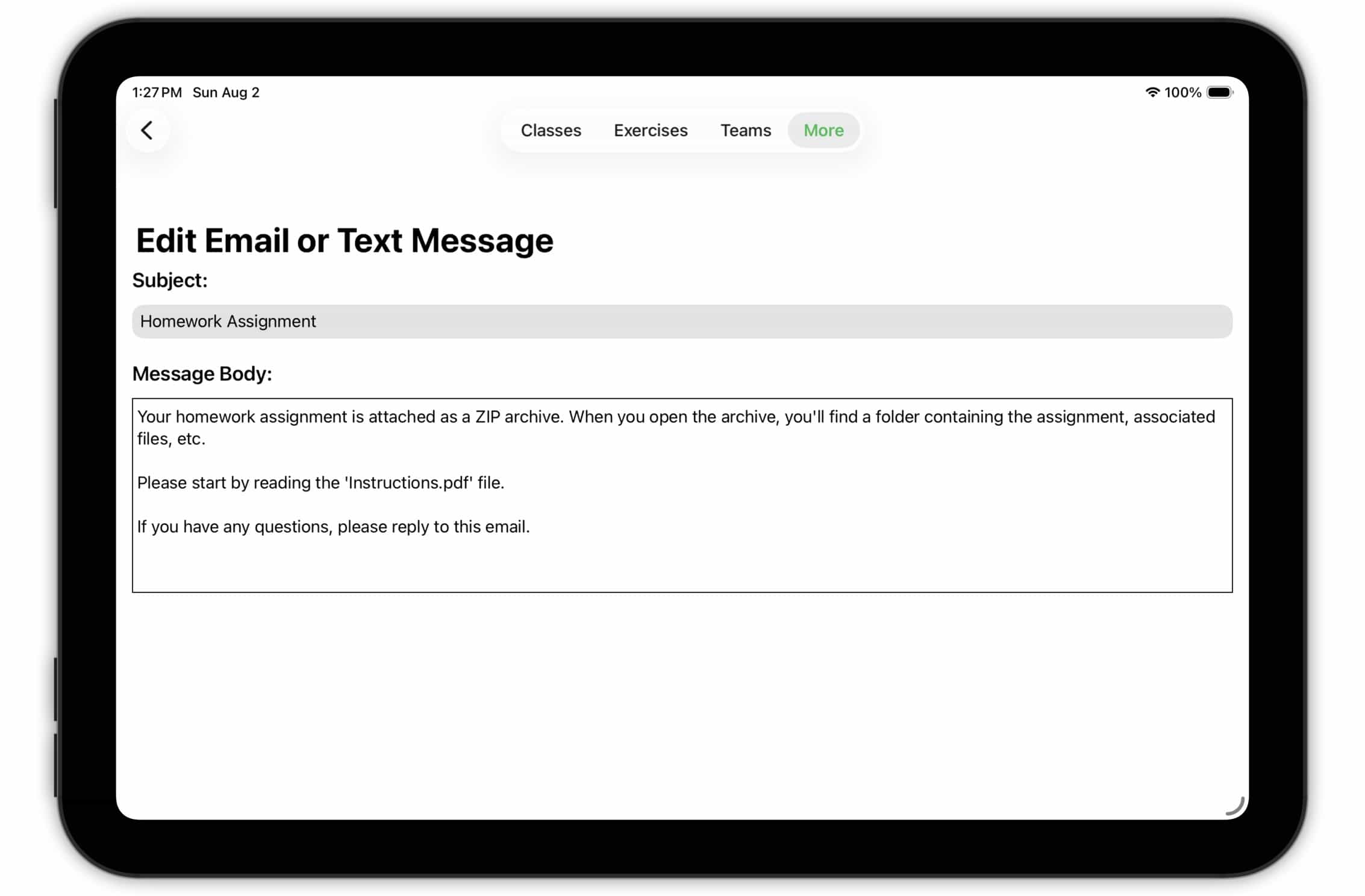 Top
Top