Sessions
Every class consists of one or more sessions — meetings with the team(s) attending the class. Sessions are usually held in person, but video sessions are also possible.
The starting point for accessing a session in Training Corner is the Sessions subsection of a class.
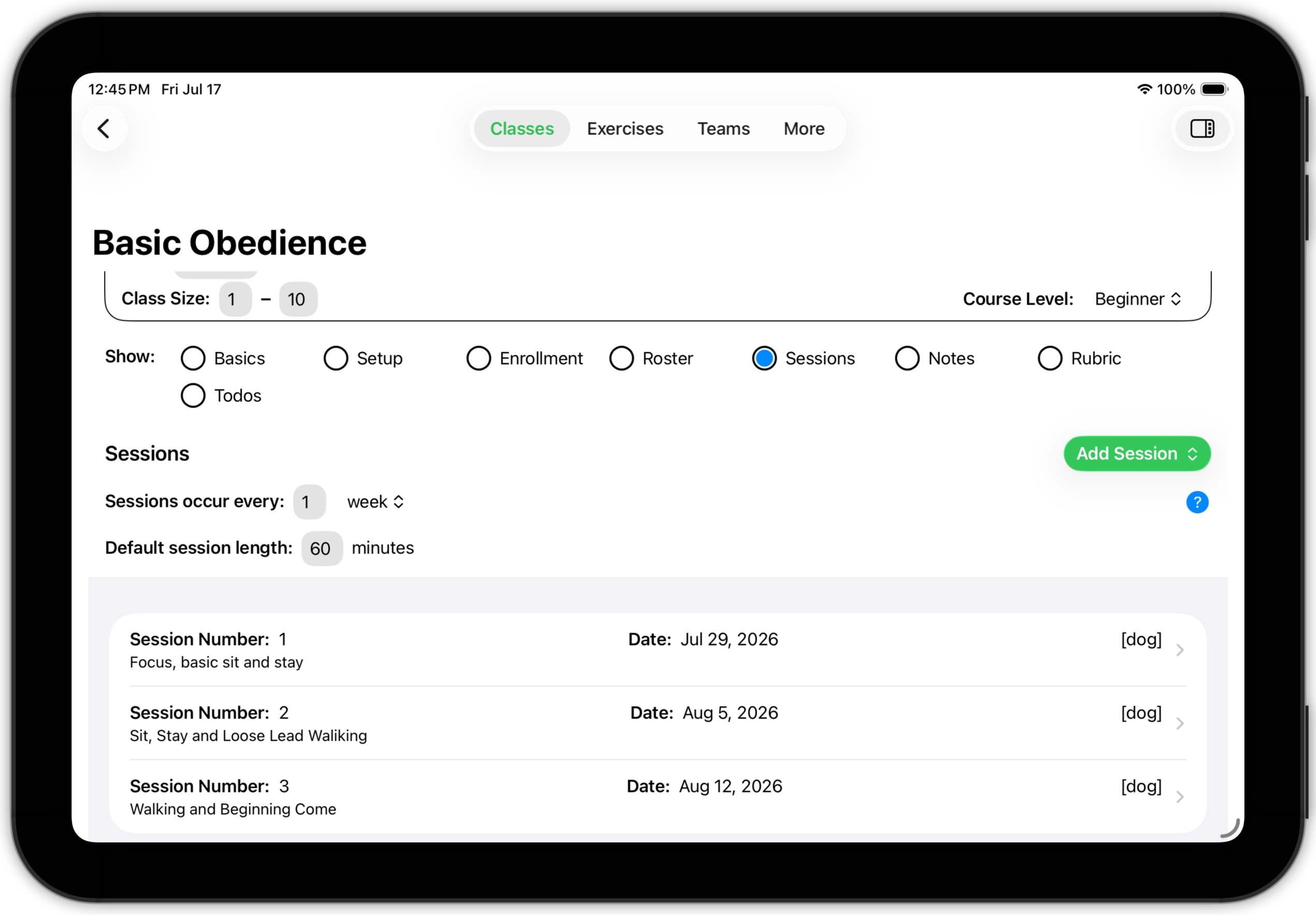
Specify the session frequency. Both the number and unit (days, weeks, etc.) can be edited. Also specify the standard length of the session. These values allow Training Corner to handle default scheduling activities for you.
The Add Session button allows you to add a new session to the list. You can create a completely new session or base the new session on a copy of a previously-defined session. You will find that copying a previous session and modifying it as needed is less work than building a session from scratch.
You can also manipulate the list of sessions — swiping left to delete a session or drag-reordering sessions. Session dates will be updated for you as needed.
Tap a session to open it's detail screen.
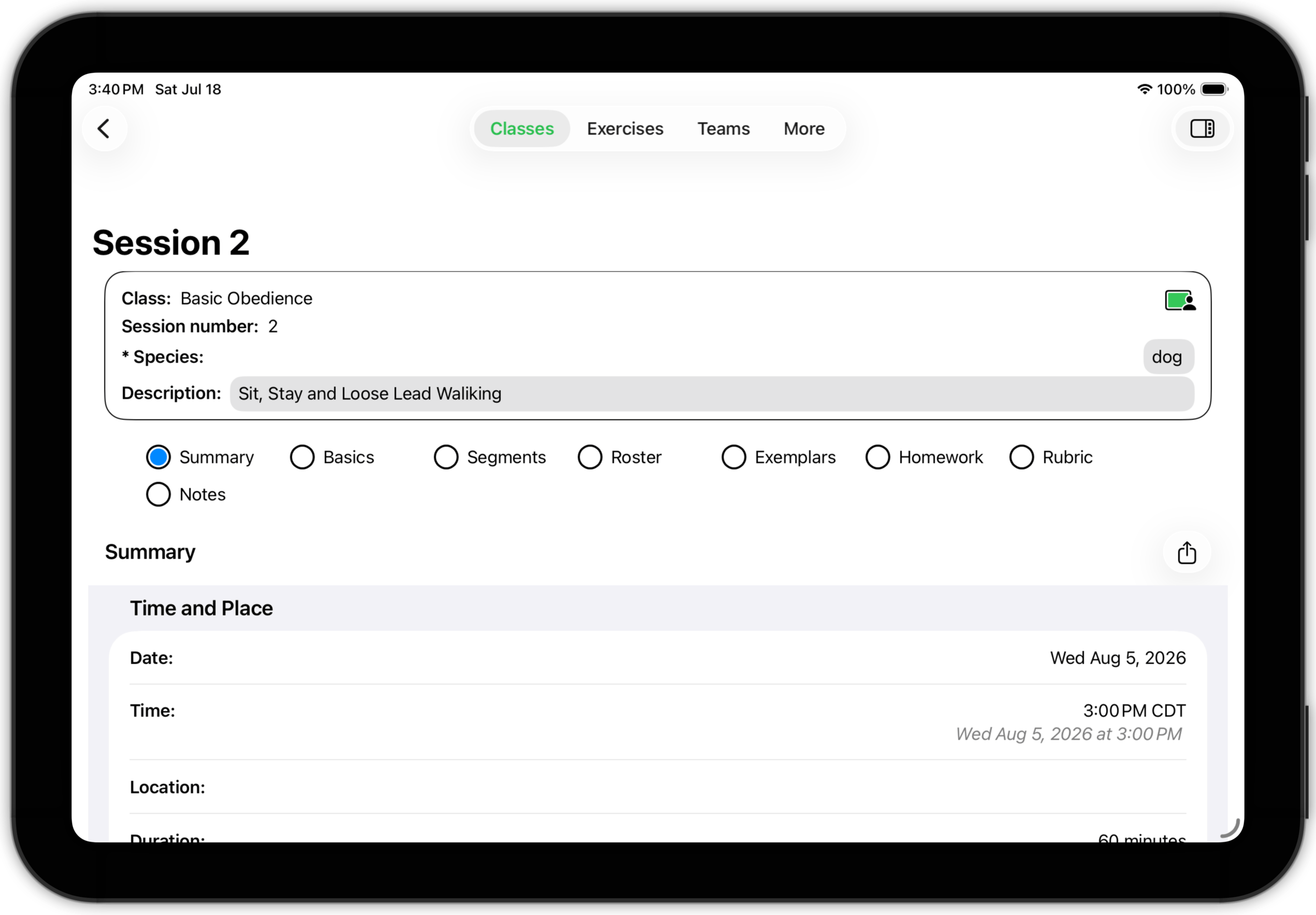
As with classes, the session detail screen has four parts: an information box, an actions menu, a section selector and section detail.
- The box at the top contains basic information about the section. The description field is editable; using it to give each session a brief title is recommended.
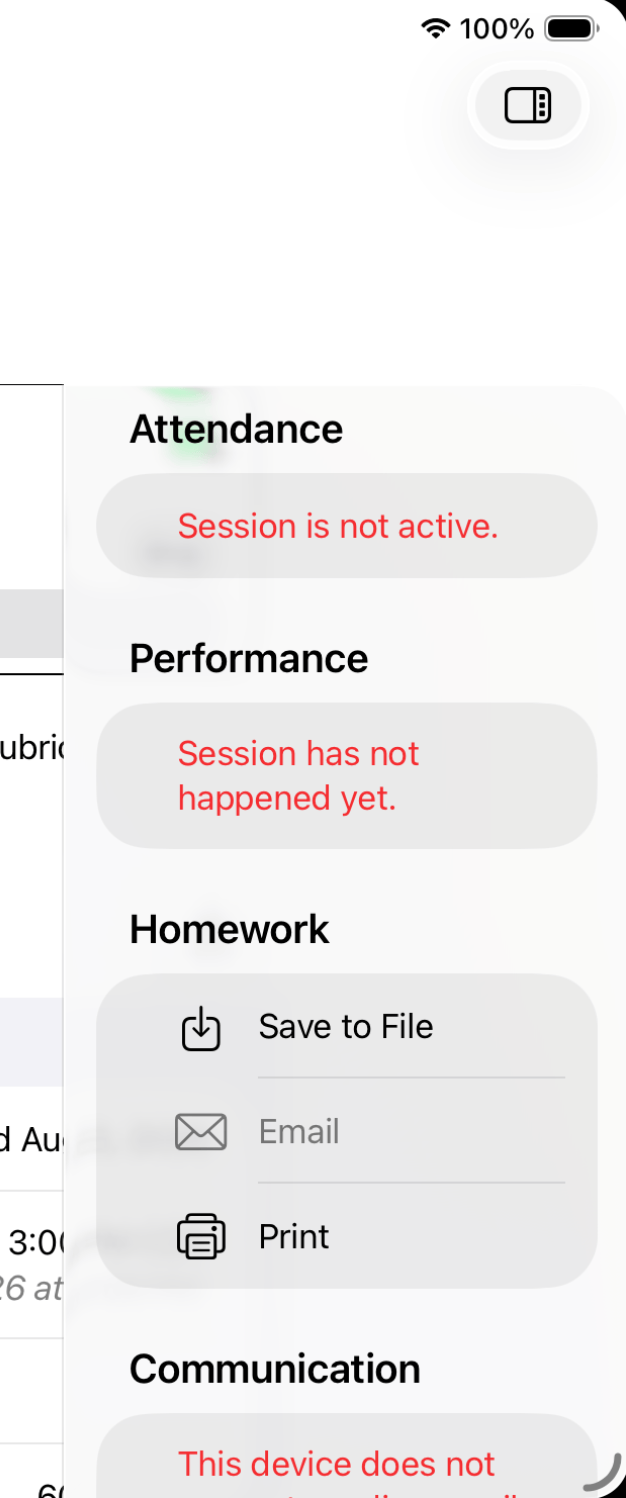
- The actions button in the upper-right corner opens an actions menu. It provides quick access to a variety of useful functions.
- The section selector is the set of radio buttons in the middle of the screen. There is a lot of information associated with a session, which Training Corner divides into sections and displays one at a time. Tap a section button to display that section.
- The selected section is displayed below the selector. Sessions have eight sections.
Session Detail: Summary
The summary subsection presents a summary of the most important details of the session in one place. It has four sub-subsections:
- Time and Place
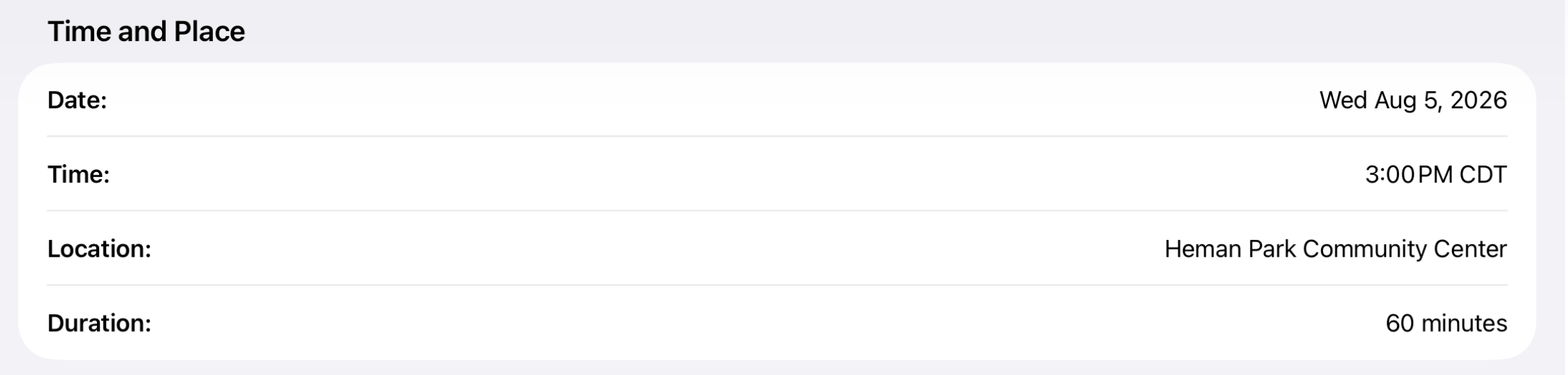
THis is a reminder to you of when and where the session is scheduled.
- Props — Trainer Supplied
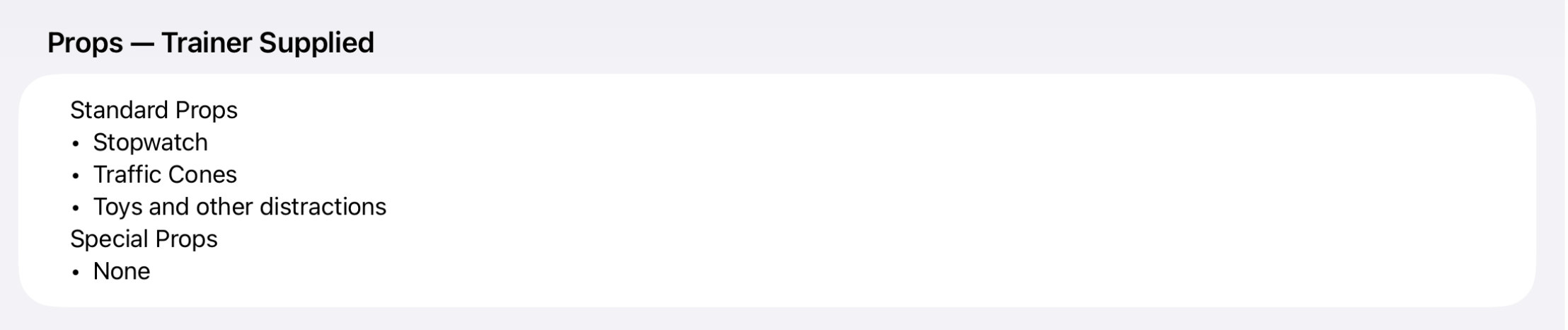
This is a reminder of what you need to bring to this session.
- Session Plan
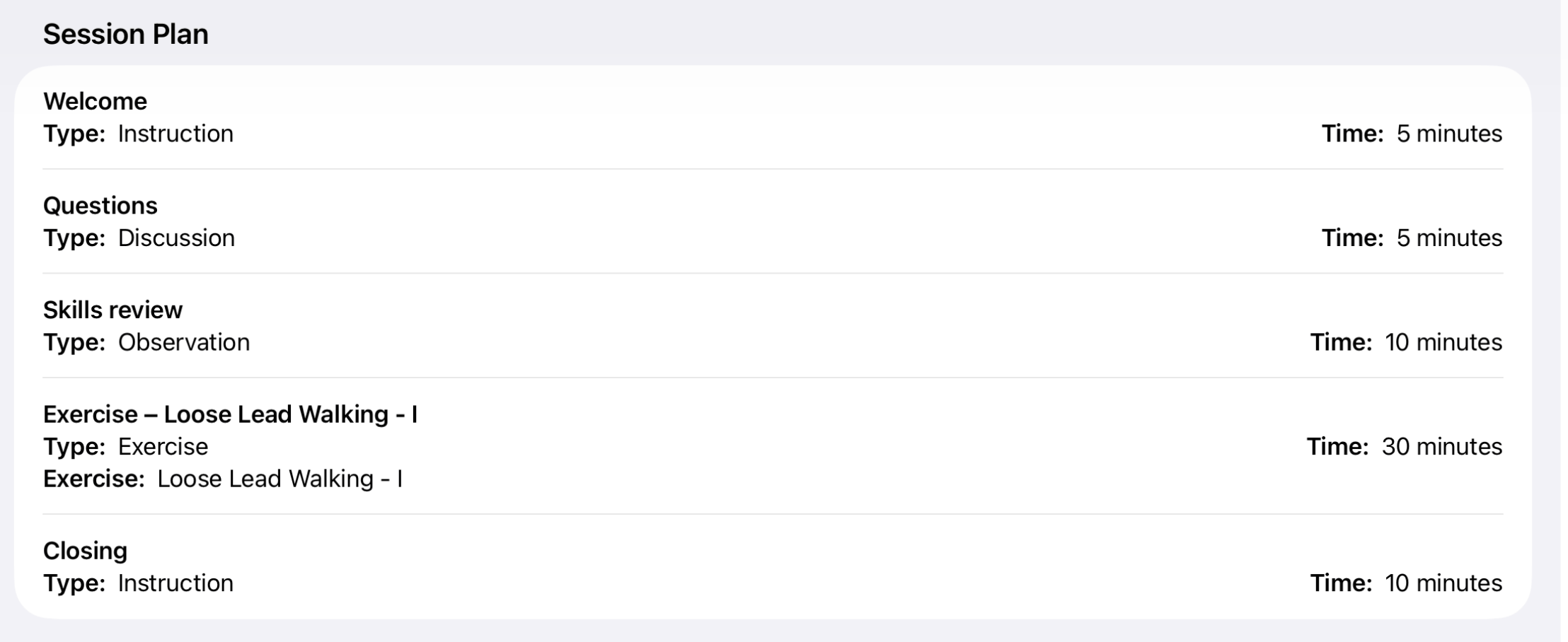
This is a summary of the session plan for the session.
- Next Session
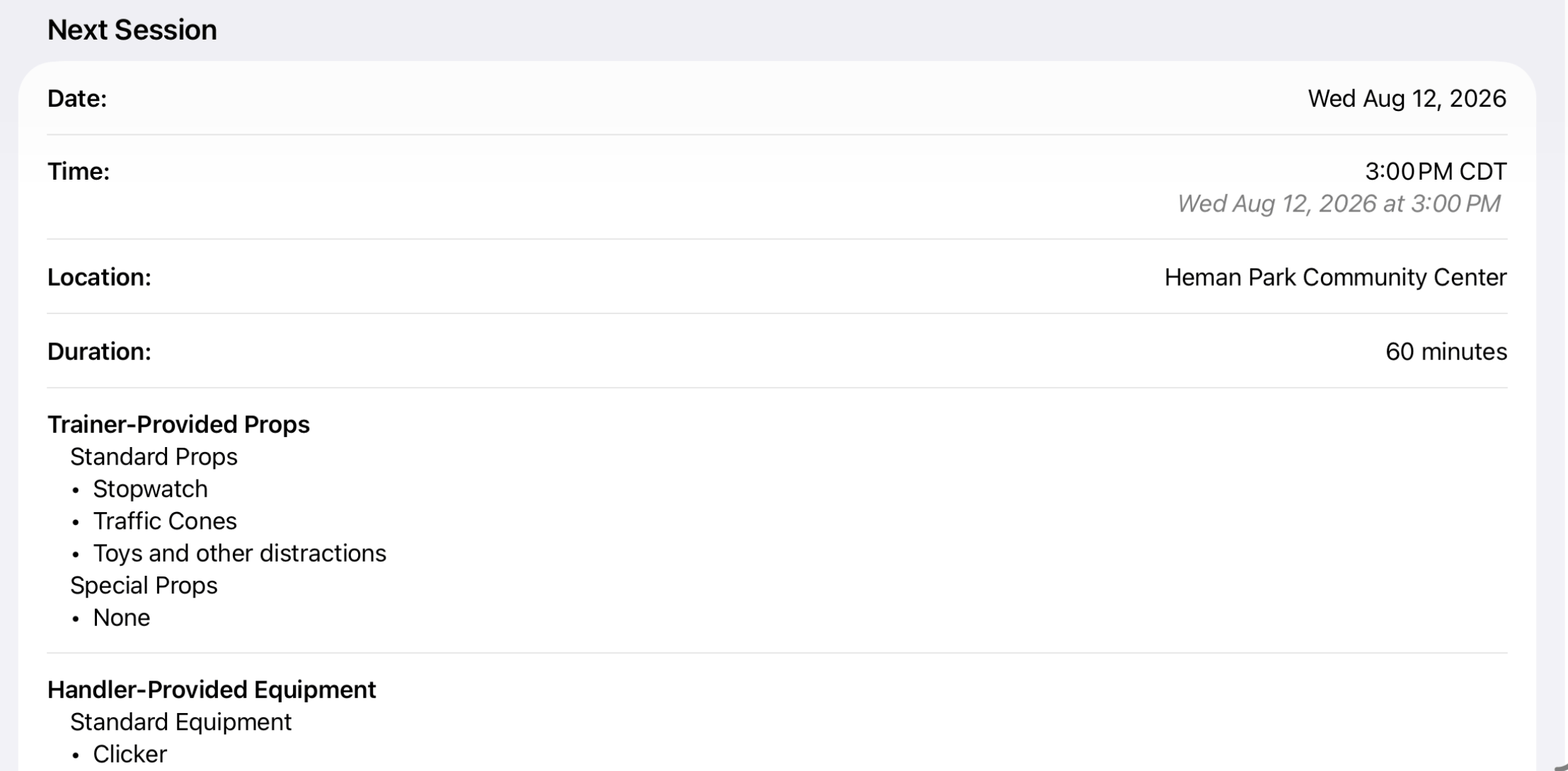
If there is another session scheduled, here are the details. This is provided so you can pass the information on to your client teams.

The summary is printable. Please note the button at the top-right of the subsection.Top
Session Detail: Basics
The Basics subsection is where you define logistical information about the session. It consists of two sections:
- Date, Time and Place allows you to adjust scheduling information about the session. Training Corner will provide default scheduling. Use these fields if the defaults need adjustment.
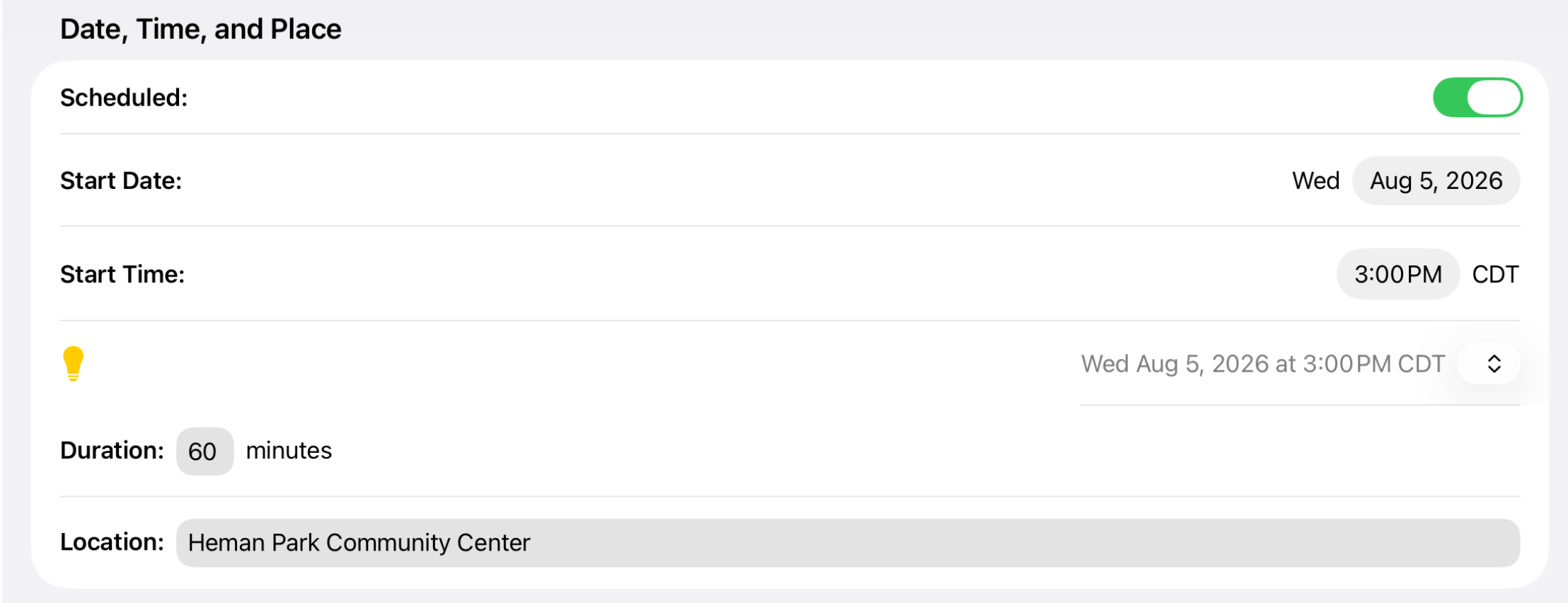
- Special Materials. You've already listed the classroom props and handler equipment which are needed for every session of the class. Here, you can list any items that either you or your clients need to bring to this particular class.
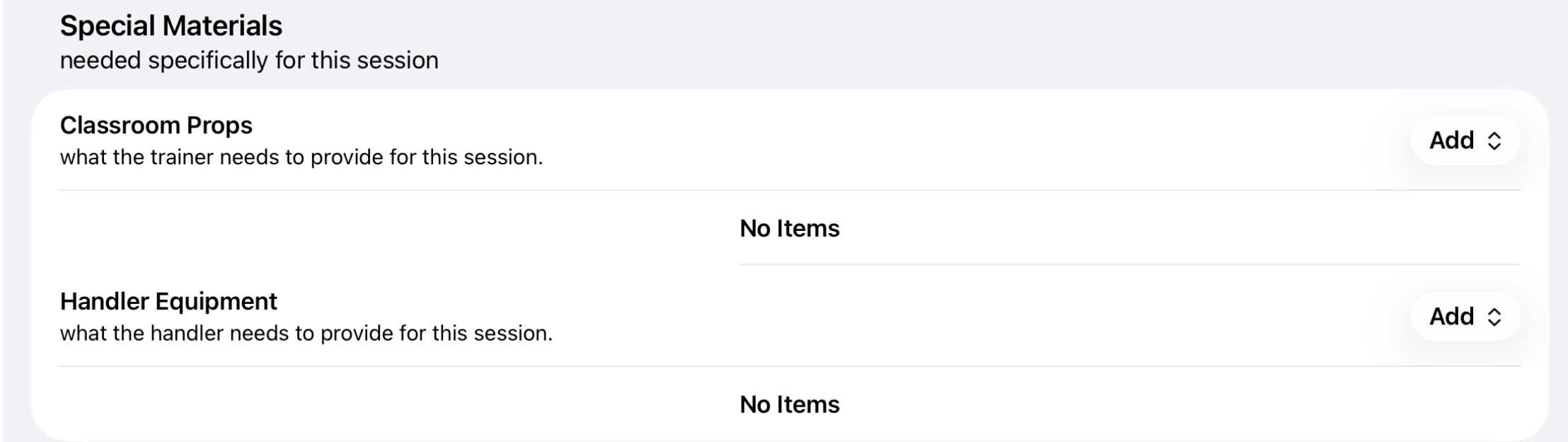
In this case, no special equipment is needed.
TopSession Detail: Segments
Every session consists of a sequence of activities. Training Corner refers to these items as segments, and taken together the sequence of segments is your plan for this session. A session could consist of a single segment (a presentation might fill an entire session, for example) or a number of different segments.
The Segments subsection is a segment editor that enables you to define the details of a session — what you want to do, in what order, and for how long.
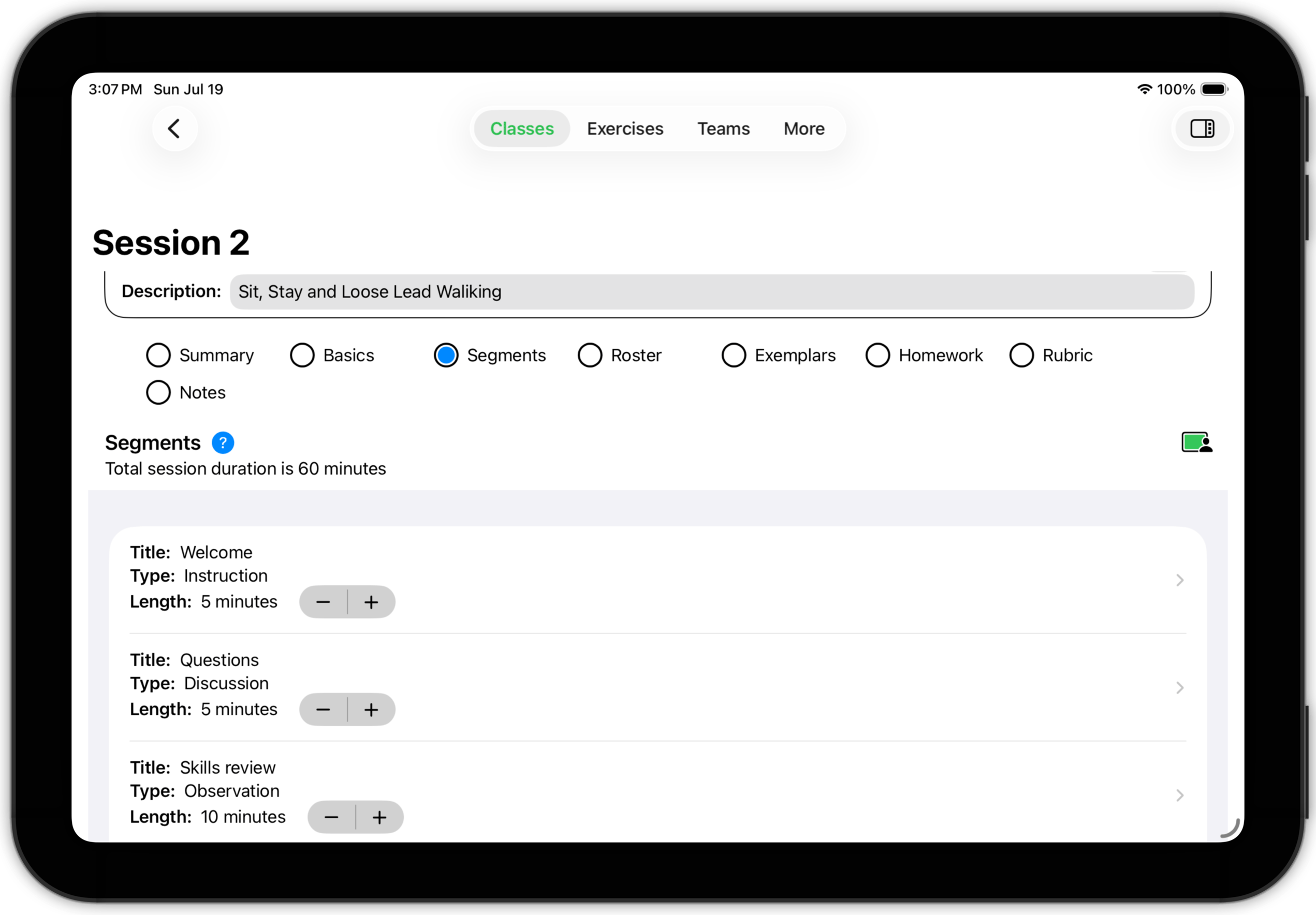
The segment list shows the current segments for the session. Each segment has a title, type and duration.
- There are five different segment types: instruction, discussion, observation, exercise and testing. Segment types will be discussed in detail below.
- The length of a segment is adjustable in 5-minute increments. Training Corner will make sure that the defined segments exactly cover the session — that is, the sum of the lengths of all segments will always equal the length of the session. If necessary, Training Corner will add or remove segments and adjust lengths of segments as needed.
You can delete a segment by swiping left. You can reorder segments by dragging. (I.e., tap and hold a segment, then drag it to some other place in the segment list and release.) To edit a segment, tap it. A segment detail screen will appear.
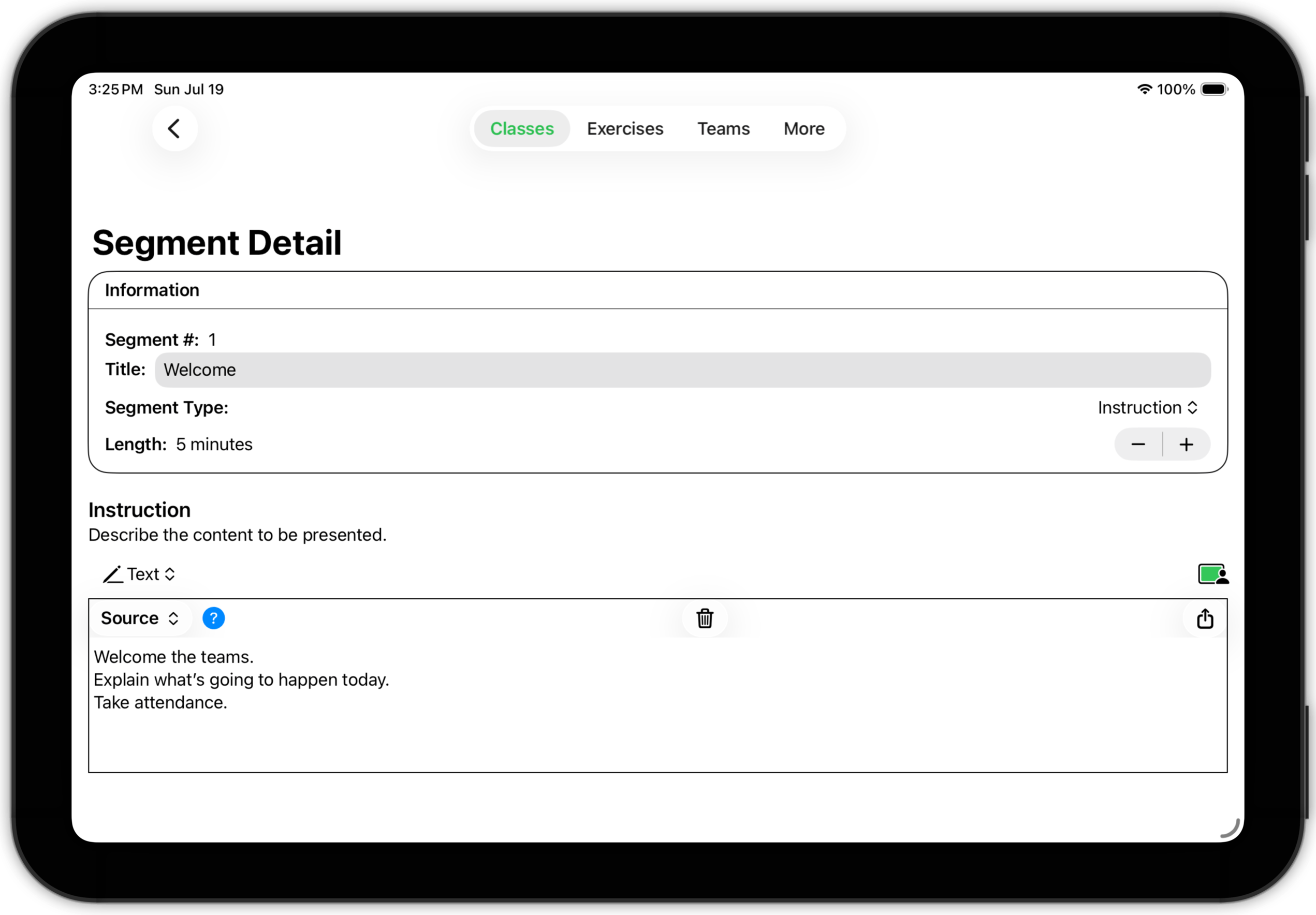
The information box at the top of the segment detail view is common to all segment types. The segment number is determined by its position in the segment list. The title, type and length are all editable.
The segment detail (below the information box) is different for each segment type.
Instruction Segment
An information segment is one where you are primarily imparting information to the teams in the session. Use this type of segment for giving instruction, demo-ing behaviors and for general communications (welcomes, closing wrap-ups, etc.).
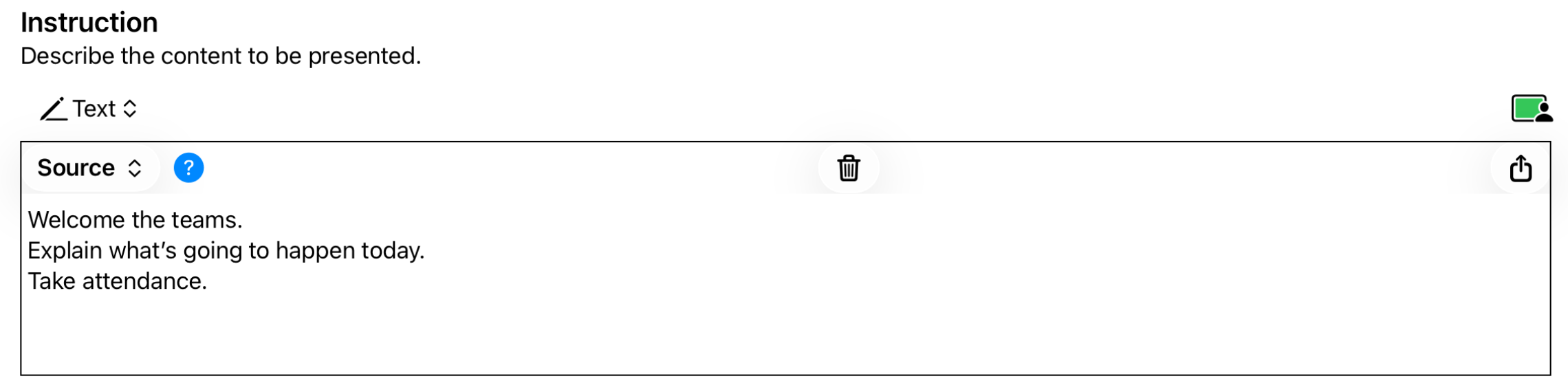
Use the narrative to describe what content you want to present to the teams.
(And don't forget that narratives can hold text, scanned notes and audio recordings.)
Discussion Segment
A discussion segment is one where you and your teams engage in a two-way, interactive dialog. Use this segment type for Q & A, group discussions, etc.
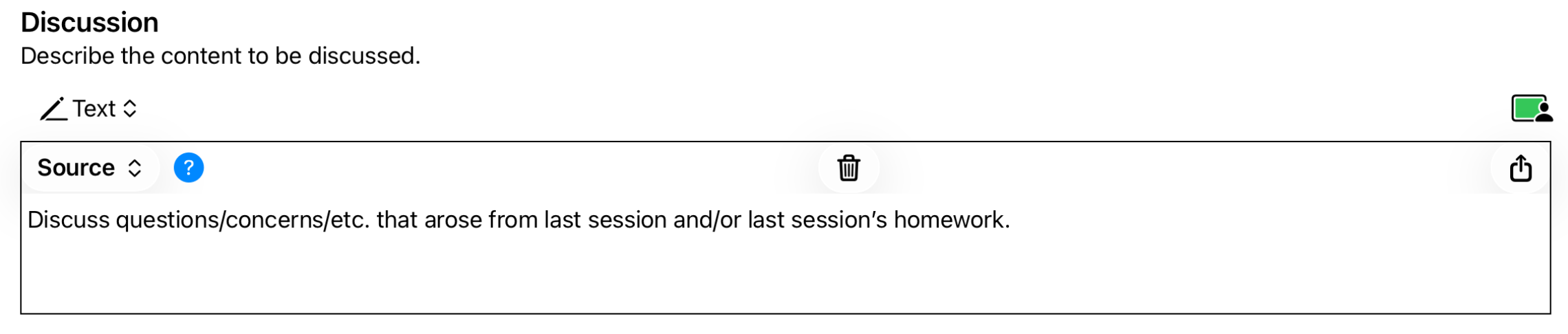
Use the narrative to describe the topics you want to discuss.
Observation Segment
An observation segment is one where you observe team behaviors and record what you see. This type of segment is particularly useful for one-on-one consulting situations, where observing and analyzing an animal's behavior is a critical part of the session. But it is also useful (as here) as an opportunity for teams to demonstrate what they've learned.
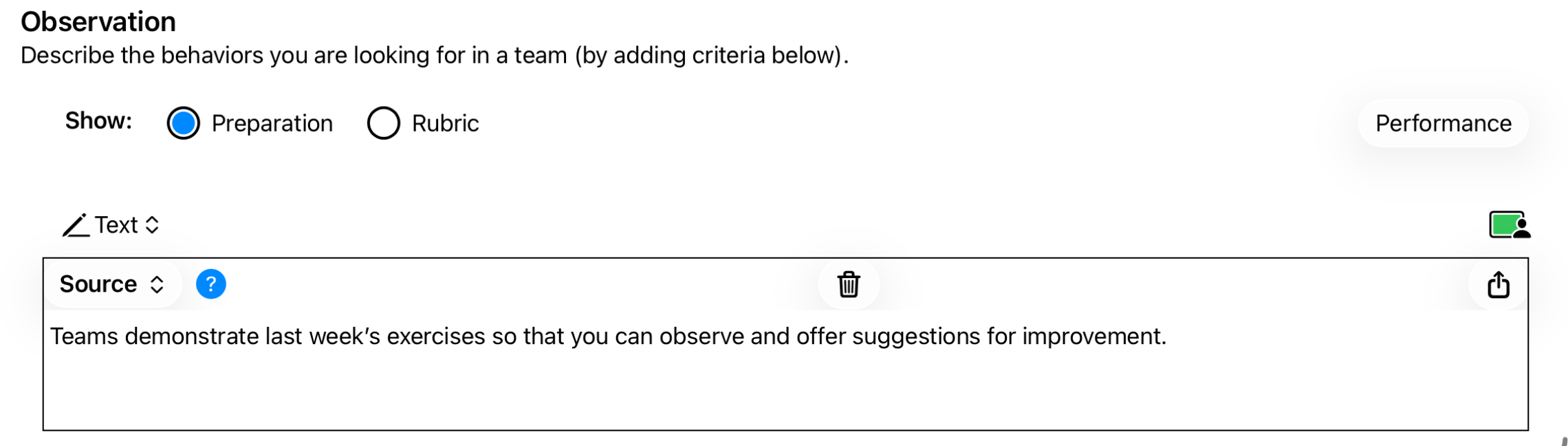
An observation segment actually has three pieces:
- The Preparation sub-subsection is used to describe the context in which the observation should take place. Here, for example, you are interested in seeing how well teams have mastered last session's homework assignment.
- The Rubric sub-subsection is used to describe what precisely you are looking for and how you will know you found it. We will discuss rubrics in much more detail in Performance.
- To actually record the team performance you are observing, tap the Performance button (on the right). A new view will open with a list of the teams enrolled in the session.
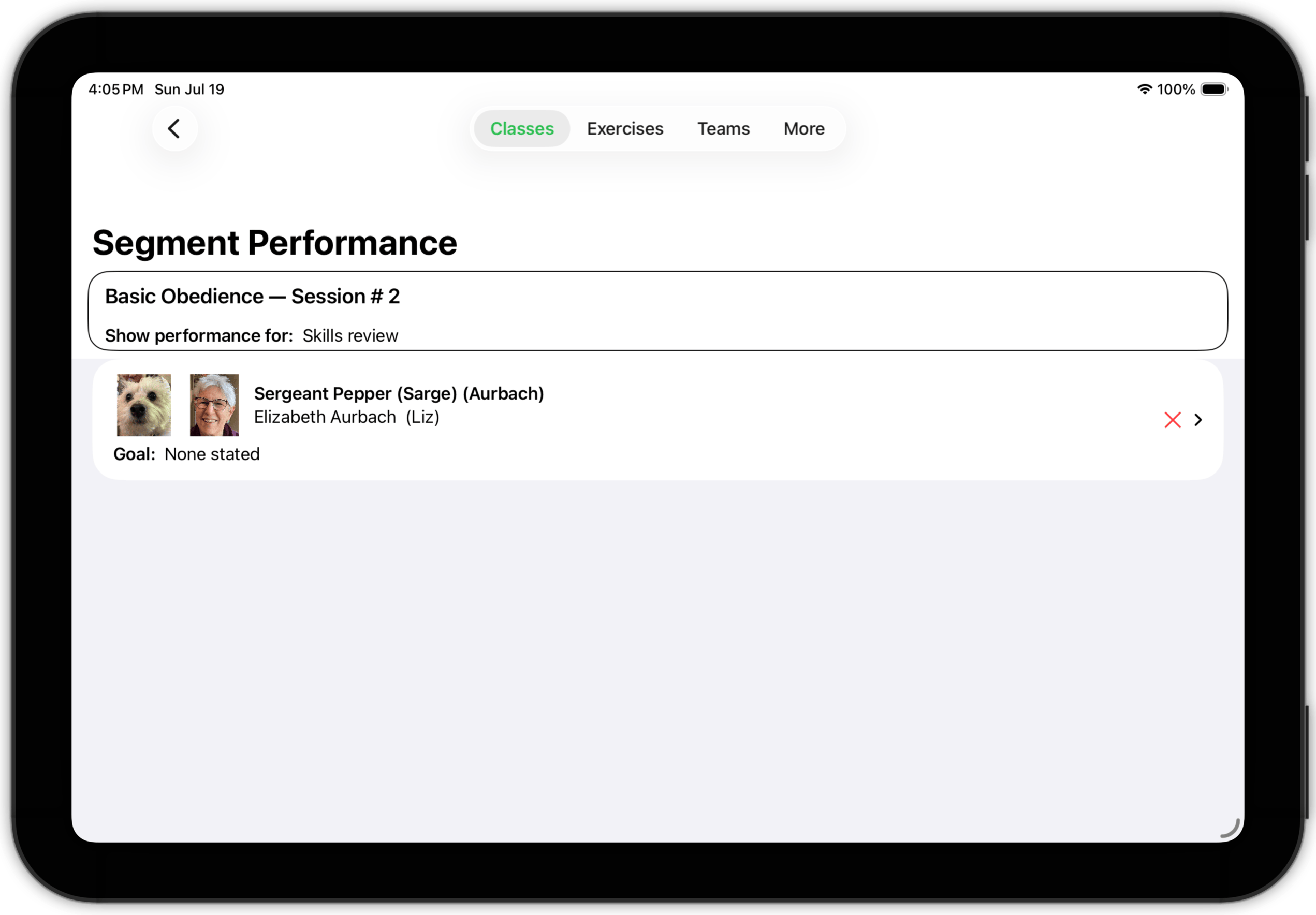
To make an observation for a particular team, tap their row.
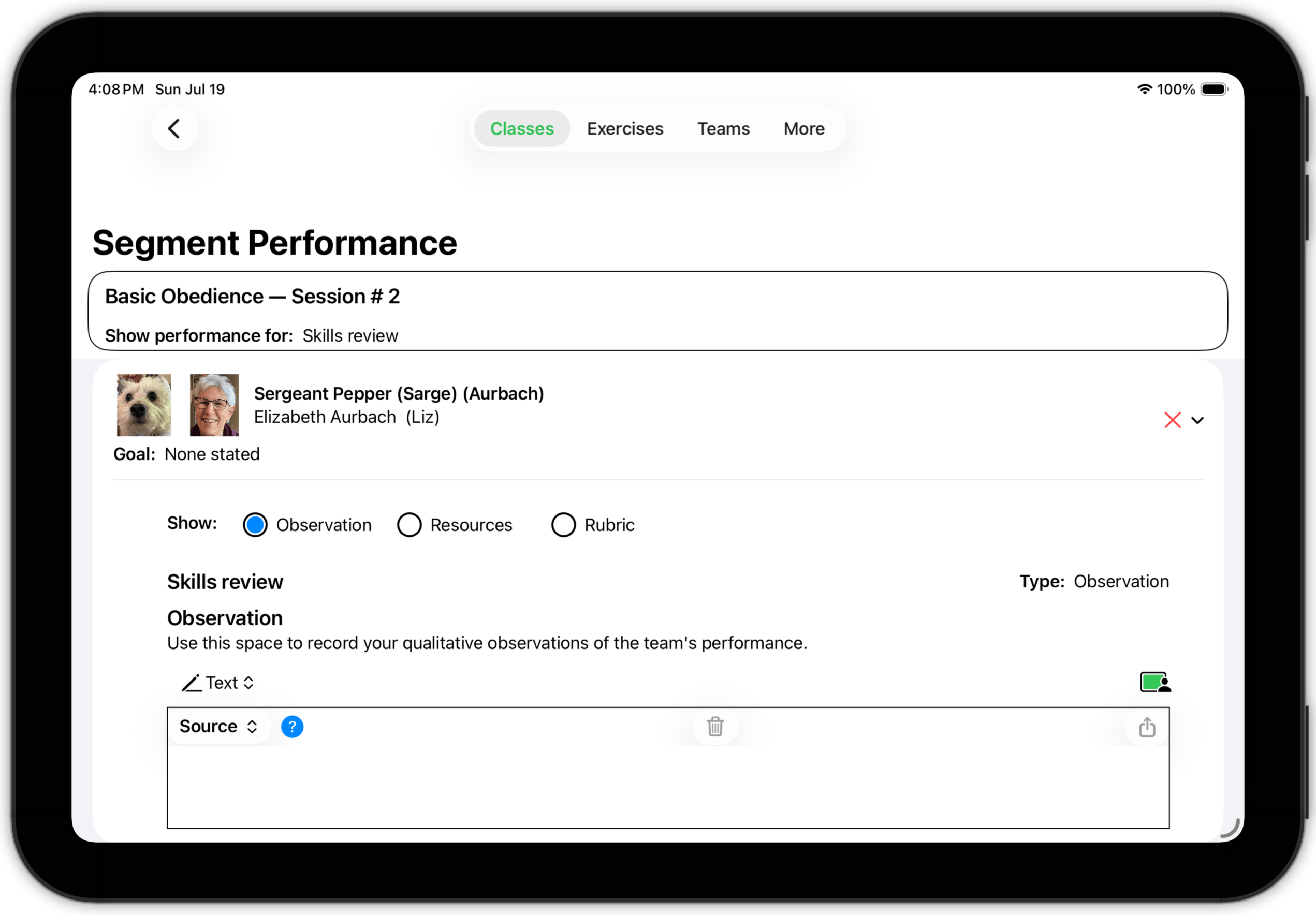
The view expands. Use the Observation sub-subsection to record what you observe (and, perhaps, your interpretation of it); use the Resources sub-subsection to capture photos, videos or other relevant materials to support your observation; use the Rubric sub-subsection to remind yourself of the content of the rubric you are using for this observation.
Exercise Segment
An exercise segment is one where the teams perform an exercise. You could use this segment type to introduce a new exercise, to prepare teams for an exercise they will practice at home, or to practice an exercise (and receive your suggestions or corrections).
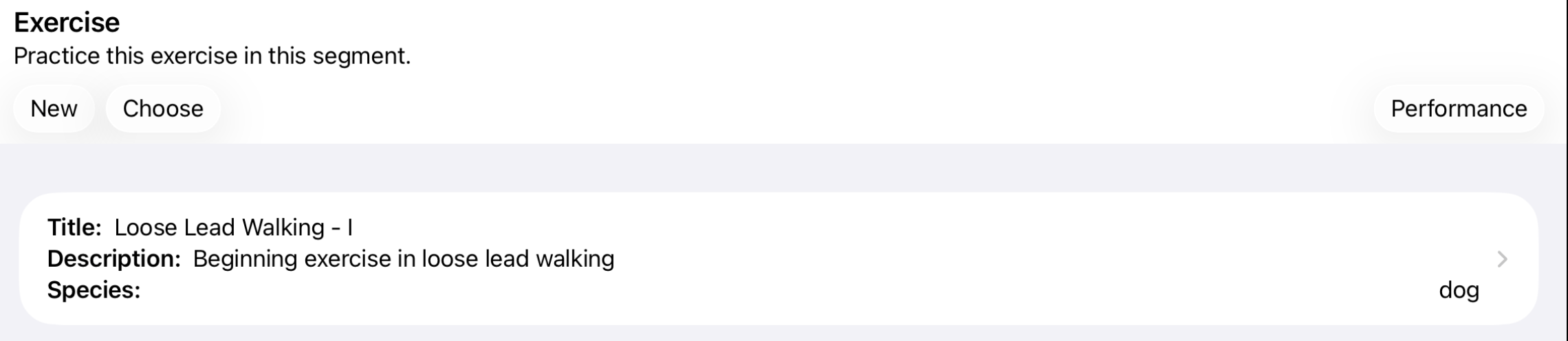
If you have previously defined an exercise (see Exercises) tap Choose to select it from a list. If you have not yet defined the exercise, tap New to create it. (In this case, only a bare-bones exercise record will be created — you'll want to use the Exercises tab to fill in detail later.)
As with the Observation segment above, use the Performance button to enter performance information.
Test Segment
Finally, you can use a segment to conduct a test. To use an example from the world of dog training, suppose the purpose of your class is to prepare teams for Canine Good Citizen (CGC) certification. The final session of such a class might consist of a single segment where you actually conduct the CGC examination.
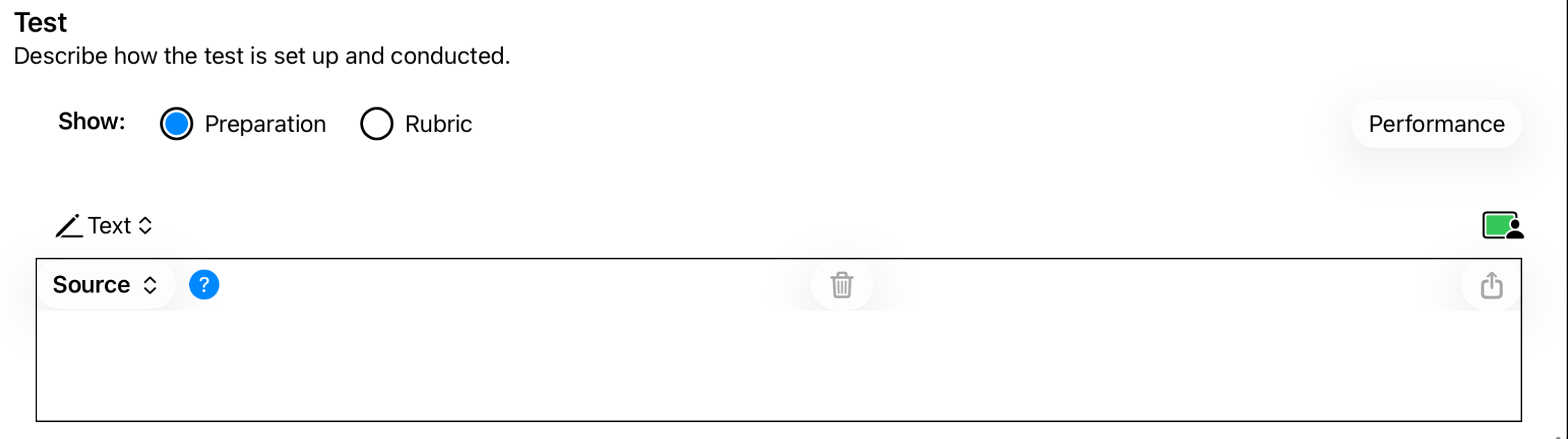
The pattern should be familiar — a subsection to describe how to set up the test, a subsection to view or edit the rubric, and a Performance button so you can record the performance of each team.
TopSession Detail: Roster
The Roster subsection provides an overview of the session. It lists all of the teams enrolled in the session.
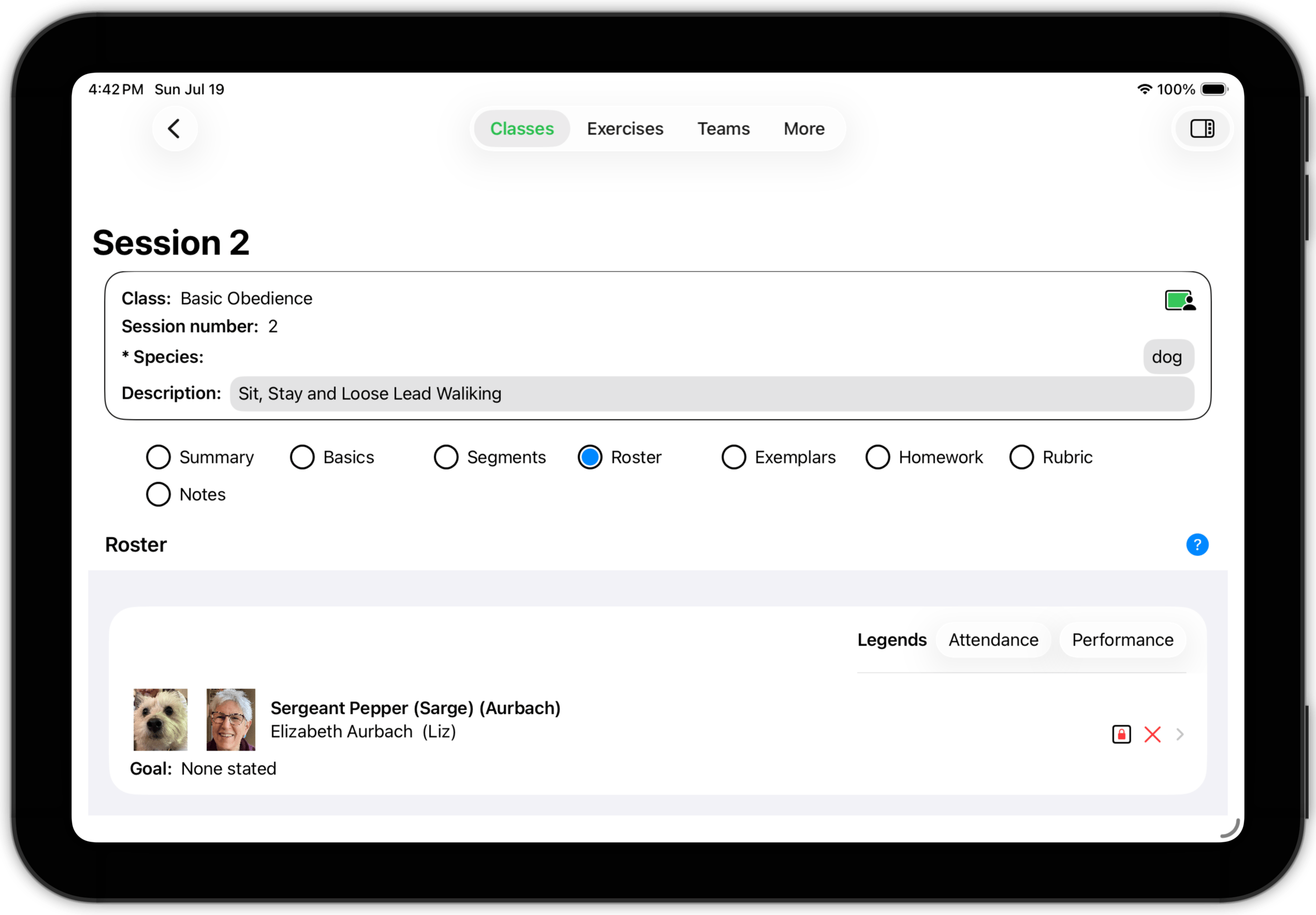
- Each team is listed. Tap on the row to open a Team Detail view. (See Teams.)
- Tap the Attendance legend to interpret the attendance symbol show on the right of each row. If the session is active (based on the current date/time and the session's start date and length), the attendance symbol is actually a button that you can use to take attendance. Here, the session hasn't started yet.
- Tap the Performance legend to interpret the performance symbol shown just to the right of the attendance symbol in each row. If the session is active, this symbol is a button which (if tapped) takes you to a screen where you can enter a session summary evaluation.
Session Detail: Exemplars
Use the Exemplars subsection to store photos, videos, web pages, articles, or other resource materials which are pertinent to this session.
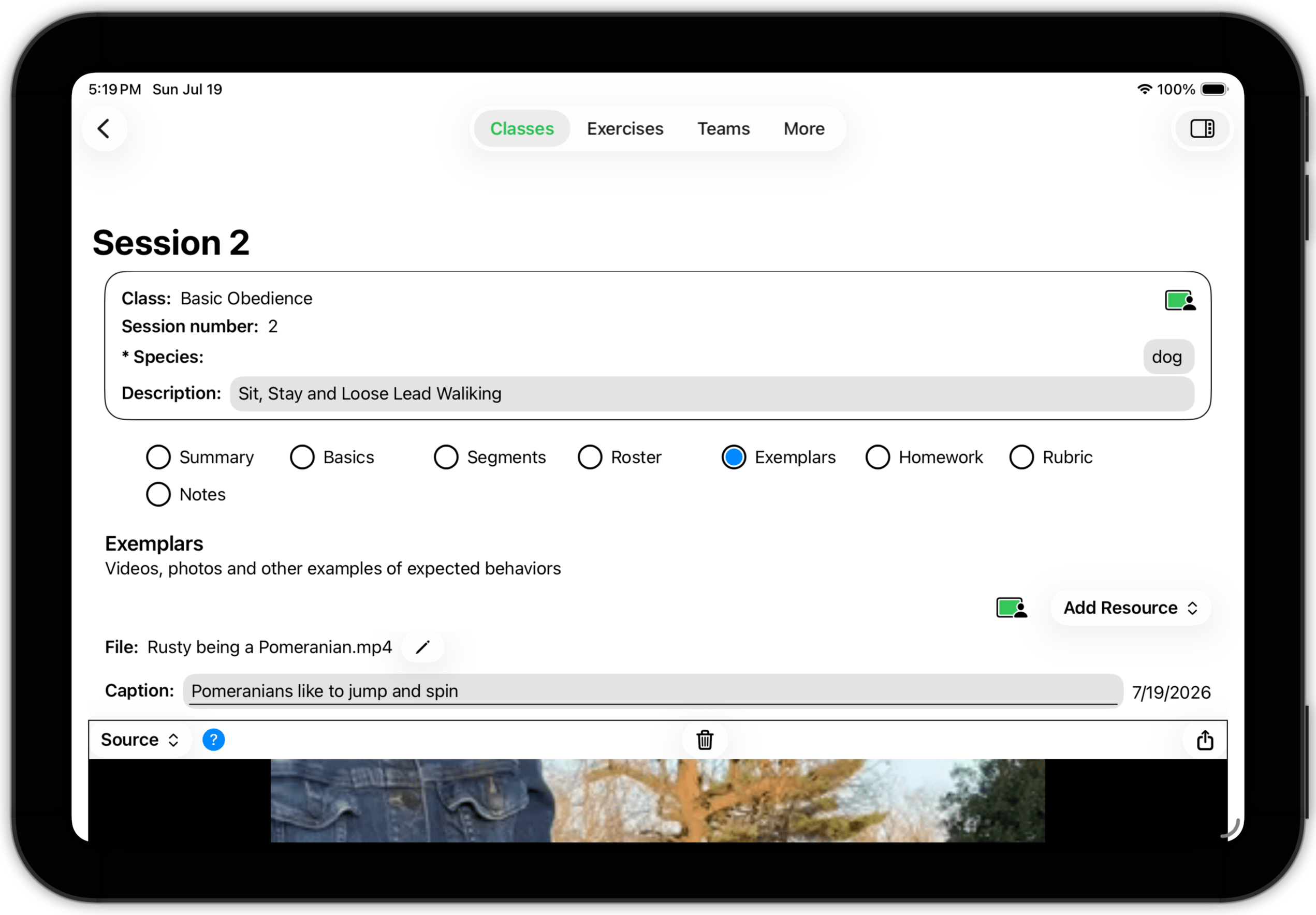
Use this subsection to record exemplars to share with your teams, supporting materials, etc. Do not use this area to store photos, videos, etc. of your teams — the Resources subsection of each Team's detail record is a much more appropriate place for such material.Top
Session Detail: Homework
We all know that as valuable as the training, learning and improvement that teams acquire in class, it is the practice — the repetitions — that take place at home between sessions where the real mastery takes place. In other words, homework is an essential part of the learning process — for people and animals alike.
In Training Corner, you can define a homework assignment for each session of a class. The assignment can then be saved and distributed to your teams in a variety of ways. And the assignment will be saved using file types and formats which everyone can read (regardless of what brand of computer, pad or phone they have).
The Homework subsection is where you define and distribute homework assignments.
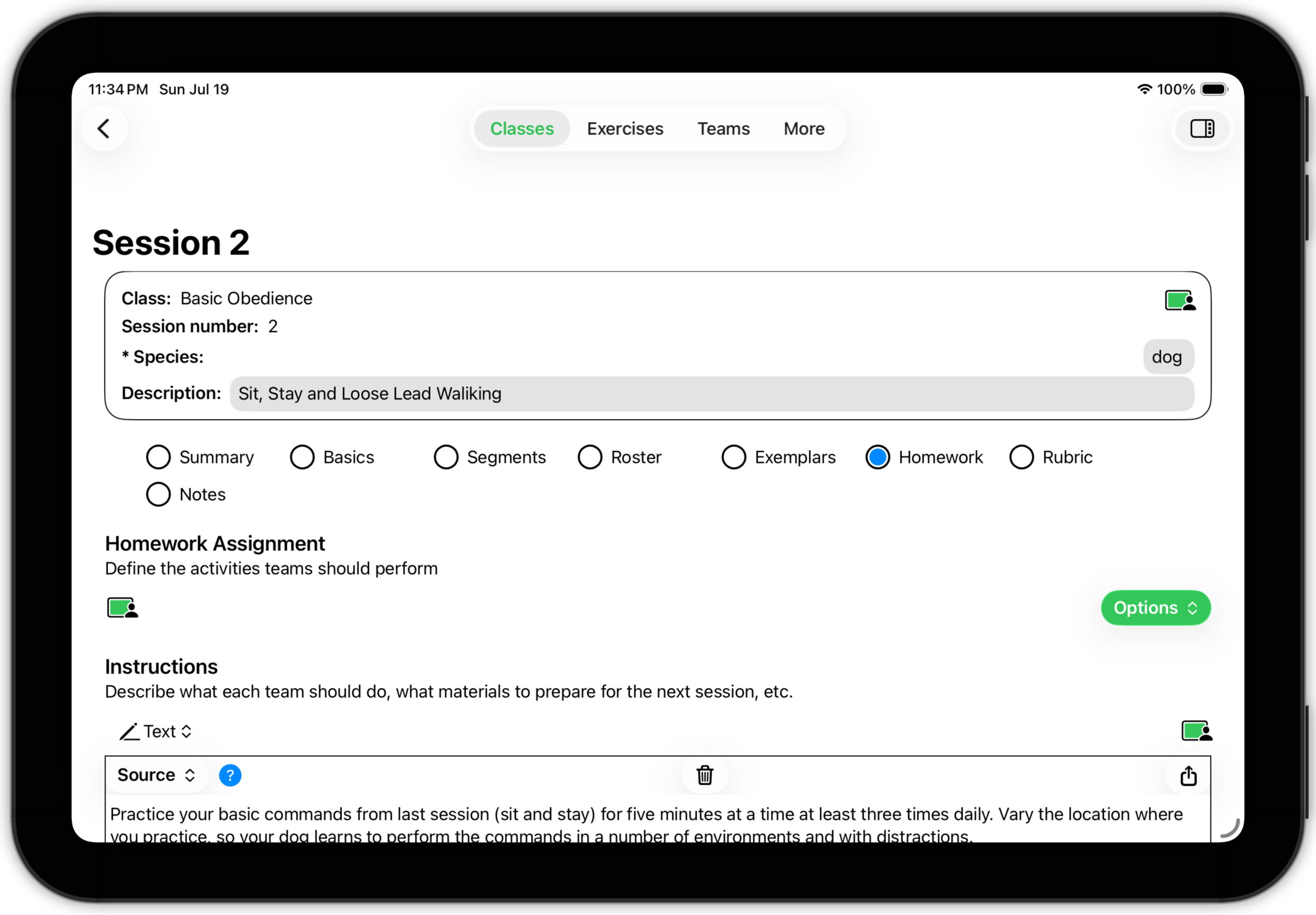
A homework assignment has four parts: instructions, discussion points, exercises, and study materials.
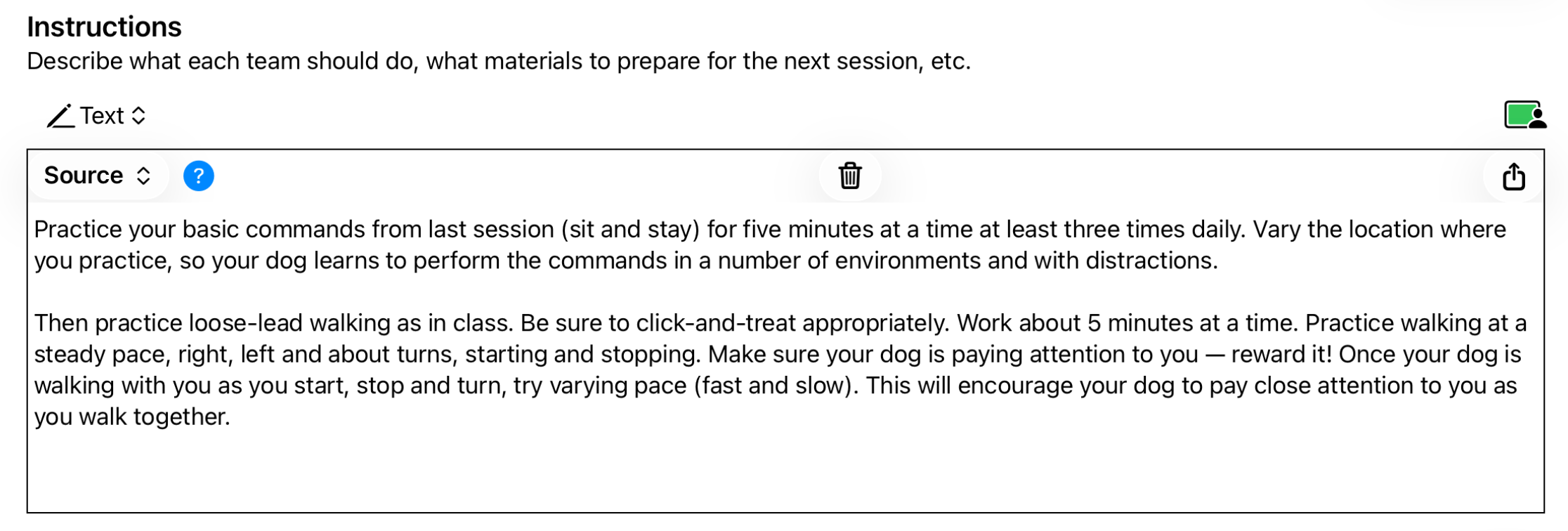
The Instruction part contains your instructions to your teams, telling them what you want them to do. The instructions can be in the form of text, a scanned image of a note, or a sound recording. (And if you take advantage of the Study Materials part, you can even include a PDF document.)

The Discussion Points part of the homework assignment is where you can list questions or issues which you would like teams to research and prepare for discussion at the next session. Use the Add button to add items to the list. You can delete an item by swiping left or reorder the discussion points by dragging.

The Exercises part of the homework assignment is where you can list exercises you want teams to practice at home. As we will see in Exercises, specifying how the team is to practice the exercise at home is included in the exercise definition.
If you have already defined an exercise, you can add it by tapping the Existing button. To create a new exercise, use the New button. However, please keep in mind that the exercise created in this way is an "empty shell". You'll need to fill in the exercise before distributing it as part of the homework assignment.
You can include as many exercises as you want.
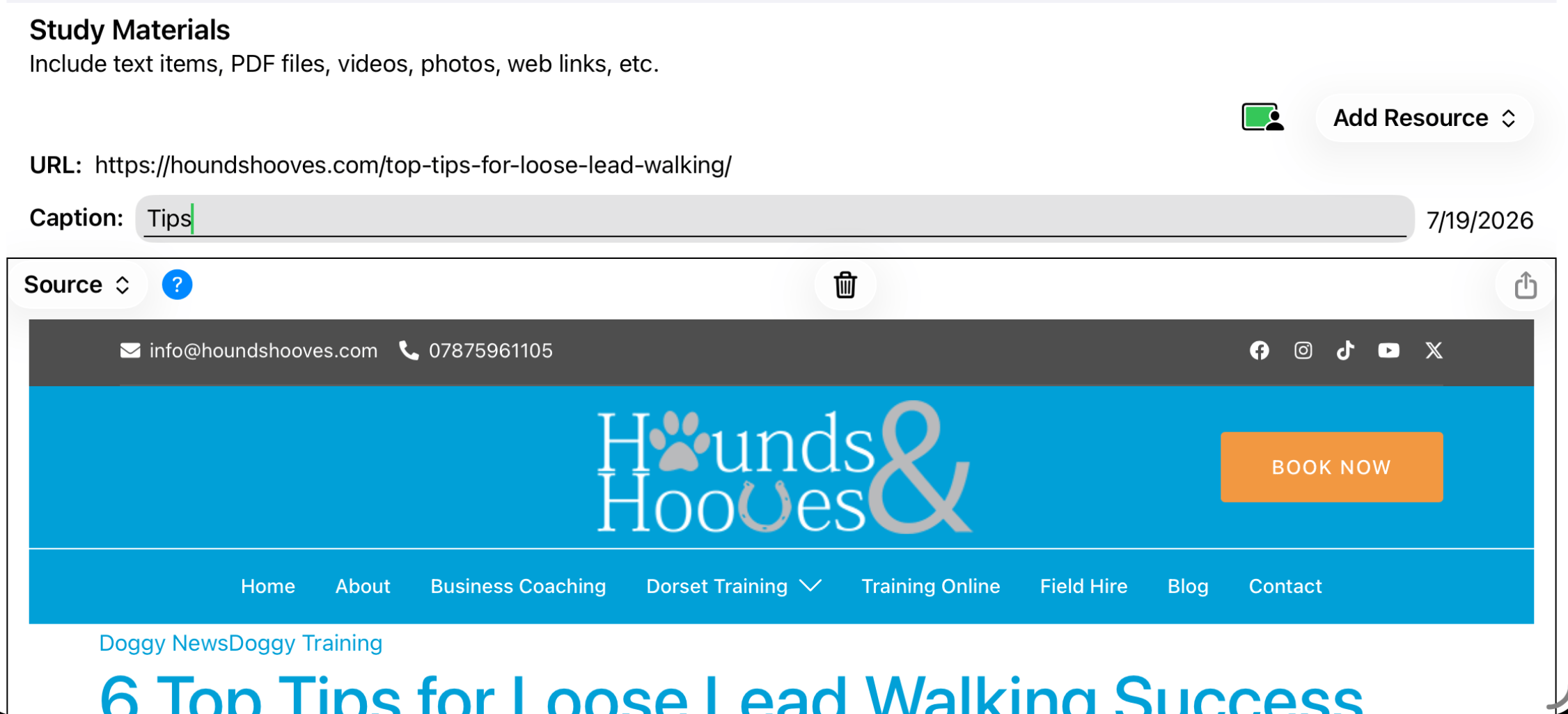
Finally, the Study Materials part of the homework assignment consists of a list of items you want teams to study before the next session. Items may consist of text, photos or scanned documents, audio recordings, videos, PDF files and/or web pages. You can include as many items as you wish.
Homework Distribution
Once you've created a homework assignment, you need to get it into the hands of your teams. There are three ways to do this.
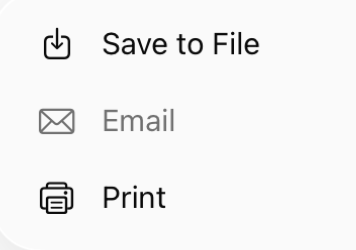
- Save to File: All of the materials which constitute the homework assignment are collected in a folder, which is then compressed as a ZIP archive file. You can then copy the archive to a place where your teams can access it, such as Google Docs, Dropbox, or your website. Teams are responsible for downloading and decompressing it.
- Email: All of the homework materials are again collected and compressed into a ZIP archive. Training Corner constructs an email to send to each of your teams which includes the archive as an attachment. Note that if your assignment contains videos or sound recordings or other pieces which take significant space, the archive could be too large for some email systems.
- Print: Training Corner will create a report containing the contents of the homework assignment and print it. You can then distribute copies to your teams. However, please note that if the assignment includes audio, video or other non-printable items, the report will (of necessity) be incomplete.
Session Detail: Rubric
Training Corner provides an opportunity to evaluate overall performance in every session — a session summary performance measure. (This is analogous to the class summary evaluation, but at the session level.) The Rubric subsection is used to define the rubric used to perform the session summary evaluation.
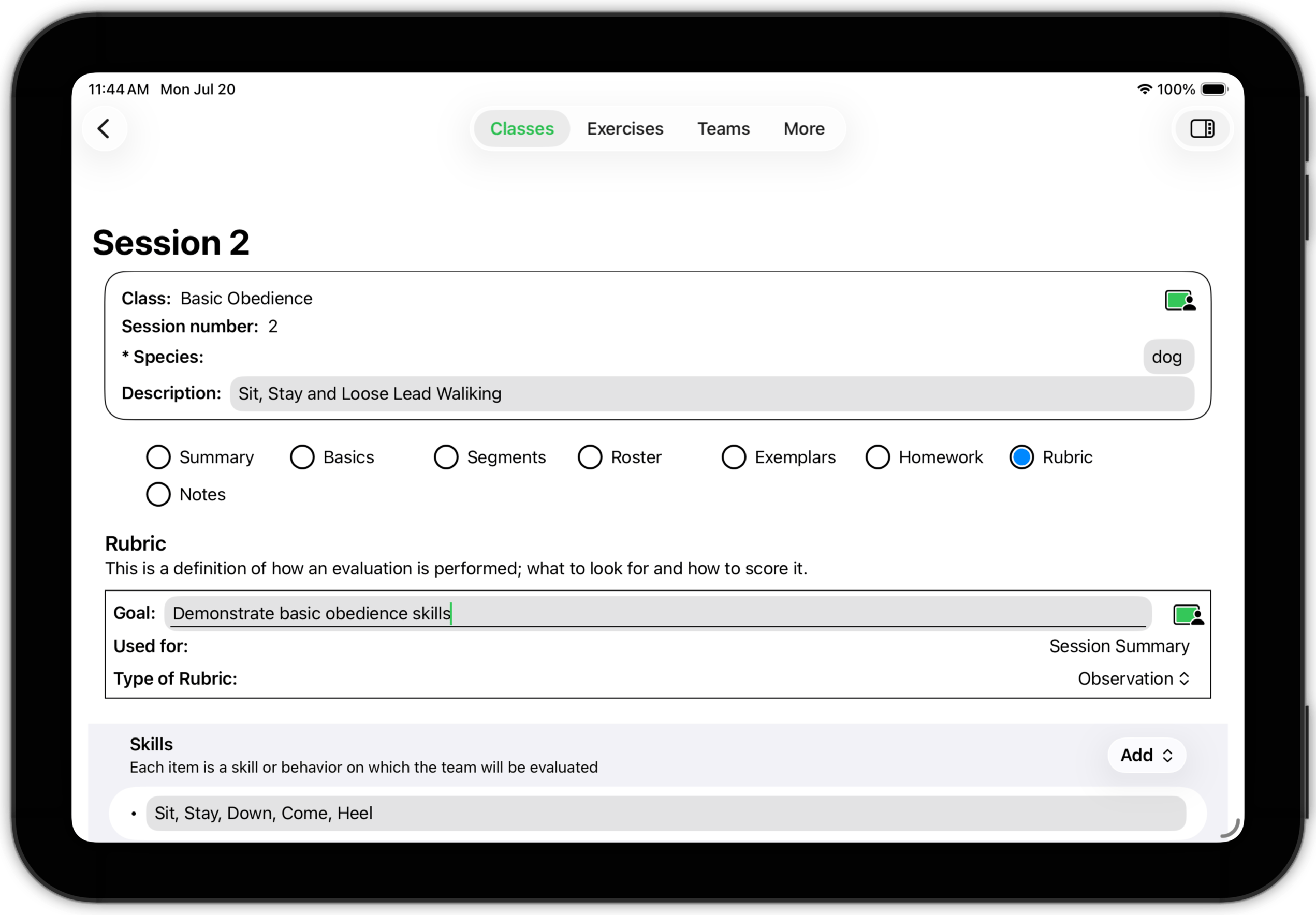
This example uses an obserevational rubric, which is quite typical for many session summary situations. Rubrics are discussed in detail in Performance.
TopSession Detail: Notes
As was mentioned previously, Training Corner has several Notes subsections. The Notes subsection in Session Detail is intended as a place for you to record your thoughts and ideas about the session itself — its content, organization, structure, etc.
Notes about individual teams or their members are best recorded in the Notes subsections for Teams, Animals or Handlers (as you find appropriate).
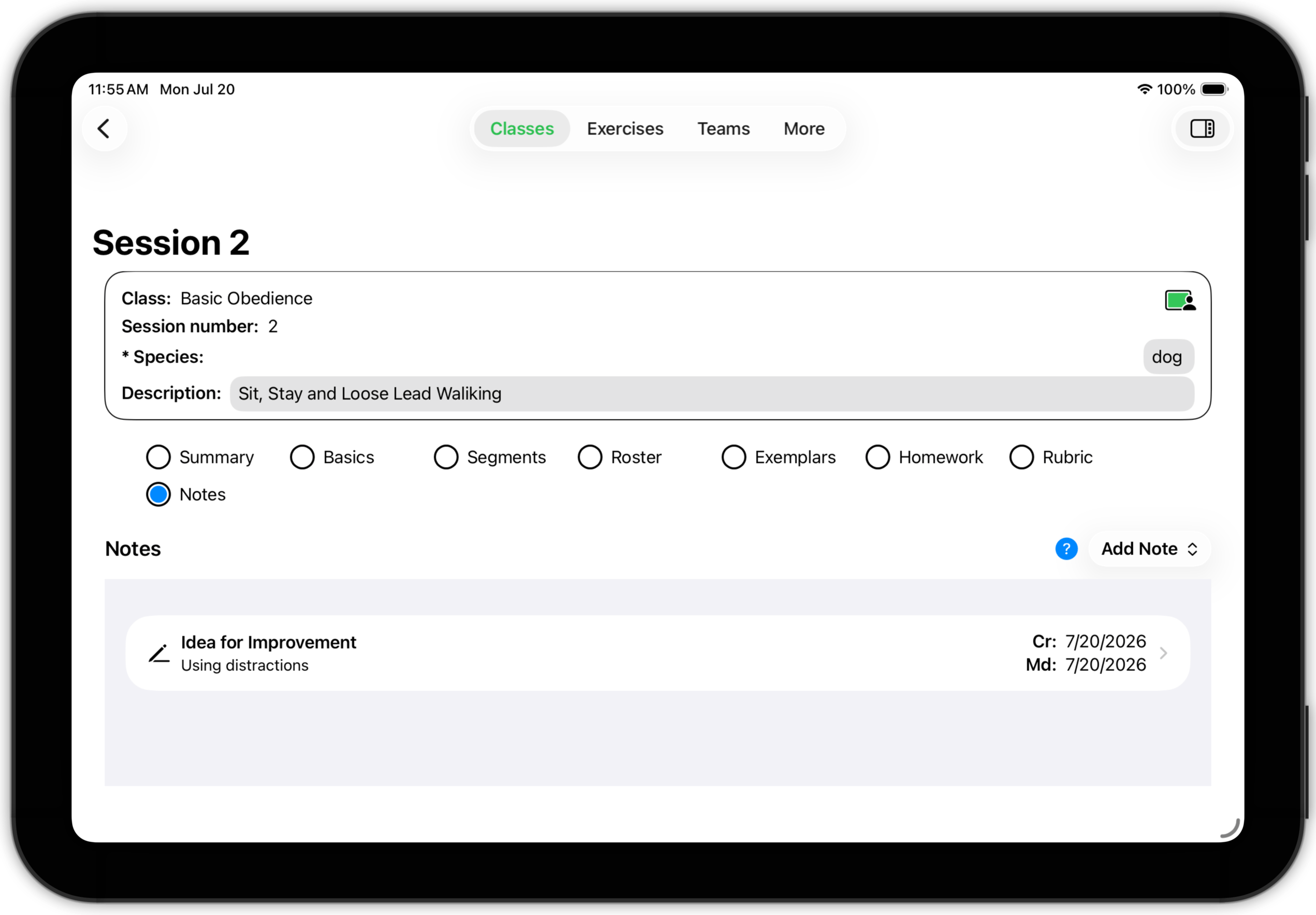
Notes are described in Using.