Classes
Classes are the basic unit of activity in Training Corner. If you meet with a single team once, Training Corner regards that as a class with one session. If you meet weekly for six weeks with a dozen teams, Training Corner regards that as a class with six sessions. Classes are the framework which holds everything together.
In Training Corner, everything about classes is accessible via the Classes tab.
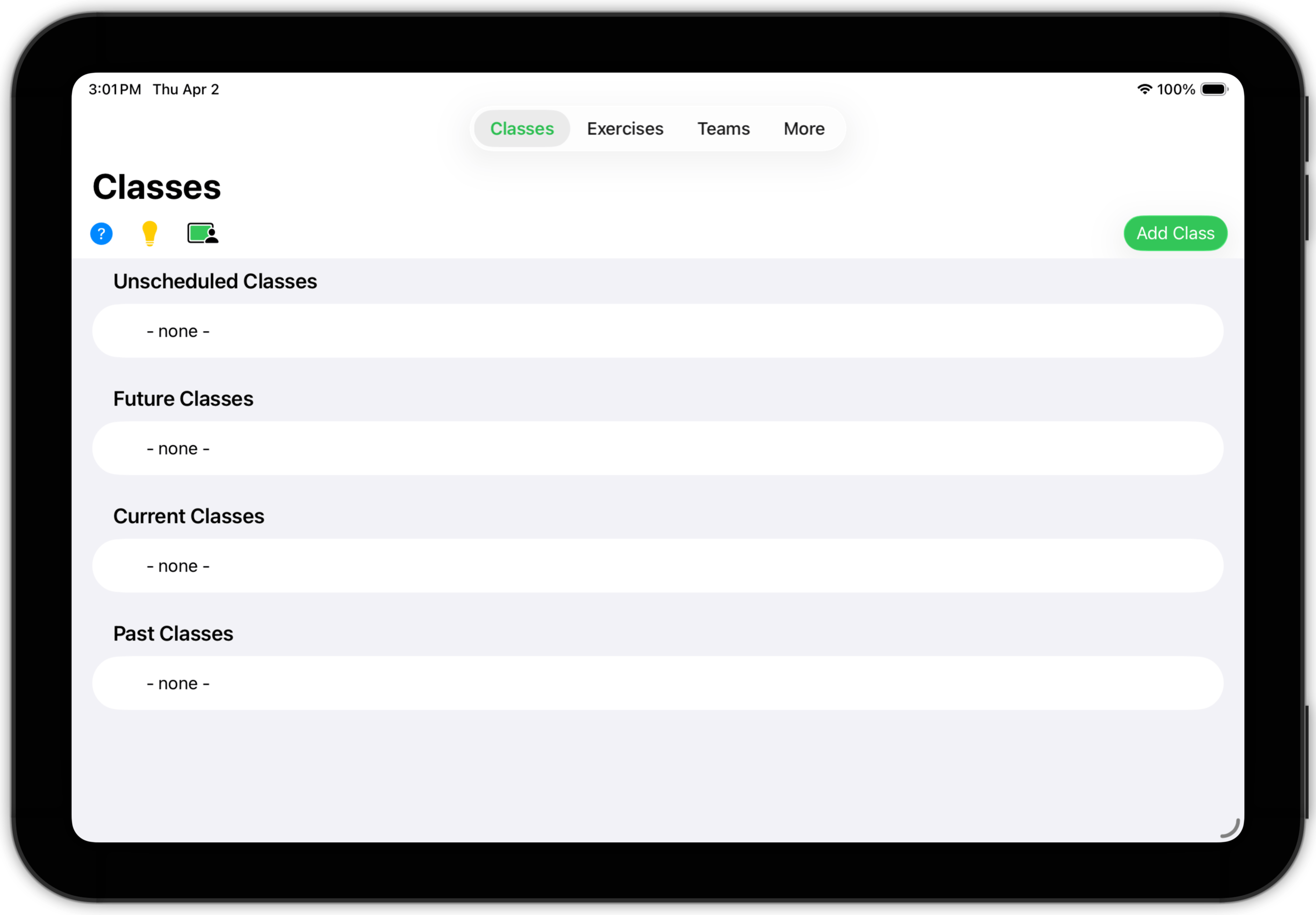
The list of classes is divided into four groups to make finding the class you're interested in easier.
- Unscheduled Classes. This is your workspace, a place to develop new classes, refine your ideas and plans for a class, etc. When you first create a class, it will appear here.
- Future Classes. If you schedule a class and it hasn't started yet, it is a future class and appears here. You'll work with future classes to prepare for when they start — by enrolling teams, tweaking curriculum, etc.
- Current Classes. Once a class starts, it will appear here. You will want to access the class to take attendance, perform evaluations of teams, and generally track class progress.
- Past Classes. One a class is over, it moves here and becomes part of your historical record.
Create a New Class
To create a new class, tap the Add Class button.
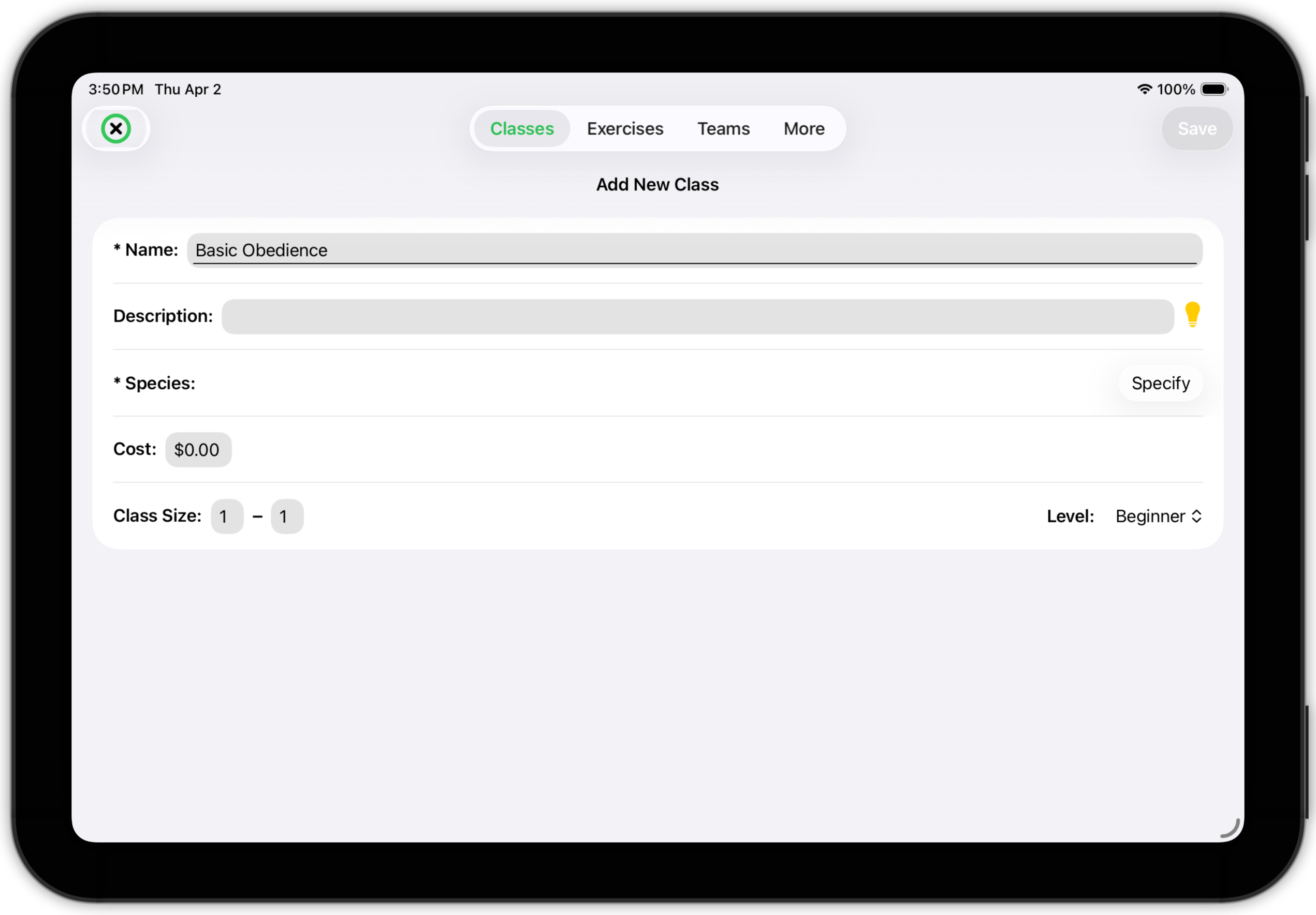
Enter a name for the class. (That's required.)
A description is optional, but a good idea (particularly if you have several classes with the same or similar names).
You must specify the species of animal you are training in this class. If you're just getting started, you'll see a Specify button on this line. If you've already specified the species you train, then
- if you specialize in training a single species, it will be filled in for you.
- If you train more than one species, you will see a popup menu so you can choose the species for this class.
If you have not specified a species yet, tapping the Specify button will display a dialog.
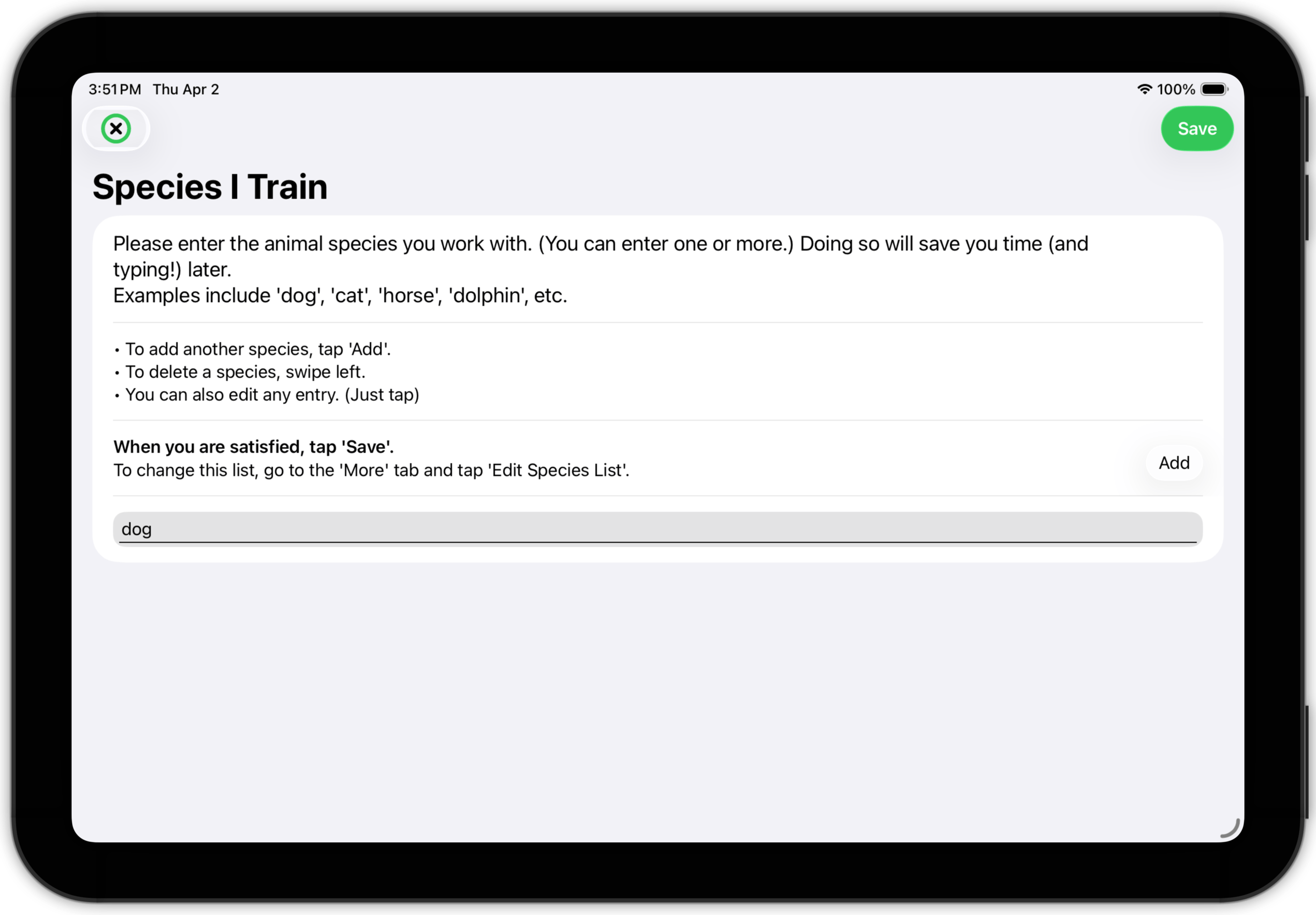
Enter one or more species and tap Save.
Once the species has been defined, the Save button on the Add New Class dialog will be enabled.
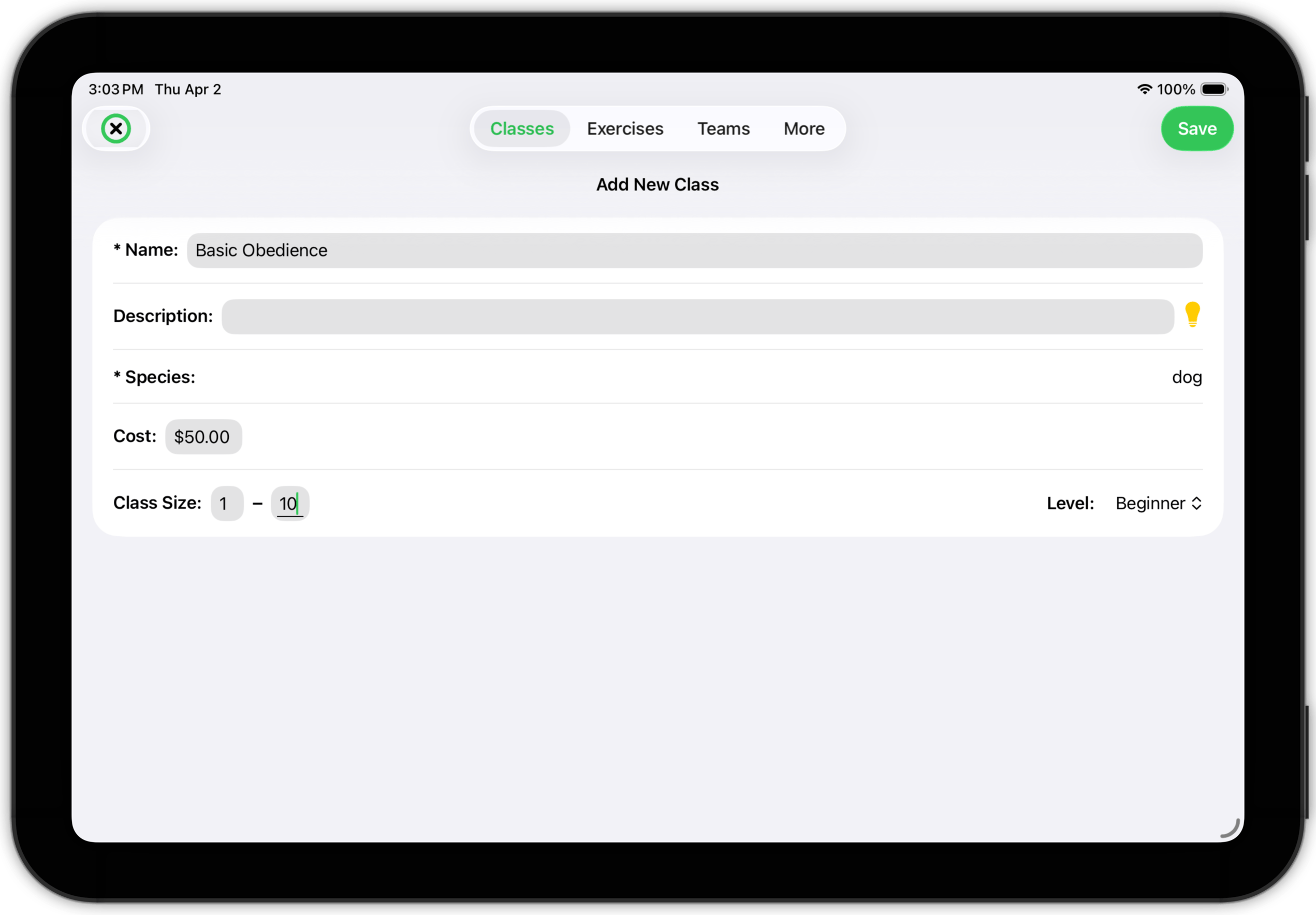
Tap it. The class will be created and will appear as an unscheduled class.
To work with the class, tap it.
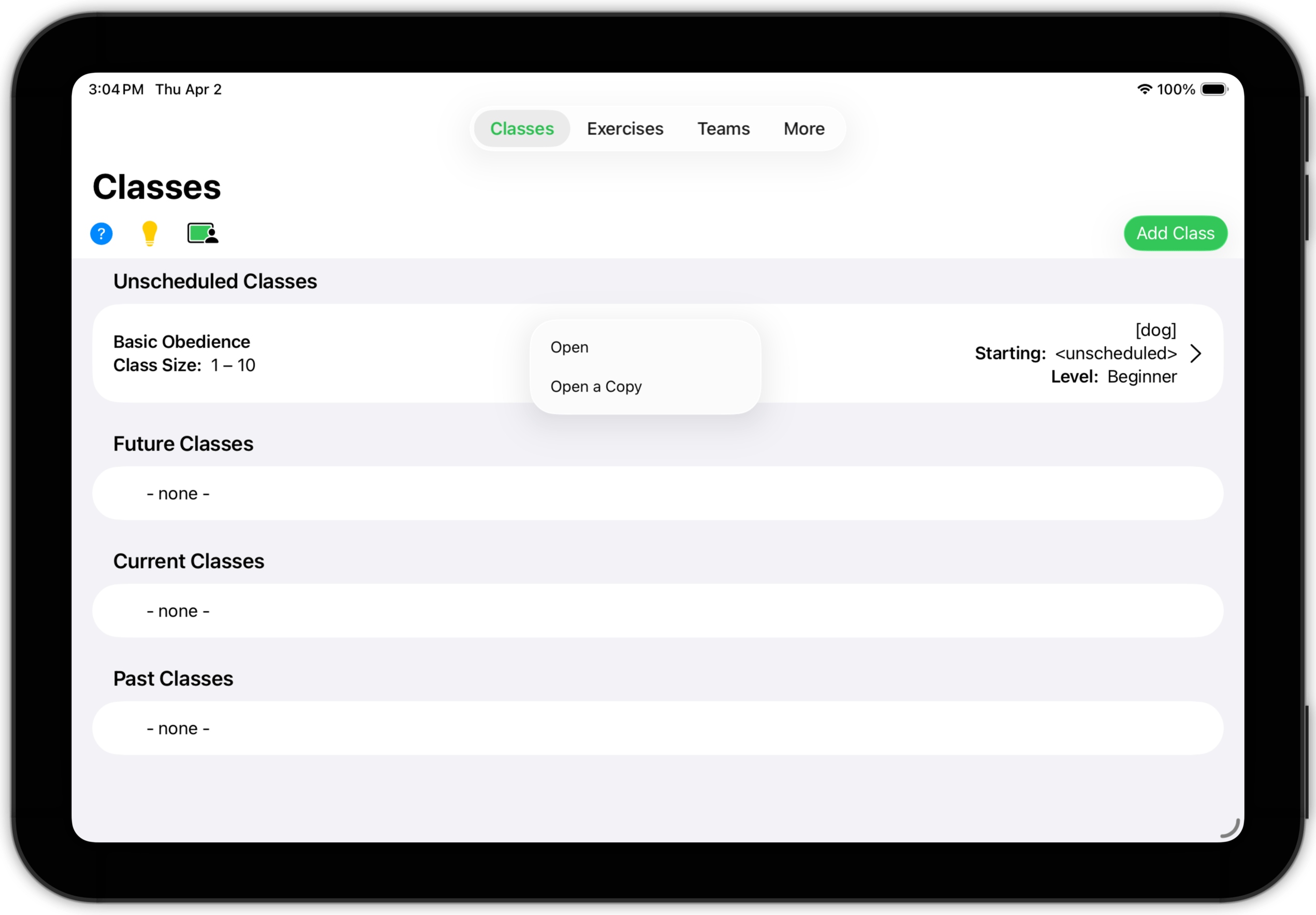
A menu will appear. Choose Open to open the class to access its detail.
TopCopies and Templates
This idea of opening an object versus opening a copy is a central feature of Training Corner. And it's one you're already familiar with in a different context.
When you work on a traditional document (say, for example, you edit a work processing document), you can choose between saving the document or performing a Save As… operation. If you choose the latter, the system saves the document (with a new name) and leaves the original unchanged. I.e., the system creates a (modified) copy of the original.
The Open a Copy option works similarly — it creates a copy of the original and opens it for you to work on. The difference is that here you decide whether to create a copy when you open it, rather than when you save it. (This is because you never explicitly save data in Training Corner — it handles saves for you.)
In essence, when you select "Open a Copy" Training Corner uses the original class as a template. This can be a powerful tool to save you time and effort.
- If you offer the same class repeatedly, this template approach can really make your life simple. For each new iteration of the class, j8st open a copy, schedule it, and start enrolling teams. All of the structure of the class will be copied and ready for use.
- If you offer one-on-one consultations, you can build a class that contains the basic structure of your sessions. Save it as an Unscheduled Class. Then when preparing for a new client, you can create a copy of that template class and customize it for the needs of that client.
- If you teach group classes, you may offer a sequence of classes on the same general subject. (For example, "Obedience I", "Obedience II", etc.) Templates can cut the effort to define these classes significantly.
And, as you will see, we use this same idea of copies as templates elsewhere in Training Corner (such as in exercises, sessions, homework assignments, etc.)
TopClass Detail
When you open a class, you will see the Class Detail view.
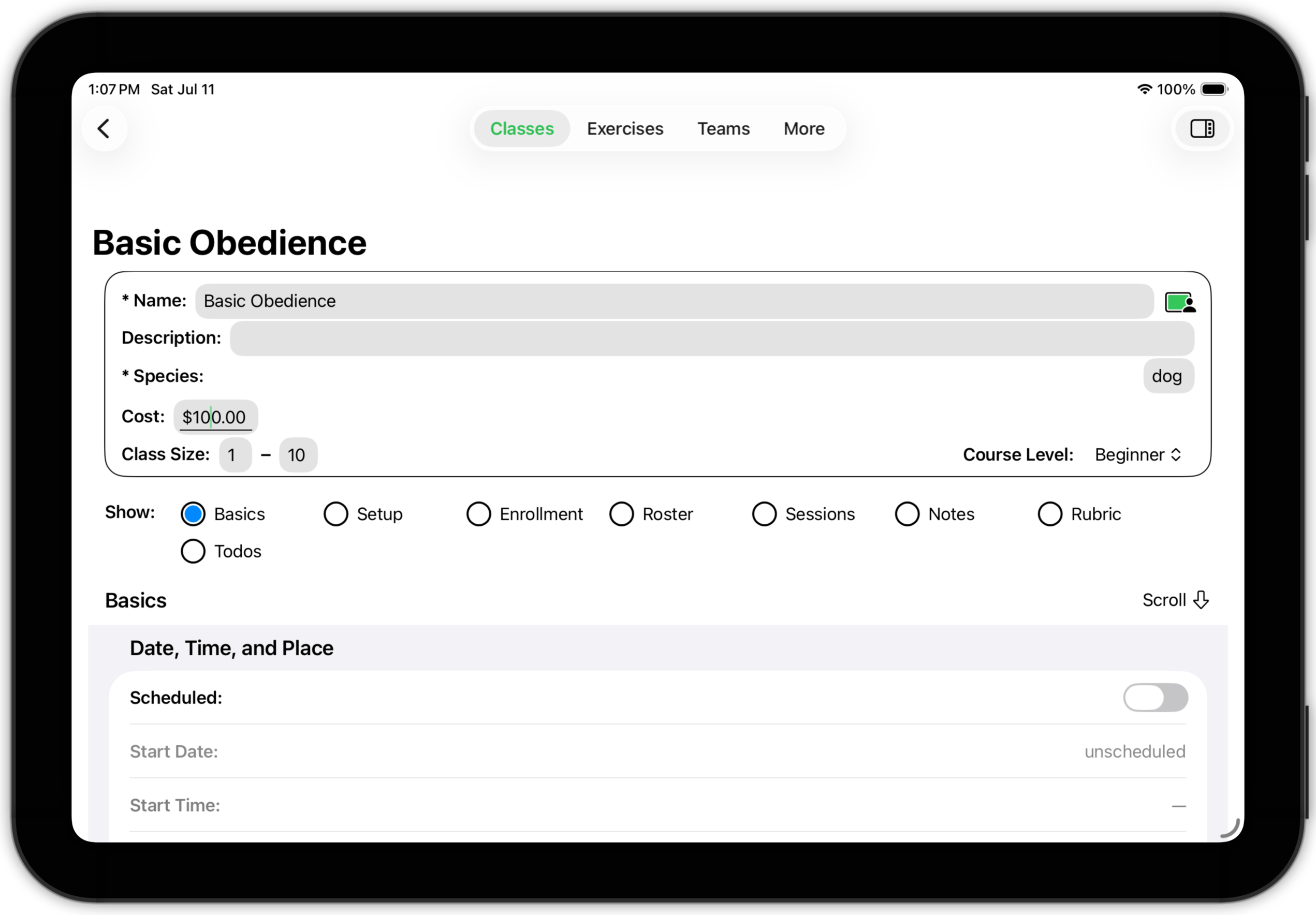
The Class Detail screen consists of four parts: an information box, an actions menu, a section selector, and section detail.
- The box at the top contains basic information about the class and is a constant part of the class detail view.
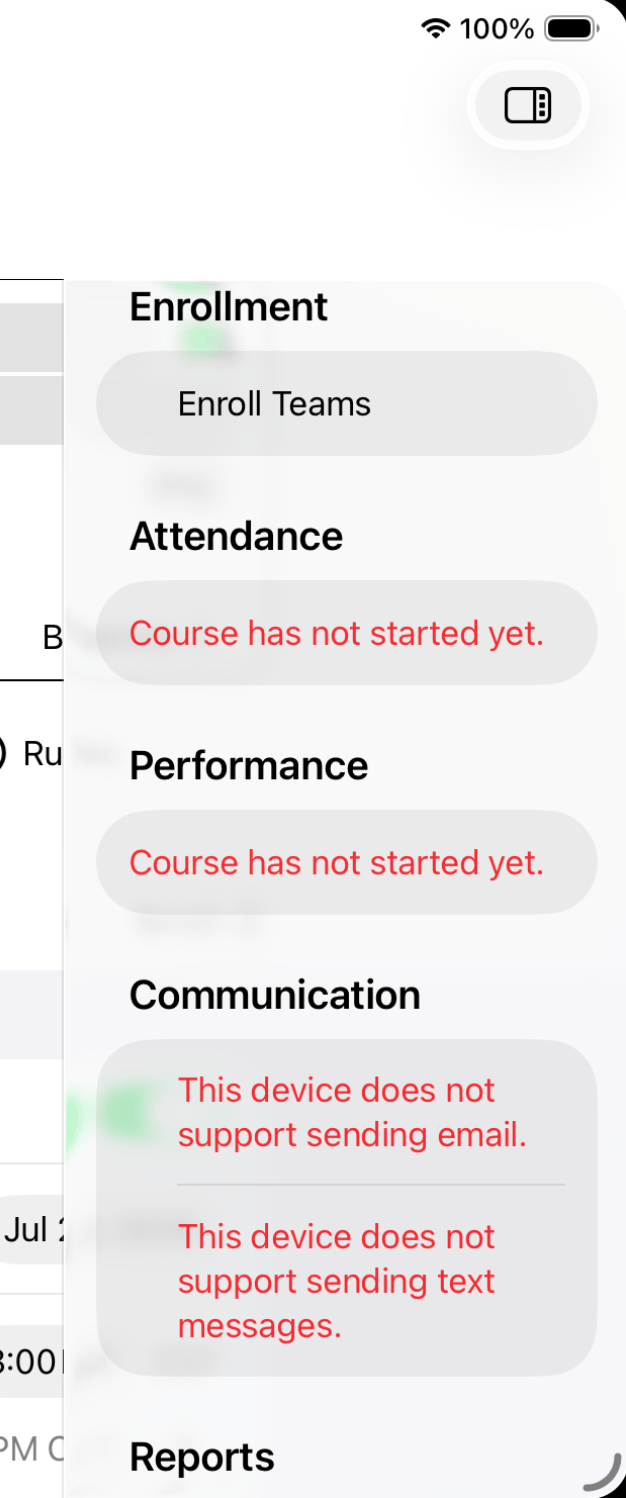
- The actions button (top-right of the screen) opens an actions menu. This menu provides quick access to a number of additional functions that you will find useful.
- The section selector is the set of radio buttons in the middle of the screen. There is a lot of information associated with a class; Training Corner divides the information into sections and displays one section at a time, thus eliminating the need for excessive scrolling.
- The selected section is displayed below the section selector. What you see here changes, depending on which section you've selected.
Class Detail: Basics
The Basics section handles scheduling, attendance policy and todo-list requirements.
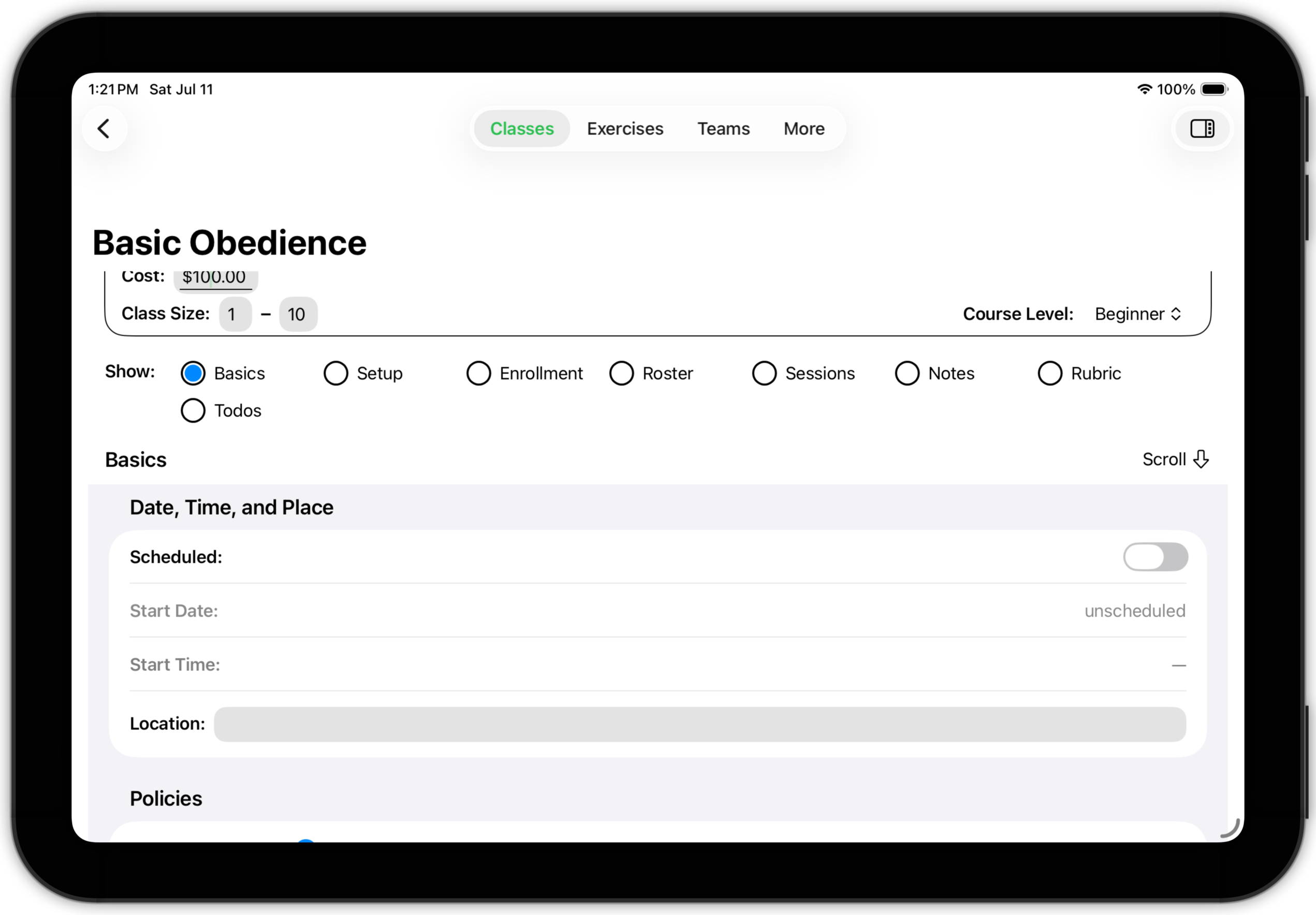
To schedule a class, tap the Scheduled button and fill in the start date, time and location of the class.
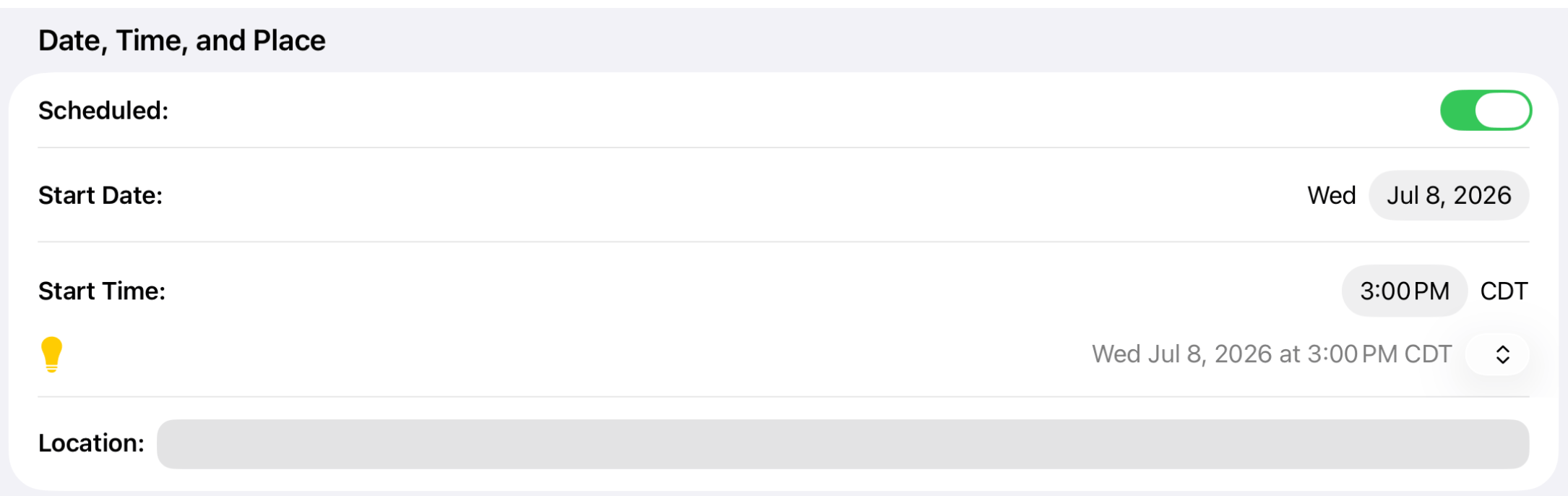
Notice that a new line appears below the start time, which shows the start time in the current time zone. If you teach a video class with students in other time zones, you can use the menu (the button with up-and-down arrows) to show the start time in another time zone.

Next, we have the Attendance Policy menu. As discussed on the Features page, Training Corner supports three attendance policies — standard, rolling, and makeup. Attendance policies have to do with how you handle absences. If your class is a one-on-one consultation, you don't need to worry about attendance — it is assumed. And unless you offer classes on a continuous basis and permit clients to attend sessions that span formal class timelines, you don't need to worry about anything other than the standard policy.
Finally, the Basics subsection allows you to define reminder (todo) actions.
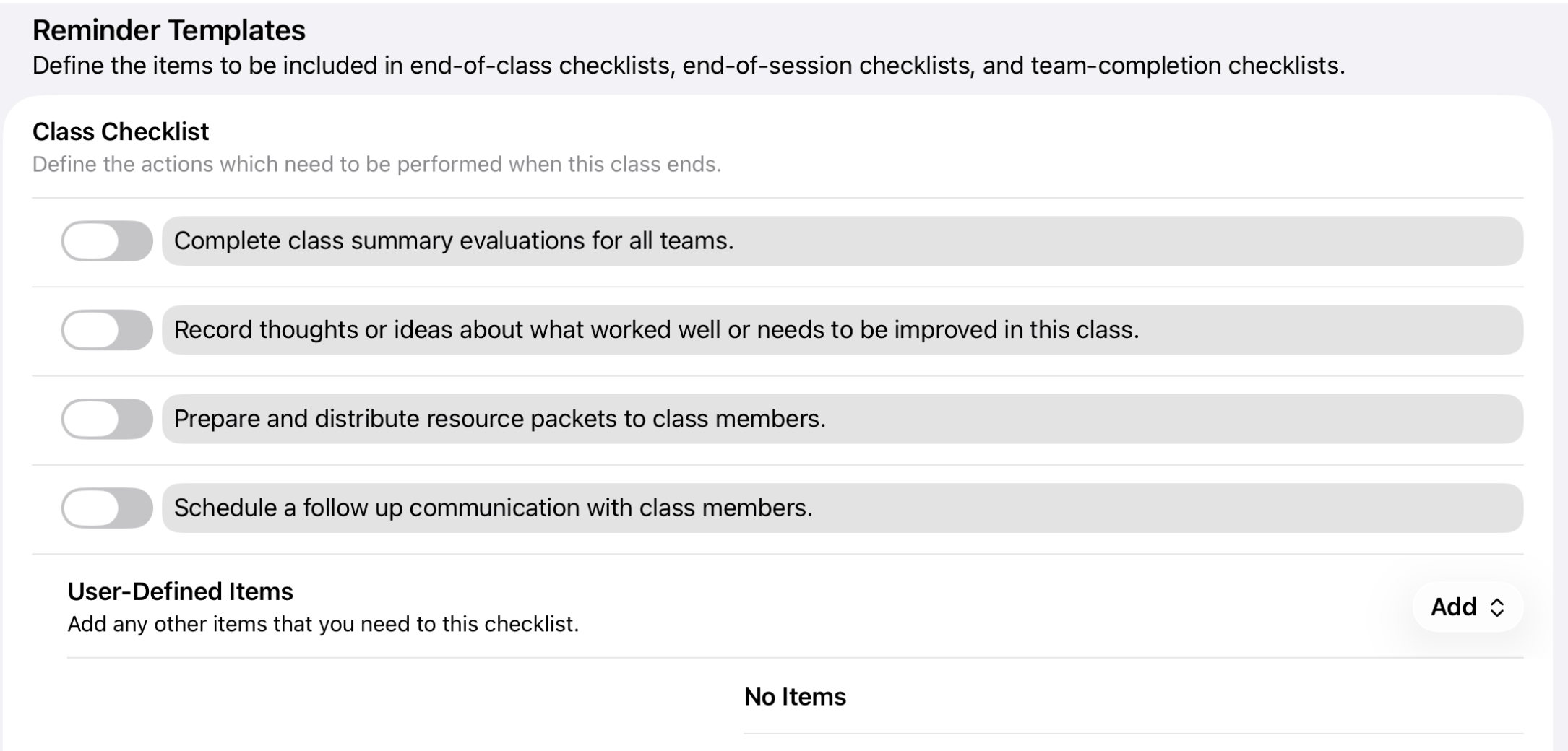
Training Corner can remind you about things you need to do when a class completes, when a session is concluded, etc. When one of these events occurs Training Corner will present a checklist of items to be completed. These lists include your selection of pre-defined and user-defined items.
- When a class ends (i.e., at the completion of the class's last session), a class checklist todo is activated. As you can see (above), the list includes those standard items you want to include, plus any other items of your choice.
- Similarly, when a session ends, a session checklist todo is activated. It contains it's own set of standard items as well as any other items you choose to add.
- If you are doing one-on-one consulting or using a standard attendance policy, your client teams will all complete the class at the end of the last scheduled session. But if you use one of the special attendance policies, teams may finish at other times. Therefore, Training Corner separates out team-related todo items as a special category. Again, the options include standard and user-defined items.
- Another category of todos is follow-ups. A follow-up is a scheduled reminder that you may want to send information to your client teams — tips and suggestions, announcements of future classes, etc. Follow-ups are defined and scheduled in the ToDos subsection.
- Finally, you can create other todo lists (to be activated at whatever time you want) on the ToDos subsection as well.
Class Detail: Setup
The Setup subsection is a place to record some foundational information about the class — either as a reminder to yourself or to convey to clients.
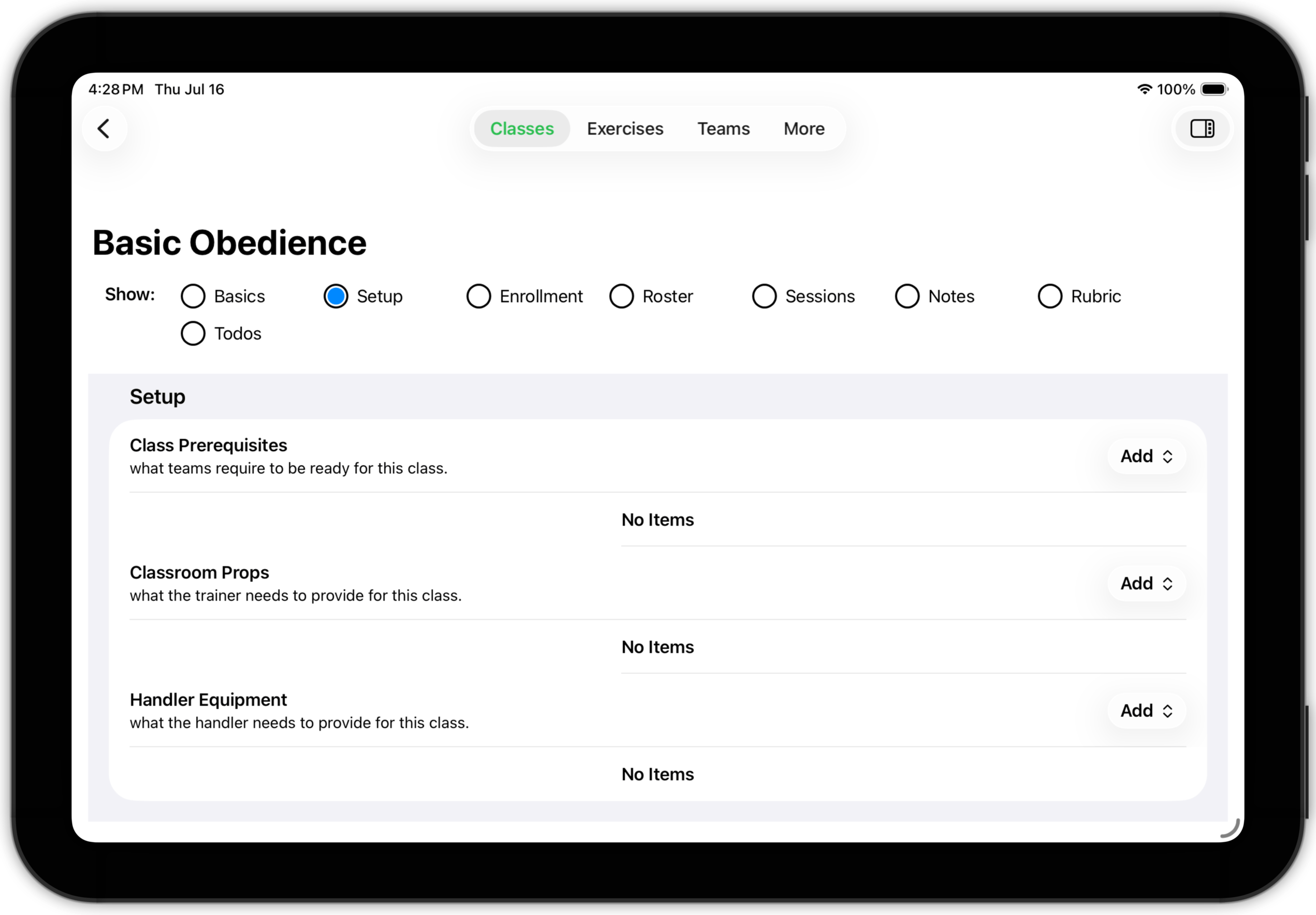
Setup consists of three lists — a list of the prerequisites teams need to be ready for this class, a list of the items you need to bring to each class session, and a list of the items handlers need to bring to each session. Use the Add buttons to add items to the lists.
TopClass Detail: Enrollment
The Enrollment subsection has two purposes:
- Enroll teams in this class
- Define the enrollment requirements teams must meet for this class
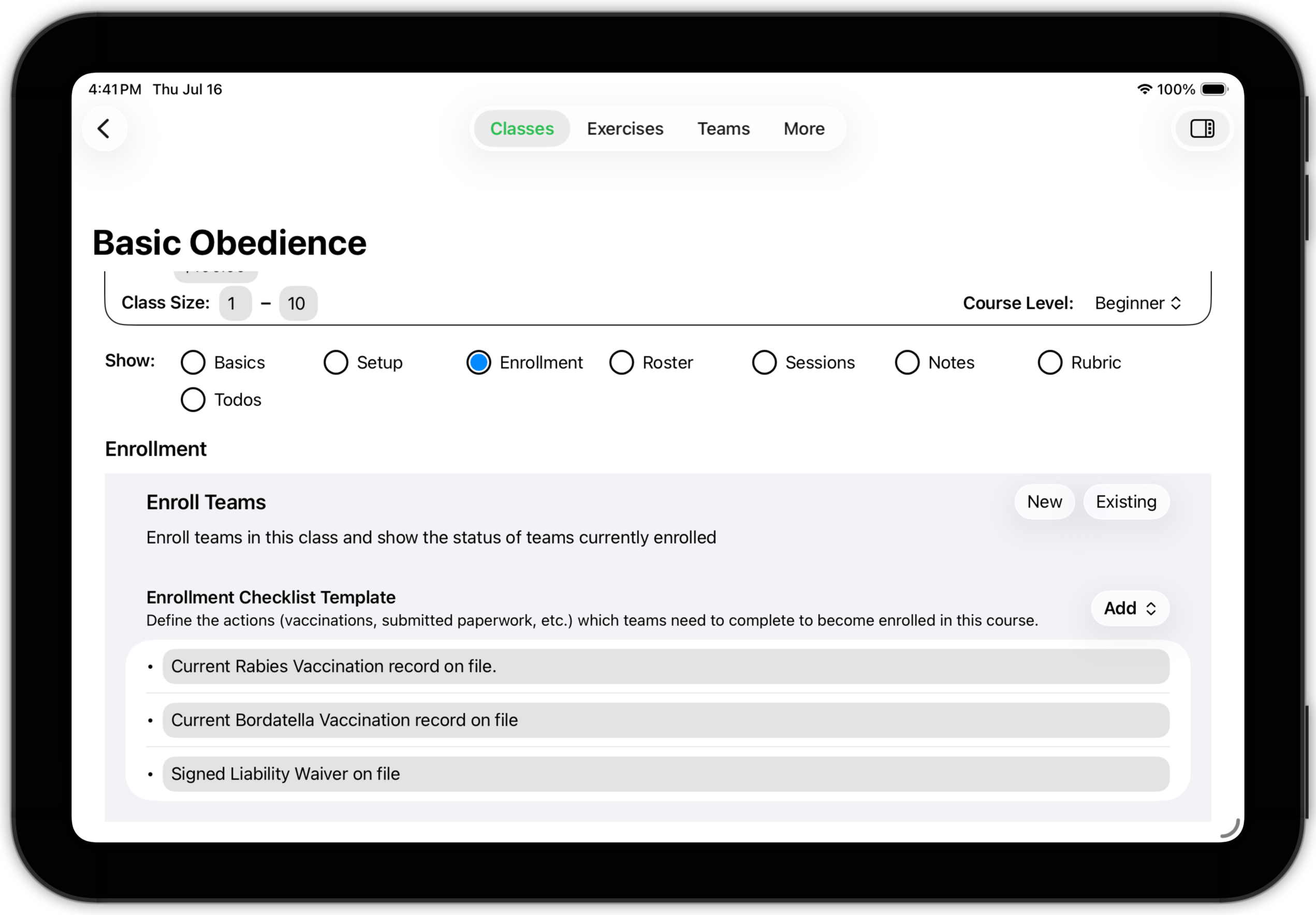
What items are part of your enrollment checklist is, of course, up to you, but you should build the checklist before you enroll anyone in the class. When you enroll a team, a copy of the current enrollment checklist items is associated with the team, so you can check the items off as they are completed.
To enroll a team, you have to set them up in Training Corner. You can either do that here (press the New button) or on the Teams tab. (See Teams for details.) Or, if the team has already been set up, you can add them to the class by tapping Existing.
When you tap Existing, you can choose the team from a list of defined teams.
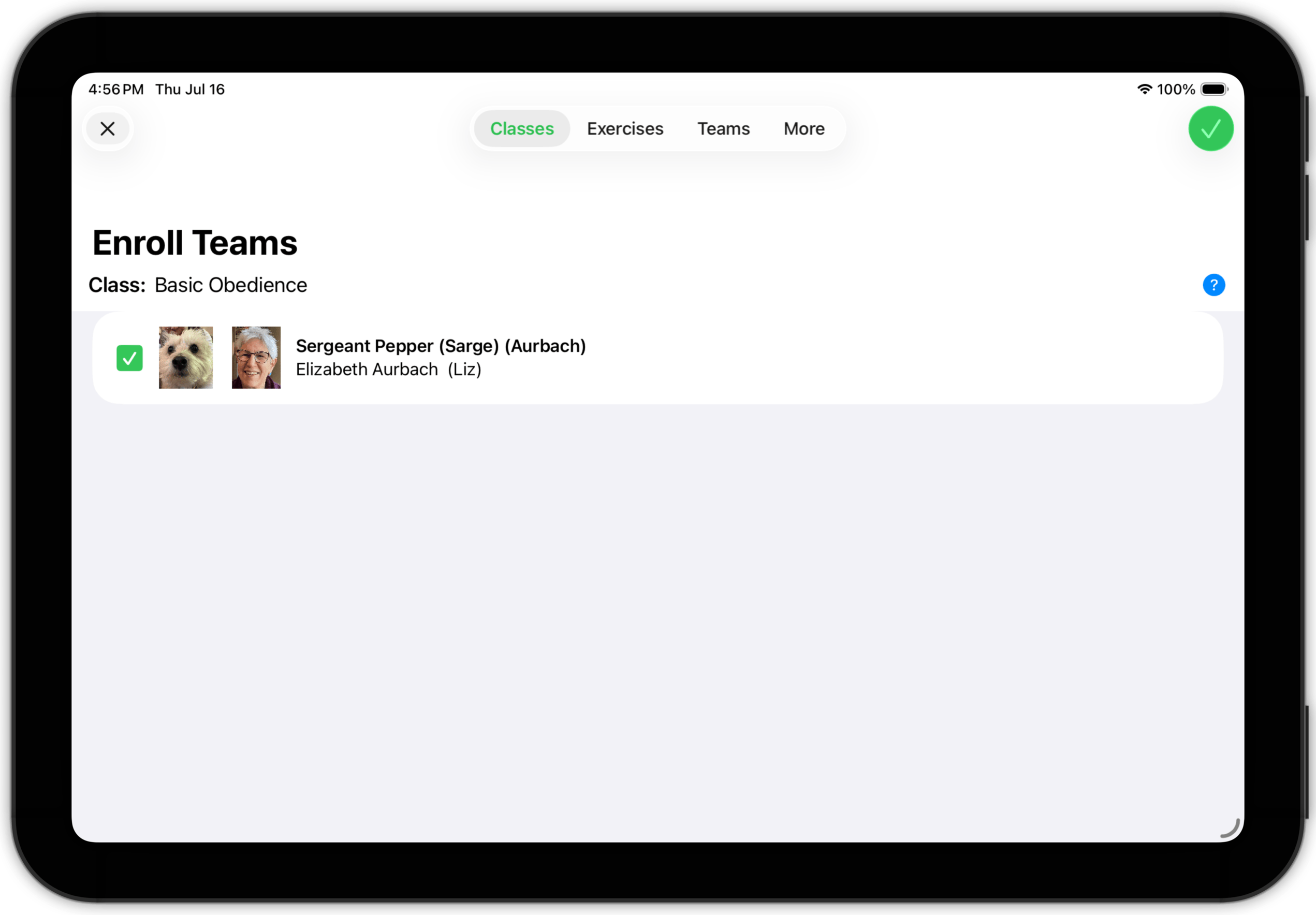
The enrolled teams will show up in the Enrollment subsection.
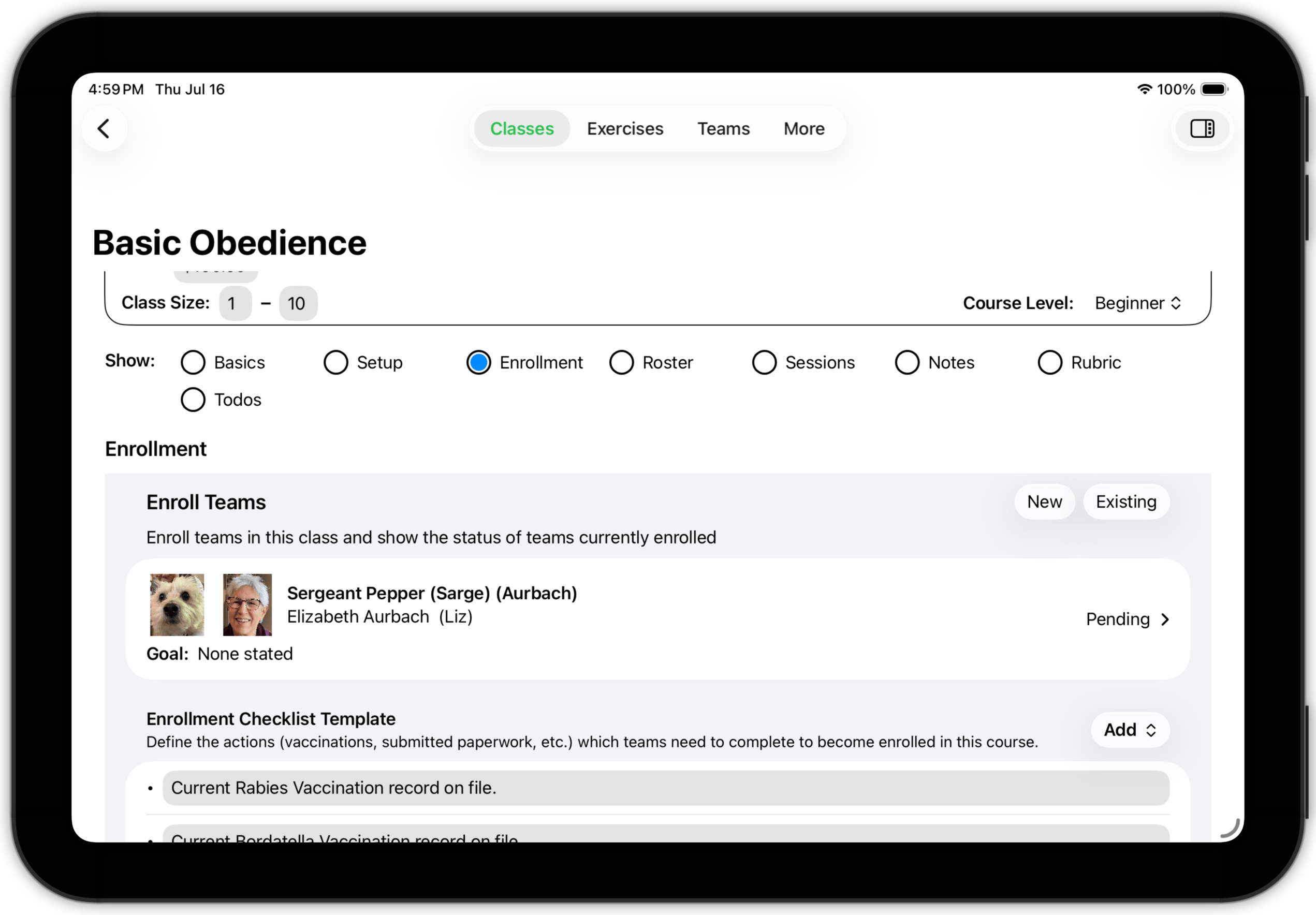
As you can see, the team's status is Pending because the enrollment checklist items have not been completed yet. Tap the team's row to expose enrollment detail. You can enter the team's goal in enrolling in the class and check off the enrollment items as they are completed. When the last enrollment item has been completed, the team's status will change to Enrolled and they will be able to attend class sessions.
TopClass Detail: Roster
The Roster subsection has three sub-subsections — Information, Attendance, and Performance.
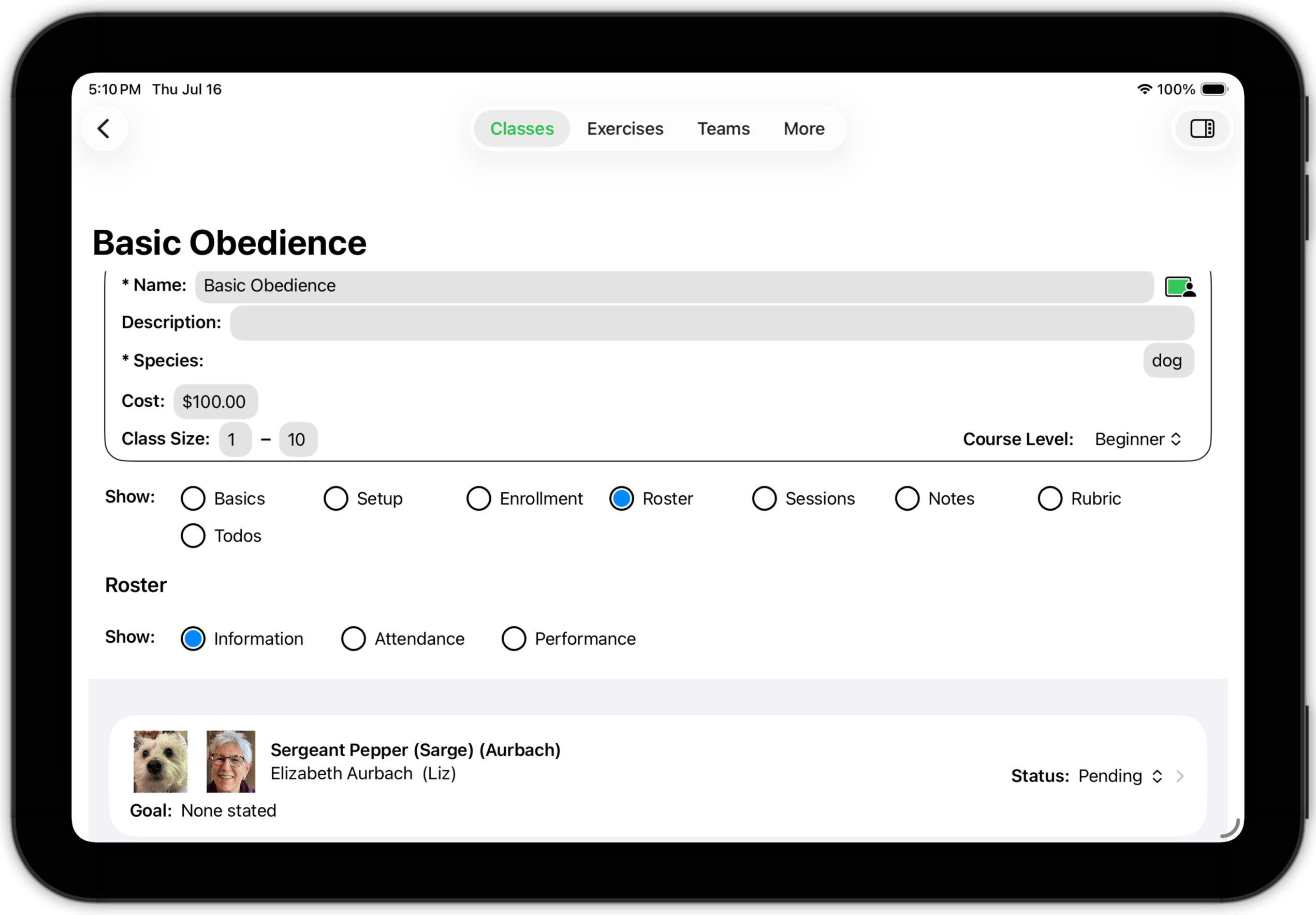
The Information sub-subsection provides access to detailed Information about the team. You can change their status (for example, you can indicate that a team has withdrawn from the class), and tap on the row to open a Team Detail screen (described on the Teams).
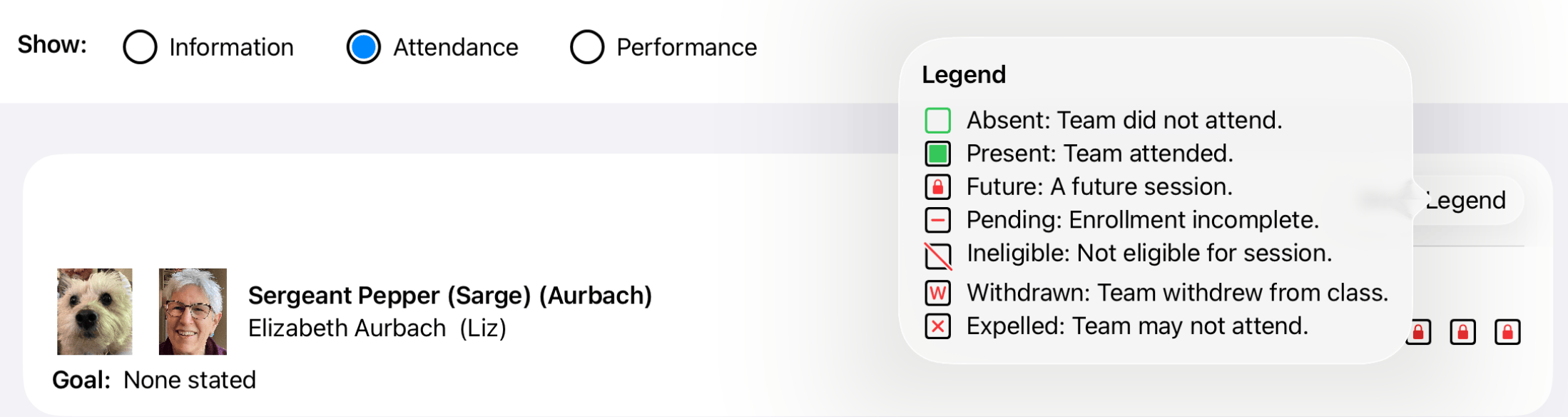
The Attendance sub-subsection is a place to take attendance (as you will see, there are other places to take attendance as well).
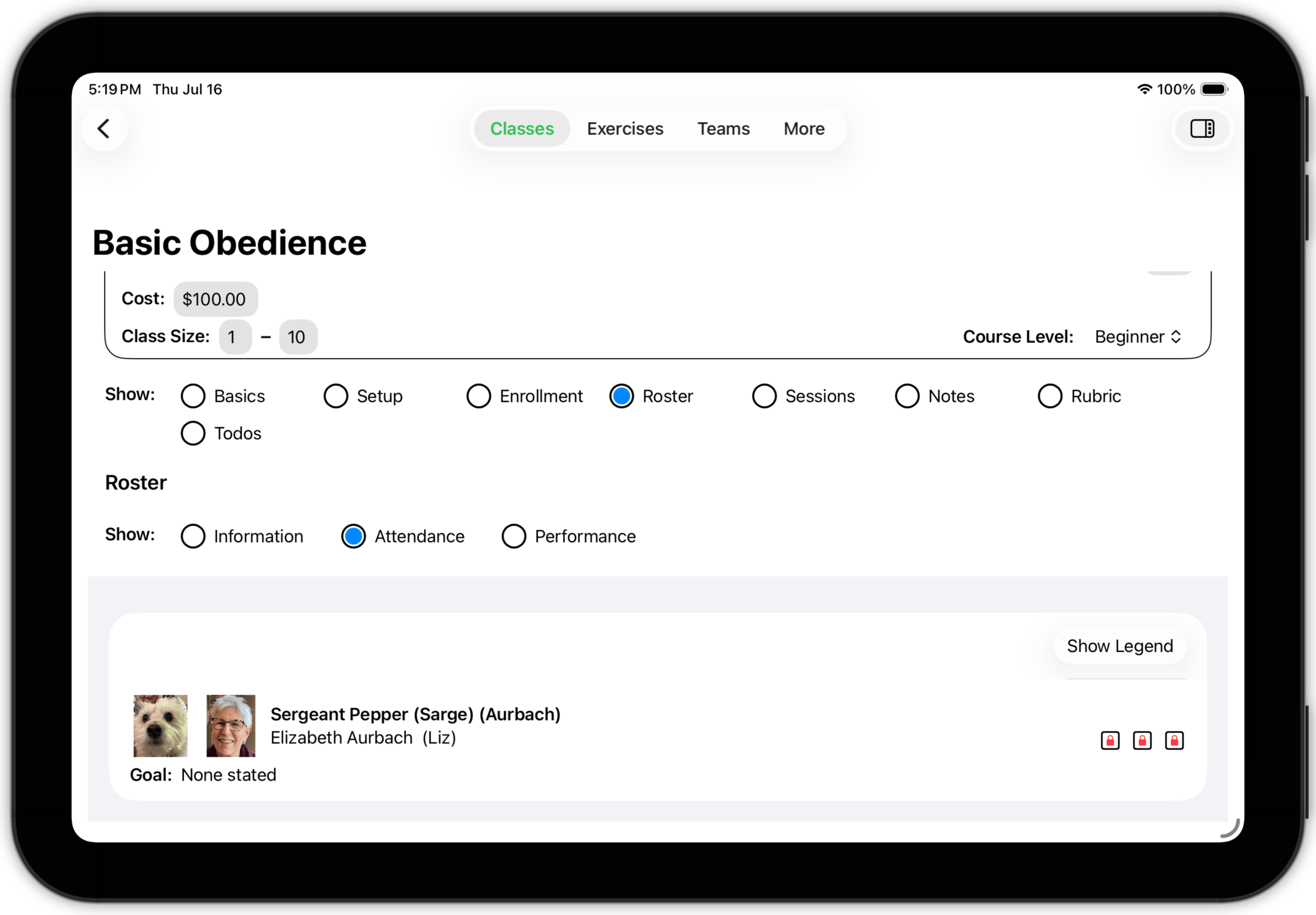
In this case, the class has three sessions. since they are all scheduled in the future, the three session attendance buttons cannot be used at present. Click Show Legend to display the attendance button options.
Finally, the Performance sub-subsection shows information about hos each team performed. Performance can be observed or measured at the class summary level, the session summary level, or at the session segment level.
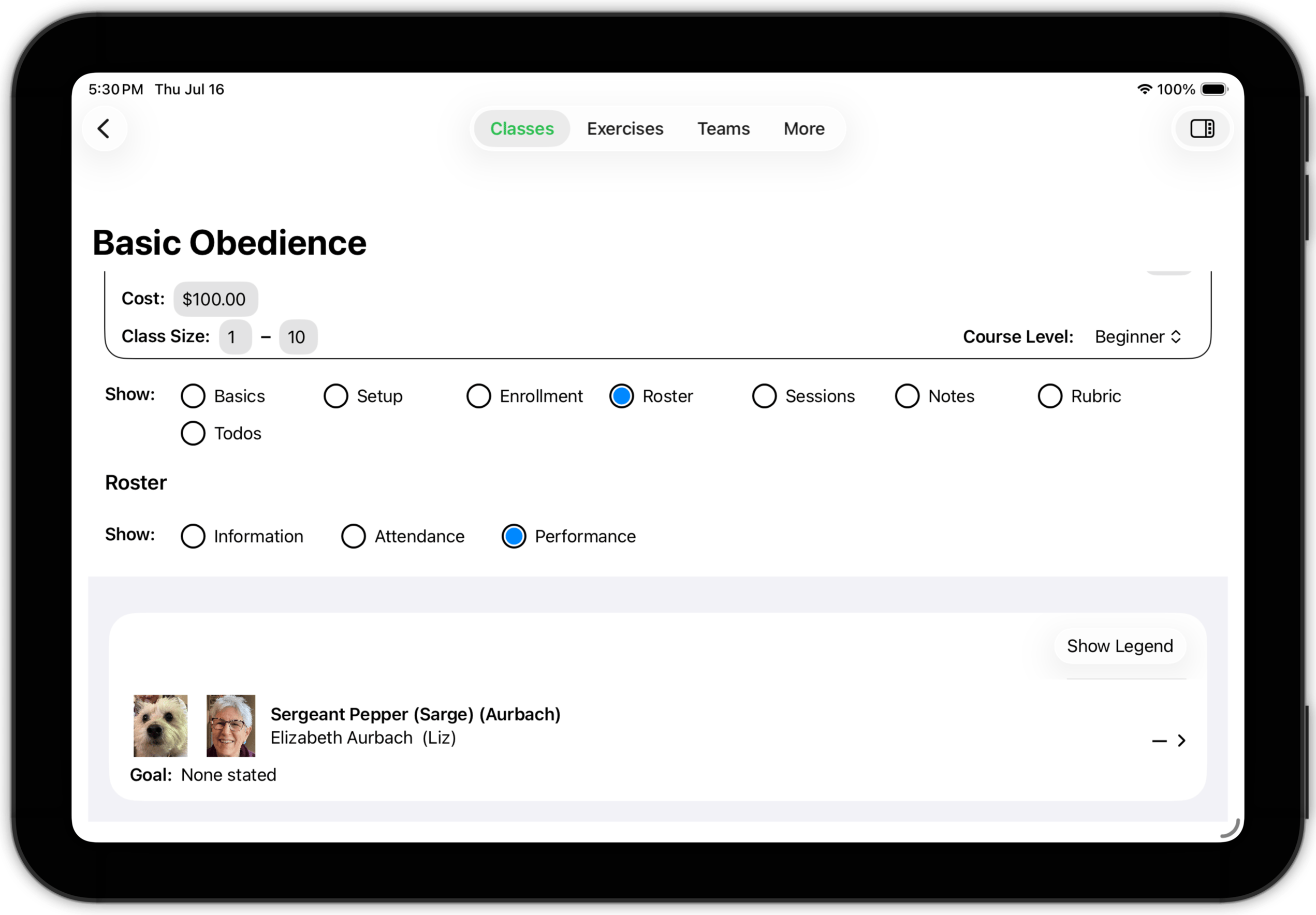
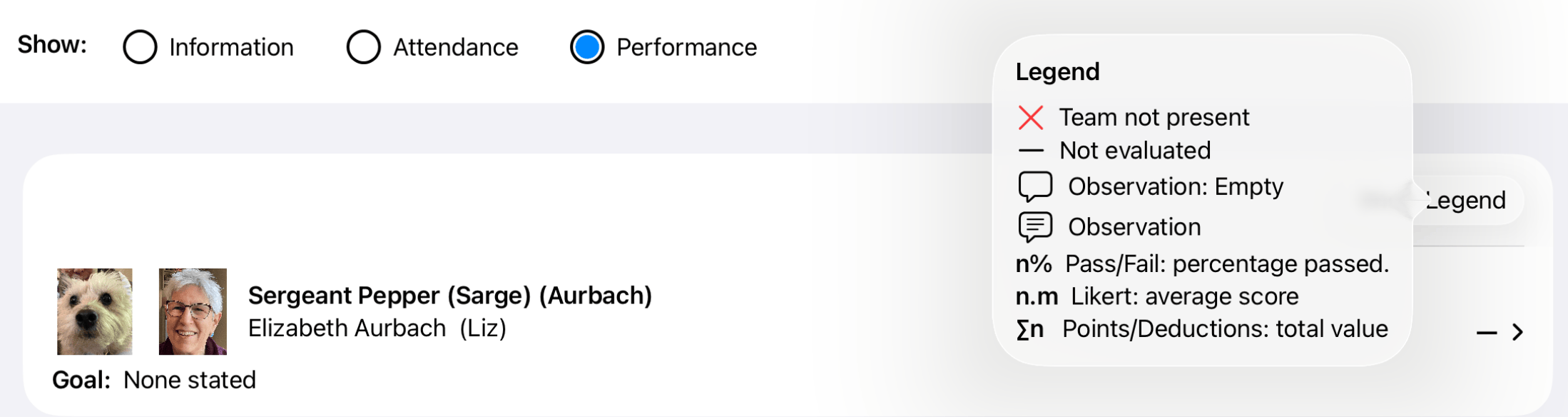
Again, since this class has not yet started, there is no performance data to display. (As with attendance, the data is shown symbolically, and there is a legend.)
If you tap a row, you can see further detail about the team's performance.
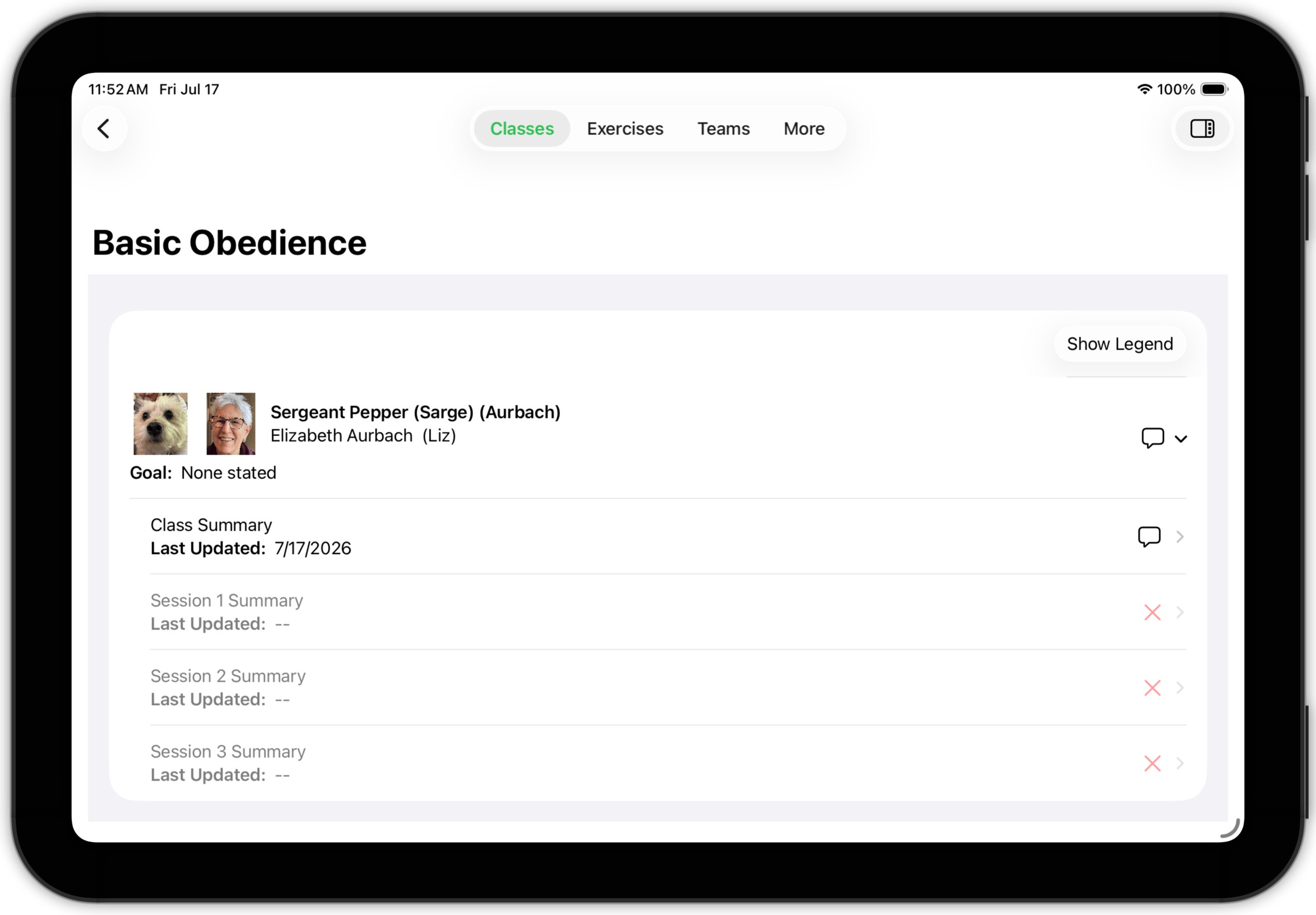
Here, you see that there is a class summary evaluation and session summary evaluations for the three sessions of this class. They are marked as "Team not present" because the sessions have not yet occurred. Tapping on the class-summary row opens a view where the evaluation may be entered, edited or viewed.
We will discuss evaluations in Sessions.
TopClass Detail: Sessions
The Sessions subsection describes each of the sessions of the class. The initial view of the Sessions subsection is a list of the defined sessions.
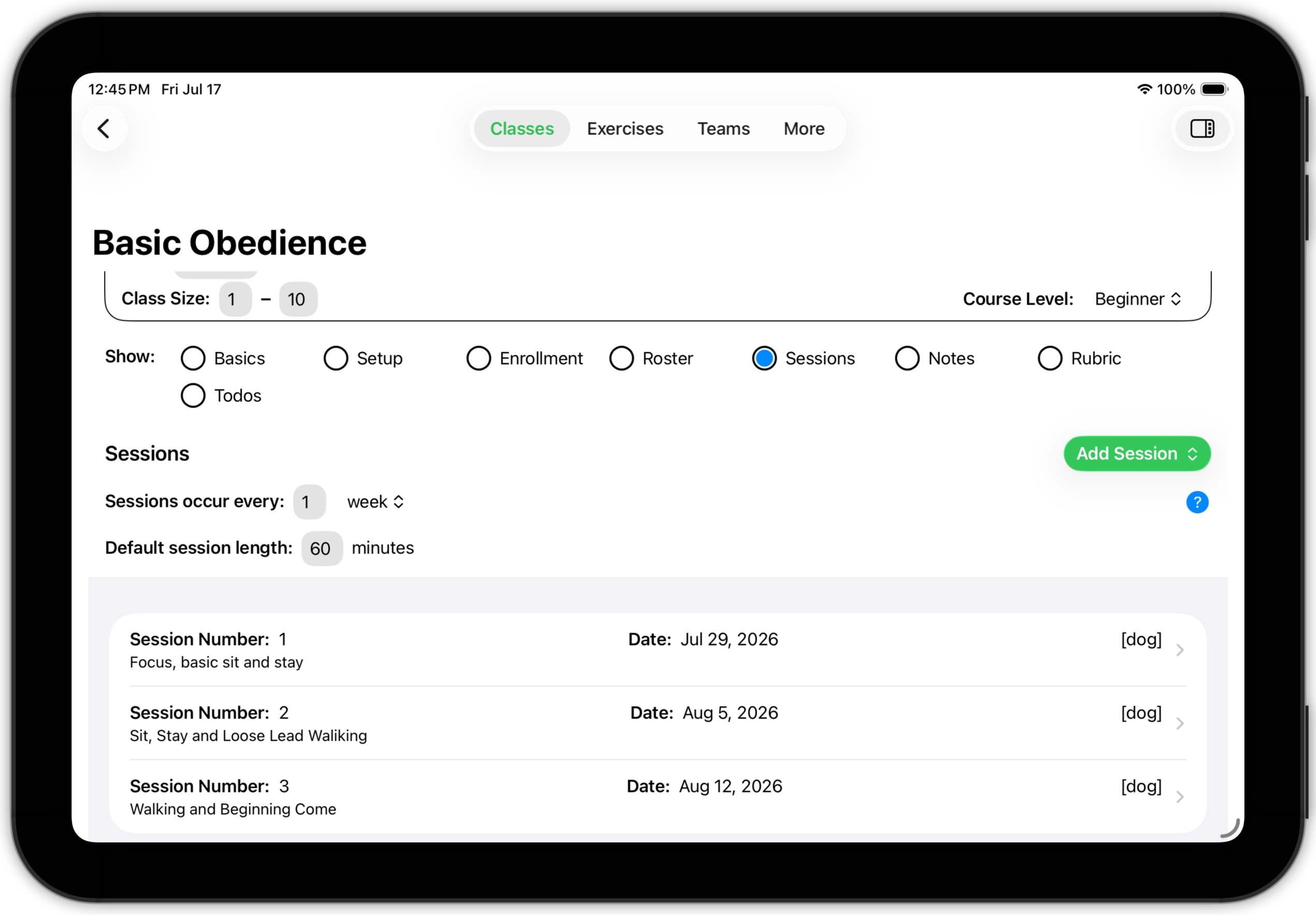
By defining session frequency and duration, you give Training Corner the information it needs to schedule sessions for you.
The session list provides a number of features:
- Tap the Add Session button to add a new session to the class. You can either add a brand new session or a copy of one you've already defined,
- You can delete a session by swiping left (or right-clicking if you using a mouse that doesn't support swiping).
- You can reorder your sessions by dragging.
- You can open a detailed view of the session by tapping its row.
There is a lot of information associated with each session. Session detail is discussed in Sessions.
TopClass Detail: Notes
As was mentioned previously, Training Corner has several Notes subsections. The Notes subsection in Class Detail is intended as a place for you to record your thoughts and ideas about the course itself — its content, its structure, etc.
Notes about individual teams or their members are best recorded in the Notes subsections for Teams, Animals, or Handlers (as you find appropriate.)
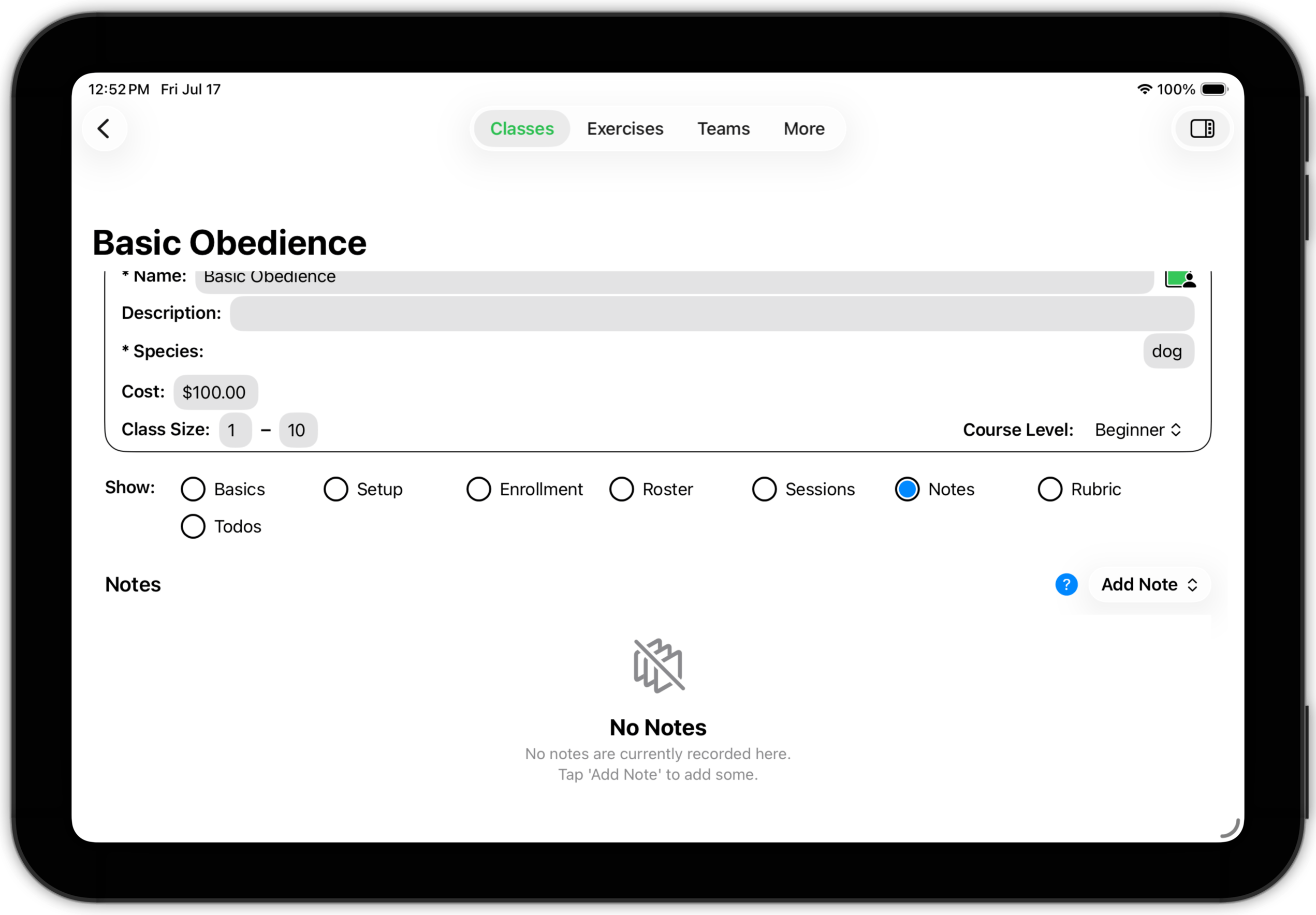
Notes are described in Using.
TopClass Detail: Rubric
Training Corner provides an opportunity in every class to evaluate team performance for the class as a whole — that is, a class summary performance measure. The Rubric subsection is used to define the rubric used to evaluate each team's overall performance in class.
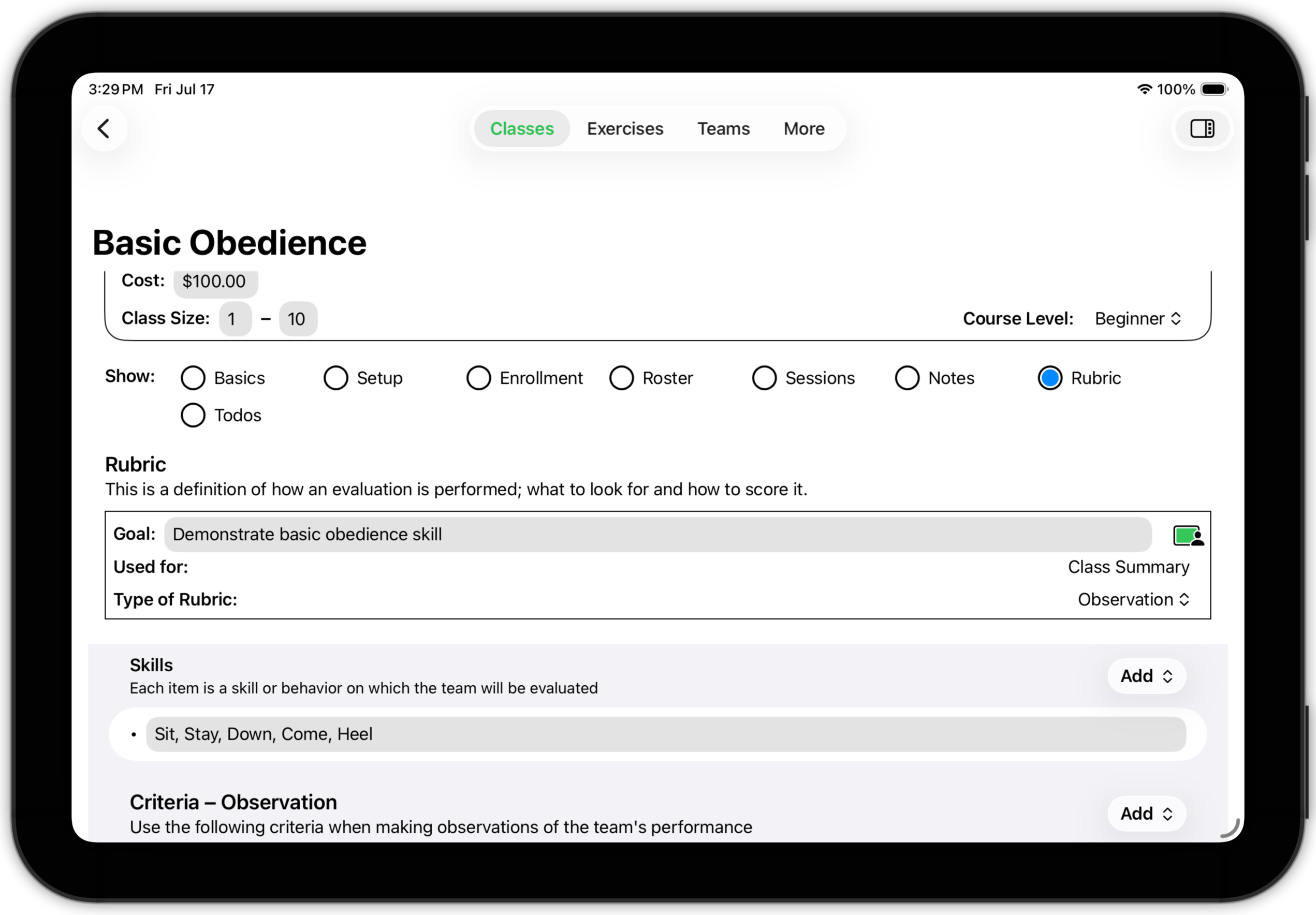
This example is an observational rubric, which is quite typical for many class summary situations. Rubrics are discussed in detail in Performance.
TopClass Detail: ToDos
Training Corner implements a reminder system to help you deal with some of the more mundane details of training, such as paperwork, followup, etc. In the discussion (above) of the Basics subsection, we saw that you can specify what actions need to be taken when a class ends, when a session ends and when a team completes a class. Training Corner automatically schedules these reminders for you, based on the information you enter.
The ToDos subsection is where you go to track and perform those actions.
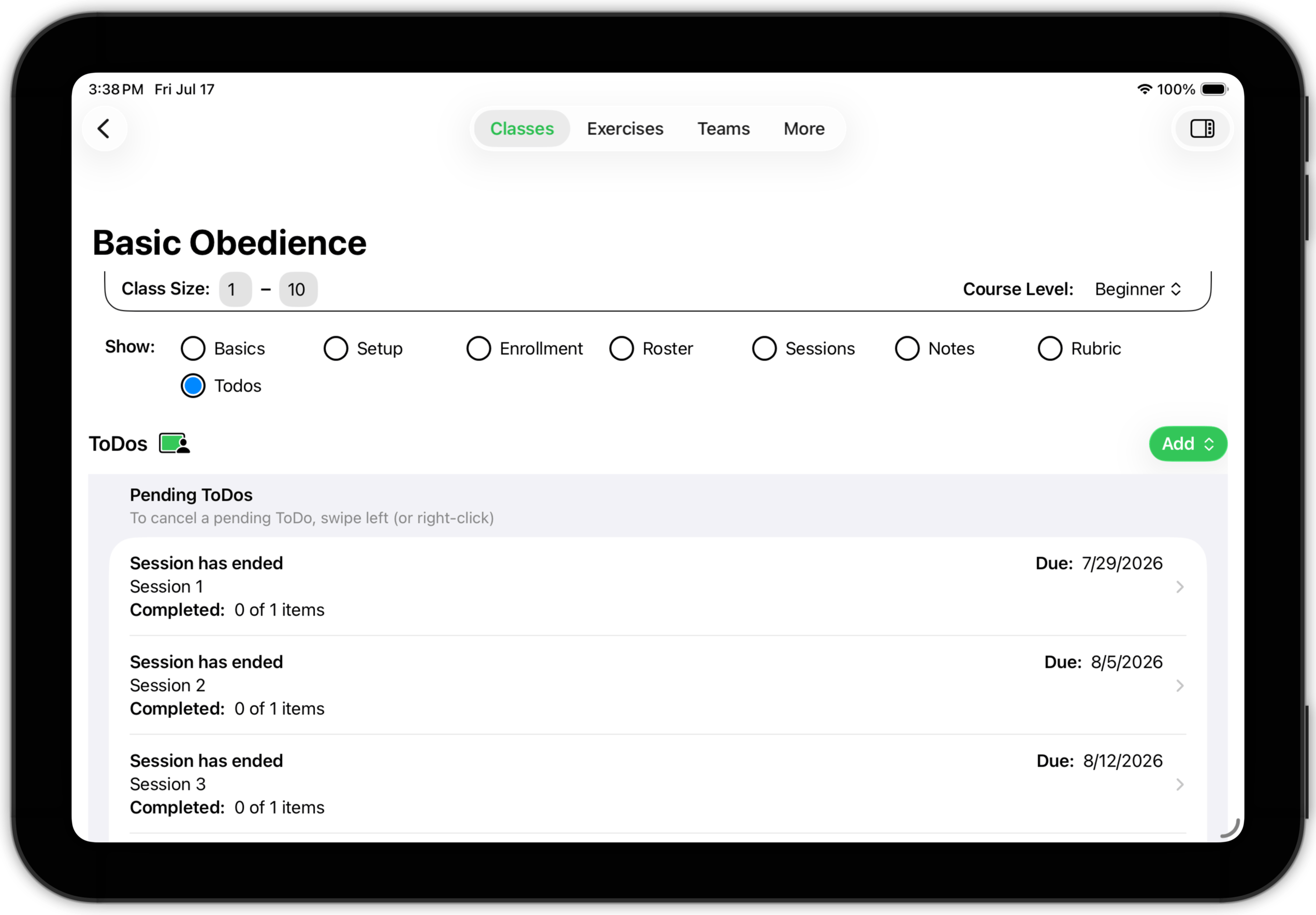
Todos are divided into three categories — pending, current, and completed. Every ToDo has a due date — a date and time when the todo becomes active. For example, the due date for a session todo is the date and time when the session ends. Todos whose due dates have not yet occurred are classified as pending. Once a todo's due date occurs, it is classified as current and stays in that state until all of the items in its checklist have been completed. At that time, it is classified as completed. Todos which have been completed for more than two months are automatically removed.
In the above example, the class has not started yet. Since it (and its three sessions) have been scheduled, pending todos have been scheduled. Also, one team has been enrolled, so a team todo has been added (since we know when that team is due to finish the class). However, the lists of current and completed todos are empty because no todos have reached their due datas.
- Pending ToDos — You can delete a pending todo by swiping left. You can view and edit it by tapping the todo; the todo detail is displayed, you can reschedule the todo and add, edit or delete items in it's checklist.
- Current ToDos — You can delete a current todo by swiping left. You can view and process it by tapping the todo; the todo detail is displayed and you can check off items as you complete them. When all of the items are marked complete, the todo itself will be marked complete and moved to the completed todos list.
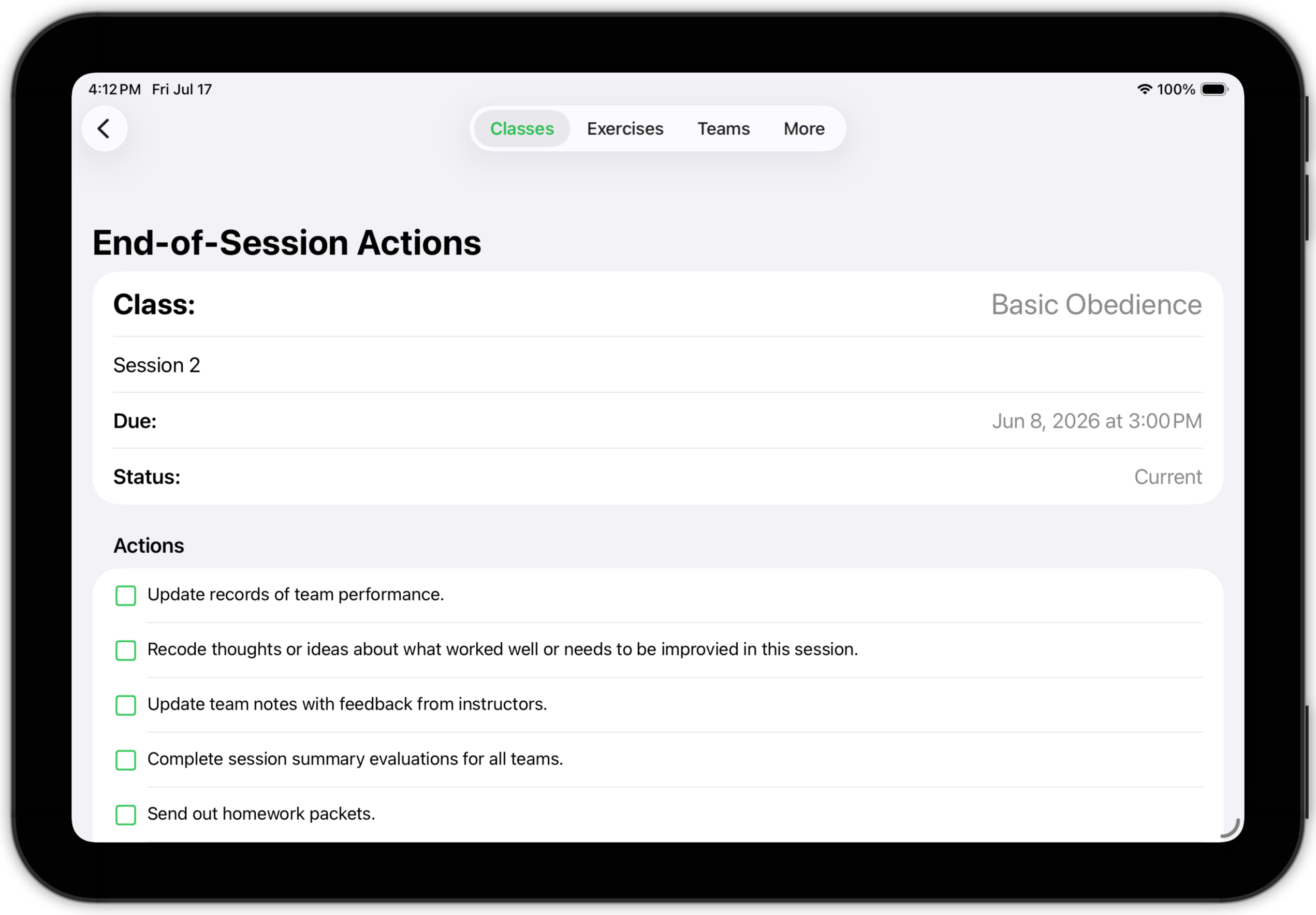
- Completed ToDos — Completed todos can be viewed by tapping the todo. Once a todo is completed, you cannot change it. It will remain in the completed todos list for two months, then be automatically deleted.